Tag: images

  • Google Unveils Enhanced Image Editor For Google Photos: A Closer Look At User-friendly Features

    Google Unveils Enhanced Image Editor For Google Photos: A Closer Look At User-friendly Features

    Google has just released a revamped image editor for its Google Photos application on Android. This newly designed feature, which users might find more user-friendly, can be accessed by selecting a photo from your Google Photos gallery and then hitting the Edit option located on the bottom bar of the screen.

    On the lowest part of the screen, a carousel featuring six options is now available: Auto, Actions, Markup, Filters, Lighting, and Color. Each of these options opens up a variety of editing tools that you can utilize to perfect your image.

    Further Editing Options

    Additional editing tools are available above the image preview. Here, you’ll find icons such as Auto frame, a dropdown menu with various aspect ratio choices, an icon to flip the photo, and another to rotate the image. The top left corner of the screen houses the exit button, labeled “X”, while on the right, there’s a Save button and a three-dot icon that opens a pop-up, which can be used to provide feedback to Google.

    Interactive Image Manipulation

    Once a photo is selected for editing, users can tap, brush, or draw a circle around any portion of the image they wish to edit. This action prompts a menu to appear, presenting all the relevant editing options you have at your disposal.

    For instance, after enclosing a squirrel in a photo with a circle, I was provided with options to Erase the squirrel, Move it to a different location within the photo, or use AI to Reimagine the image. After opting for the last choice and indicating my desire for the squirrel to be holding a baseball cap and wearing a hat, the software generated the requested image.

    Availability of the Feature

    This feature is currently being deployed on version 7.44 of the Google Photos app for Android, following a server-side update initiated by Google. If you haven’t received it yet, you can manually update by navigating to Settings > Apps > See all apps and scrolling to Photos. Tap on Photos, and when you see the App info page, press on Force stop.

    Questions & Answers

    What are the new editing options available on the Google Photos app?
    The redesigned Google Photos app offers a variety of editing tools including Auto, Actions, Markup, Filters, Lighting, and Color.

    How can users manipulate a specific part of an image?
    Users can tap, brush, or draw a circle around the part of the photo they wish to edit, prompting a menu with relevant editing options to appear.

    How can users access the redesigned image editor if it hasn’t automatically updated?
    Users can manually update by navigating to Settings > Apps > See all apps and scrolling to Photos. After tapping on Photos, they can press Force stop on the App info page.
  • Google Lens will soon let you search an image directly with Google Image Search

    Google Lens will soon let you search an image directly with Google Image Search

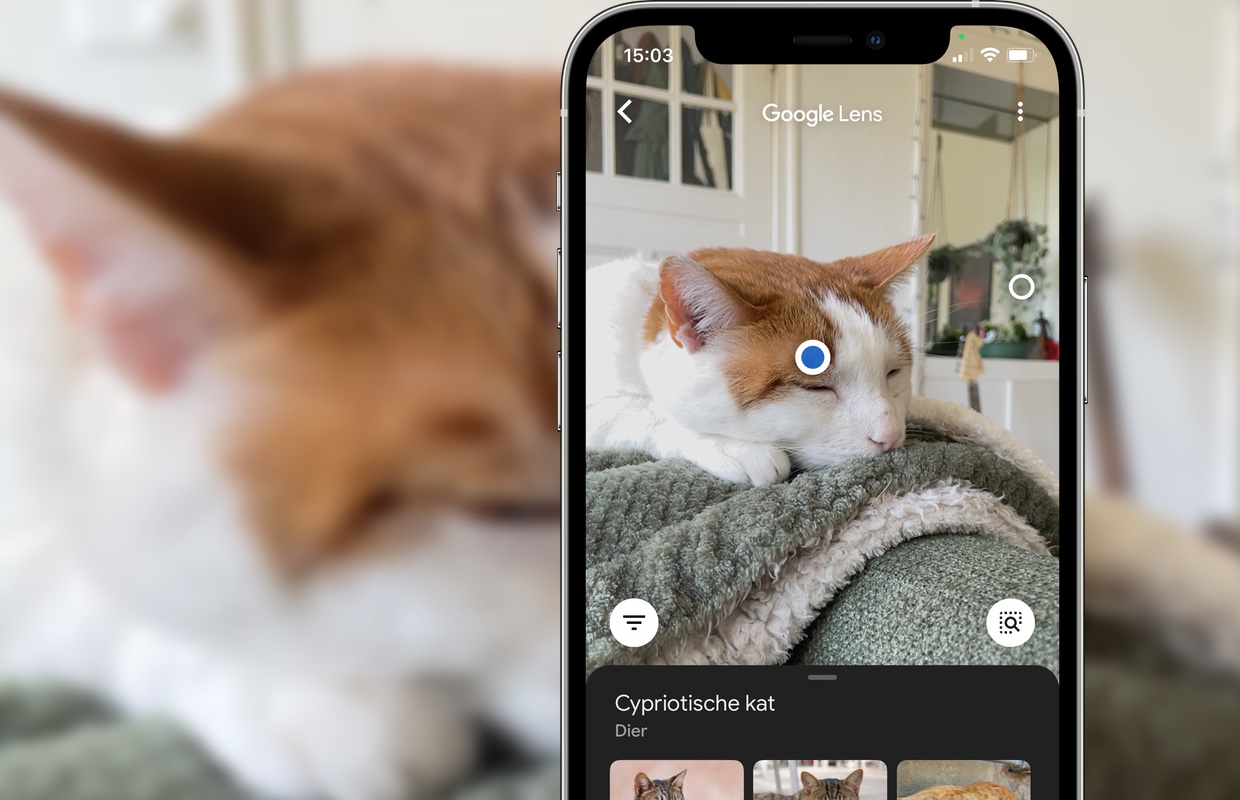
    If you haven’t used Google Lens before, this app lets you scan an item with your phone’s camera and, by using AI image analysis, search for information on the object on the Internet. And now, as the people from 9to5Google spotted, Google is releasing a new feature to its Lens app.

    It appears that the tech giant is rolling out a new button to the Android version of the Lens app that enables you to search a scanned object or an image directly with Google Image Search.

    If you have the new feature, after analyzing an image with Google Lens, you should see a new circular button — with a globe and a magnifier on it — in the bottom-right corner, just below the picture. When you tap it, the app will open Google Image Search and show you results from the search engine regarding the analyzed picture.

    This may be in response to the fact that many users still seem to prefer Google Images instead of trying to work with Lens. The new feature will allow you to try out the Lens result and then swap to the ol’ reliable image search if all else fails.

    Now, keep in mind that Google is still rolling out the new feature, so you may need to wait a while before using it. The new Google Image Search button in Lens will probably come to iPhones as well, but we can’t currently tell with certainty.

  • Twitter users will no longer see cropped images on Android and iOS

    Twitter users will no longer see cropped images on Android and iOS

    After adding support for 4K quality images, Twitter announced earlier today that Android and iOS users will no longer see cropped images posted on its social network. Starting today, Twitter features support for full-sized images, an important upgrade that many users asked for a long time.

    Up until now, Twitter users had to crop pictures they wished to tweet to a 16:9 format, otherwise, the system would do it for them so it could preserve the timeline uniformity. Last month, Twitter confirmed that it has started to test a new feature that would no longer require users to crop their images before tweeting them online.

    It looks like the testing process was fruitful, as Twitter revealed today that it’s now introducing “bigger and better images on iOS and Android,” a feature that’s now available to every one according to the company.

    Long story short, images with 2:1 and 3:4 aspect ratios will now show in full on Twitter, so you won’t need to crop them yourself before posting them. Here is hoping the quality of the videos posted on Twitter will be improved too, although we doubt that will happen any time soon.

  • Twitter adds option to upload and view high-quality images on Android and iOS

    Twitter adds option to upload and view high-quality images on Android and iOS

    Twitter is racing Facebook for the title of the world’s most toxic social network, not just because of the lack of features that would prevent many of its users to be mean to others, but also because it rarely punishes users who break ToS (Terms of Service).

    Last month, Twitter announced that it has started to test a new feature that would allow Android and iOS users to upload high-resolution images. The feature was only available to select users, randomly chosen by Twitter, and enabled them to choose when to load or upload high-quality images on their phones: cellular or Wi-Fi.

    More than a month after the original announcement, Twitter confirmed that that the option to upload and view 4K images on Android and iOS is now available for everyone. To start using the new feature, make sure to adjust your preferences in “Data usage” settings, especially if you’re on a capped data plan.

    You’ll probably have to wait for Twitter to roll out the new option to your phone, or you could try updating the app via Google Play Store or App Store. Once you see the option in the Data usage settings, you’ll be able to view and upload images at resolutions up to 4096 x 4096 on Twitter’s mobile app.