Retail News CRM

Tag: chrome

  • Google Chrome Enhances User Experience with Game-Changing Vertical Tabs and Full-Page Reading Mode

    Google Chrome Enhances User Experience with Game-Changing Vertical Tabs and Full-Page Reading Mode

    Google has introduced two new features to its Chrome browser, aiming to elevate the user experience. These additions, which include vertical tabs and a full-page reading mode, have been available on other browsers, but Chrome users can now avail of these options.

    Introduction of Vertical Tabs

    Google’s Chrome browser now supports vertical tabs, a feature that arranges open tabs in a sidebar format rather than a row at the top. While previously available through advanced settings in recent Chrome builds, the feature is now easily accessible to all users. The “Show Tabs Vertically” option can be activated by right-clicking on any Chrome window.

    This new perspective offers an organized list of tabs on the side, effectively moving the address bar higher up in the window. This adjustment allows for additional vertical space for browsing. Furthermore, this innovative feature makes navigating through tabs significantly easier, making it an appealing addition for power users.

    One can further customize their browsing experience by diminishing the tabs sidebar to display only the websites’ favicons. This option virtually eliminates the Chrome interface, thus promoting a minimalist user experience.

    Full-Page Reading Mode

    The second feature that Google has introduced is a comprehensive page reading mode. As the name suggests, this mode eliminates any unnecessary elements on a webpage, thus creating a more reader-friendly view.

    Users can activate this mode by right-clicking on a page and selecting the “Open in reading mode” option.

    Keeping Pace

    The concept of vertical tabs is not a novel one. They have gained popularity through other modern web browsers that adopt a more minimalist approach. However, Google’s introduction of this feature allows users to maximize their horizontal screen space more efficiently, providing more room for vertical scrolling.

    The vertical tabs feature has been a significant factor in retaining users for competing browsers. Its ease of navigation and efficiency are touted as major benefits.

    With these new additions, Google hopes to replicate this success and potentially re-attract users who have migrated to other browsers.

    Questions & Answers

    How can I activate vertical tabs on Google Chrome?
    You can activate vertical tabs by right-clicking on any Chrome window and selecting the “Show Tabs Vertically” option.

    What is the new reading mode feature on Google Chrome?
    The new reading mode feature eliminates unnecessary elements on a webpage, thus creating a more reader-friendly view. This mode can be activated by right-clicking on a page and selecting the “Open in reading mode” option.

    What benefits do vertical tabs offer?
    Vertical tabs offer a more organized, efficient browsing experience by providing a list of tabs on the side rather than the top. This adjustment allows for additional vertical space for browsing and promotes ease of navigation.

  • Openai’s Atlas: Revolutionizing Browsing With Ai Integration

    Openai’s Atlas: Revolutionizing Browsing With Ai Integration

    OpenAI has escalated its rivalry with Google by launching its inaugural AI-based web browser. The software, termed ChatGPT Atlas, is currently accessible on macOS and is set to extend its support to other platforms in the near future.

    OpenAI’s Internet Ambitions with Atlas

    Atlas, constructed on Chromium, boasts all the conventional features of a contemporary web browser such as tabs, bookmarks, an incognito mode, and a password autofill feature, among others. However, what sets Atlas apart from its counterparts is the integration of ChatGPT into the browsing experience with several unique functionalities.

    One primary feature, dubbed ‘Browser memories’, enables ChatGPT to glean context from your browser history and utilize it when necessary. For instance, users could request the chatbot to recall job listings viewed in the past week or construct a to-do list derived from recent activity. This feature is optional and is designed to delete related memories when the browsing history is cleared.

    Another distinctive attribute of Atlas is the AI ‘agent mode’, which can manipulate a tab and carry out a task independently. In a demonstration previewing the browser, the AI agent successfully compiled a list of ingredients required for a recipe and added them to the checkout page on Instacart.

    A permanent ‘Ask ChatGPT’ button is located in the upper right-hand quadrant of the browser. On activation, it opens a sidebar with the chatbot, facilitating queries about the current webpage without needing to close it or navigate away. The ‘Cursor’ feature is another tool that allows users to edit text using ChatGPT in any text field.

    At present, Atlas is accessible to all ChatGPT users via macOS, with the promise of support for Windows, iOS, and Android on the horizon.

    The Browser Battlefield Heats Up

    OpenAI is the latest player to enter the arena in the struggle for AI supremacy. Google Chrome has maintained its position as the leading web browser for years, but the impending AI revolution is projected to disrupt this status quo. By utilizing chatbots and agents, users’ interaction with apps and websites as well as their approach to work and information search is set to be transformed.

    This anticipated shift is the driving force behind the surge of AI-driven browsers. Despite the recent launch of several AI-based browsers such as Comet by Perplexity, Dia by The Browser Company, and Neon by Opera, along with updates from Google and Microsoft to Chrome and Edge, Apple has refrained from integrating AI into Safari.

    Launching a browser may not be a surprising move for OpenAI, but it will require more than that to sway users. Although it’s likely that many dedicated ChatGPT users may promptly transition to Atlas, achieving mainstream adoption for a new browser is a significant undertaking.

    Personally, I am not yet willing to abandon the horizontal tabs feature of Arc. While the AI-driven features of ChatGPT are intriguing, they don’t present a compelling case for me to break away from my established habits.

    Questions & Answers

    What is the unique feature of OpenAI’s new browser, Atlas?
    Atlas distinguishes itself through the integration of ChatGPT into the browsing experience, offering unique features like ‘Browser memories’ and an AI ‘agent mode’ that can independently carry out tasks.

    Which platforms currently support Atlas?
    Atlas is available on macOS for all ChatGPT users, with plans for support for Windows, iOS, and Android in the works.

    What is the impact of AI on the browsing experience?
    AI is set to transform how users interact with apps and websites as well as their approach to work and information search, driving the current surge of AI-driven browsers.

  • Apple And Microsoft Challenge Chrome’s Dominance: Unveiling The Privacy Controversy

    Apple And Microsoft Challenge Chrome’s Dominance: Unveiling The Privacy Controversy

    Apple has recently cautioned iPhone users against employing the Chrome browser, citing security risks. This situation may remind one of a previous advertising scenario in 2024 where the tech giant, through creative visuals, illustrated Android users exploring the Chrome Browser in public and being surveilled by transforming cameras. These cameras symbolized internet user trackers, which failed when attempting to spy on users of Apple’s own Safari browser. The underlying message being that Safari provides superior protection of users’ personal information than its counterparts, specifically pointing out the Chrome browser.

    Google’s Privacy Sandbox: A Failed Attempt at Privacy

    In a parallel move, Microsoft attempted to dissuade Windows users from using Chrome. They promoted their own browser, Microsoft Edge, as a trustworthy alternative that operates on the same technology as Chrome. Despite these concerted efforts by Microsoft and Apple to dethrone Chrome, the browser boasts a massive user base of over 3 billion worldwide. However, Google recently dropped a bombshell by announcing the end of its Privacy Sandbox project, its proposed alternative to third-party cookies for the web and Android applications.

    Back in January 2024, Google initiated the process of phasing out third-party cookies from Chrome. The agenda was to replace them with the Privacy Sandbox, aiming to gauge a consumer’s interests without resorting to widespread internet tracking to push personalized advertisements. Such targeted ads typically command higher prices from the advertisers due to their increased effectiveness, thereby contributing to Google’s revenue.

    The Privacy Sandbox was intended to shift ad selection and data processing tasks directly to the user’s browser and device, eliminating the need for third-party trackers to transmit individual user data across the web. Despite initial plans, Google resolved not to discontinue the use of third-party cookies last year, culminating in the current halt to the six-year-old Privacy Sandbox initiative.

    The Future of Chrome Amidst Privacy Concerns

    Although Chrome users may once again be subjected to tracking and personalized advertising, Chrome’s substantial market share is anticipated to remain unaffected. Currently, the browser dominates over 70% of the market, both in mobile and desktop segments. However, emerging competition from AI browsers like Perplexity’s Comet and an upcoming AI browser from Open AI’s parent ChatGPT could potentially pose a threat to Chrome.

    The Privacy Sandbox tools that Google has decided to withdraw include a host of features such as Attribution Reporting API for both Chrome and Android, IP Protection, On-Device Personalization, Private Aggregation, and more.

    An API, or Application Programming Interface, serves as an intermediary enabling two distinct software interfaces to communicate and exchange data. This process can be likened to the functioning of a restaurant, where an app seeking data is the customer, the API is the waiter relaying the order to the kitchen (the server), and then serving the prepared food (data) back to the customer.

    Google’s cancellation of the Privacy Sandbox was attributed to its “low levels of adoption”, indicating that it failed to provide sufficient value to its users.

    Questions & Answers

    Why did Apple caution its users against using Chrome?
    Apple cited security risks as the primary reason for advising its users against using the Chrome browser. The company highlighted through a past advertisement that its own Safari browser offers better protection of personal data.

    What was the purpose of Google’s Privacy Sandbox?
    Google’s Privacy Sandbox was intended to replace third-party cookies in Chrome. It sought to understand consumer interests without having to track user behavior across the internet, facilitating the delivery of personalized ads.

    Why did Google decide to cancel the Privacy Sandbox?
    Google stated that the Privacy Sandbox had not been adopted widely and that it wasn’t providing enough value to its users, which led to its decision to discontinue the project.

  • Chrome for Android, iOS, adds important summarization feature

    Chrome for Android, iOS, adds important summarization feature

    Have you ever found yourself struggling to comprehend the content of some webpages? For those using Chrome Browser for Android, a new tool might solve this problem. This feature, powered by artificial intelligence (AI), is set to enhance your browsing experience on Google’s browser – courtesy of Gemini.

    Introducing the Gemini Overlay with a Summarize Feature

    The Gemini overlay is available on the stable versions of Android 16 as well as the latest Android 16 QPR2 Beta 2 update. It kicks off with an intuitive prompt that allows you to input a question for Gemini to address. Following this, you will find the “ask about page” option. This feature enables Gemini to clarify or elaborate on a section of the webpage you’re currently viewing. You can also utilize this button to request Gemini to compare two specific items featured on the webpage. Lastly, the overlay comes equipped with a Summarize button that generates a brief synopsis of the webpage displayed on your screen.

    If you have the Gemini app installed on your Pixel device, initiating a long press on the power button should activate the Gemini overlay.

    How to Use the New Summarize Feature

    To make use of this feature, launch Chrome Browser on your Pixel phone and visit a website. Hold down the power button to bring up the Gemini Overlay. Tapping on the Summarize button will provide a concise summary of the webpage content on your screen. This feature can be utilized not only when reading a story on Chrome or viewing a Chrome custom tab like Discover, but it can also summarize Search results and stories read on the Google News app.

    Above the Summarize button, you’ll find the “Share screen with Live” option. Tapping on this, Gemini Live can view and interpret the content displayed on your phone’s screen, transforming Gemini into a powerful visual assistant. Whether you’re looking at a shopping app or directions on the screen, Gemini can provide additional information or help you comprehend complicated instructions.

    The Summarize button is accessible on both Android and iOS platforms. For iOS users, you can access this feature by opening the Chrome app and navigating to a website. Tap on the icon that looks like a stack of paper with text on it and a “+” sign, located on the left side of the Chrome address bar. A “Page tools” pop-up will appear from the bottom of your screen, offering two options: “Search screen” and “Ask Gemini”. Choose the “Ask Gemini” option, which will bring up the Gemini overlay. Click on the Summarize button to view a summary of the displayed content.

    Utilizing Gemini as Your Digital Assistant

    In order to take advantage of this feature, you should have the Gemini app installed on your device. Android phone users can install the app from the Play Store, while iPhone users can download it from the App Store.

    If you’re a Pixel user looking for more comprehensive responses to your queries, you might consider using Gemini as a replacement for Google Assistant. You can do so by opening the Gemini app, clicking on the profile icon in the upper right, and navigating to Settings > Digital assistants from Google. Here, you can choose between Gemini and Google Assistant.

    Questions & Answers

    What is the Gemini overlay?
    The Gemini overlay is a feature on Google’s Chrome browser that uses AI to help users better understand webpage content.

    How can I use the Summarize feature on my Android device?
    To use the Summarize feature, open a website using the Chrome Browser on your Android device. Long-press the power button to bring up the Gemini Overlay, then tap on the Summarize button to get a concise summary of the webpage content.

    Can I use Gemini as a replacement for Google Assistant?
    Yes, if you’re looking for more comprehensive responses to your queries, you might consider using Gemini as a replacement for Google Assistant. This can be done via the settings in the Gemini app.

  • Hexnode Enhances Support for Purpose-Built Devices with ChromeOS Kiosk Lockdown and Windows Digital Signage

    Hexnode Enhances Support for Purpose-Built Devices with ChromeOS Kiosk Lockdown and Windows Digital Signage

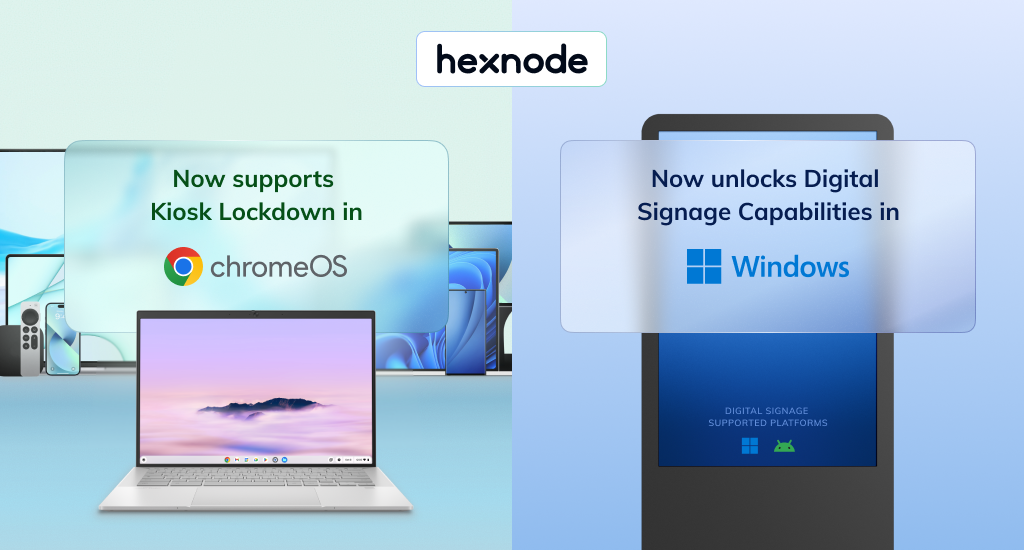
    Hexnode, the leading Unified Endpoint Management (UEM) platform from Mitsogo Inc., has announced the extension of Kiosk Lockdown support to ChromeOS and the addition of digital signage capabilities to its Windows kiosk management offering.

    These enhancements empower businesses to take better control of their single-purpose and customer-facing endpoints. By restricting access to unnecessary applications and streamlining content management, organizations can strengthen security and ensure displays remain relevant and up to date.

    “As businesses rely more on purpose-built devices for customer engagement, even brief downtime can disrupt operations and the customer experience,” said Sahad M, Chief Technology Officer at Hexnode. “Recognizing this, we are committed to providing reliable kiosk and digital signage tools that help businesses transform everyday devices into secure, easily manageable interaction hubs.”

    Transform ChromeOS devices into Interactive Kiosks

    ChromeOS is gaining ground as a preferred platform for kiosk deployments by offering an affordable, compact, and cloud-first design solution. Businesses using ChromeOS-powered kiosks have reported an increase in sales and efficiency, making it ideal for applications ranging from self-service kiosks to exam-ready student devices.

    Hexnode now offers several essential features for managing ChromeOS kiosks:

      • Single-App Kiosk Mode: Lock devices into a single app for a focused experience, ideal for self-ordering, check-ins, or wayfinding. Enhance security by disabling plugins and function keys, blocking browser extensions and shortcuts to prevent malicious actors from exploiting loopholes and exiting kiosk mode.

    Multi-App Kiosk Mode: Grant access to a curated set of apps while blocking distractions, ideal for environments that require flexibility without compromising security. This mode is particularly valuable in digital classrooms or healthcare environments, where users may have limited tech expertise, ensuring they can switch between essential apps easily.

    Power and Accessibility Settings: Configure power and battery settings to align with usage patterns, optimizing uptime and extending device longevity. Manage accessibility features like virtual keyboard and dictation, ensuring a user-friendly experience on shared or public devices.

    Remote Management: Quickly lock or wipe kiosk devices in the event of compromise or loss, and reboot devices when they freeze or malfunction, all without the need for on-site technician intervention.

    Turn Windows Devices into Engaging Digital Signage

    Windows remains a widely adopted choice for digital signage after Android, thanks to its long hardware lifespan, robust performance, and broad compatibility with signage software and peripherals. From retail chains to corporate campuses, Windows-powered signage is used to broadcast promotions, display dynamic menus, and relay internal communications. With digital signage shown to boost customer visits by 80%, delivering the right message at the right time has never been more crucial.

    Hexnode equips businesses to display content effectively through:

      • Content Deployment: Easily push promotional images, videos, or URLs to remote displays, making it perfect for keeping retail storefronts updated or synchronizing digital menus across multiple locations.

    Loop Video Mode: Auto-play content in a continuous loop, keeping customer engaged with uninterrupted video playback in high-traffic areas like malls or transport hubs.

    Full-Screen Display: Automatically adjust content to fill the screen, ensuring consistency and visual impact in environments like corporate lobbies or product showcases.

    With the latest addition of digital signage capabilities to Windows kiosk lockdown and newly expanded kiosk support for ChromeOS, Hexnode’s kiosk solutions now cover major platforms like macOS, iOS, Apple TV, Windows, Android, and ChromeOS. This unified approach empowers IT teams to seamlessly secure and manage interactive kiosks and digital signage displays across a diverse fleet of devices.

  • The Peninsula Boutique reopens at Hong Kong Airport

    The Peninsula Boutique reopens at Hong Kong Airport

    The Peninsula Boutique has reopened a revamped retail space at Hong Kong International Airport’s passenger departure area.

    The redesigned boutique features a minimalist aesthetic with green tones and Champagne chrome accents, aiming to offer a modern and approachable retail experience.

    Travellers can find various gift items, including palmiers, egg rolls, signature teas and chocolates, and travel essentials and children’s products such as colouring mats and play sets.

    “At Hong Kong International Airport, a gateway that connects millions of travellers to the world, our boutique stands as a proud ambassador of Hong Kong’s rich culture and craftsmanship,” remarked Benjamin Vuchot, CEO of The Hongkong and Shanghai Hotels.

  • Chrome on Android now vibrates when you pull to refresh

    Chrome on Android now vibrates when you pull to refresh

    Chrome 128 for Android now has a small but useful feature: a subtle vibration when you pull-to-refresh a page. This adds a tactile element to the usual visual cues, like the spinning icon and loading bar. It’s a small detail that could make refreshing pages feel a bit more responsive.

    The vibration only happens when you pull down from the very top of the page, not when you use the refresh button in the three-dot menu. This seems like a good choice, as it helps distinguish between the two actions.

    So far, this feature has been spotted on Pixel and Samsung Galaxy phones. It’s not clear if other Android devices will get it too, but it seems likely.

    Besides the vibration feedback, Chrome is also expected to replace the Chrome Sync option with a simple Google Account sign-in. This will simplify the process of syncing all of your personal data, such as browsing history, cookies, passwords, or bookmarks and tabs, from your desktop to your Android device

    While the addition of haptic feedback for page refreshes might seem like a minor update, it’s part of a larger trend towards making our digital interactions more engaging and intuitive. Subtle cues like vibrations can provide valuable feedback and enhance the overall user experience.

    Chrome 128 itself is currently rolling out gradually through the Play Store. If you don’t have it yet, you might need to wait a bit. But it’s worth keeping an eye out for, especially if you’re the type who refreshes pages a lot.

    Of course, Chrome 128 is just one update in a long line. There’s always something new on the horizon, and it’ll be interesting to see what Google has in store for us next. For now, though, let’s enjoy the little things, like a gentle vibration when we refresh a page. It’s a small reminder that our phones are getting smarter and more intuitive all the time.

  • Chrome for Android will soon allow you to use your preferred password manager

    Chrome for Android will soon allow you to use your preferred password manager

    Google Chrome might be the default browser on many Android phones, but that doesn’t mean it’s the only – or even the best – option. Browsers like Firefox, with its expanded extension support, and privacy-focused browsers loaded with anti-tracking features, offer compelling reasons to switch. Now, Chrome is making a change that lessens one major reason for users to jump ship.

    Historically, if you wanted to use a password manager on Chrome for Android, you were stuck with Google’s solution. However, a new hidden setting finally lets you choose your preferred password manager. This means if you use a service like LastPass, Bitwarden, or 1Password, you can now integrate it seamlessly into Chrome on Android.

    This was spotted by Leopeva64 on X who shared his discovery while going through the code. According to him, this can be enabled right now on the Stable, Beta, and Canary builds of Chrome on Android, but the experimental flag “enable-autofill-virtual-view-structure” will need to be enabled first before the setting can show up. Once enabled, a new autofill option will appear within settings that will allow you to decide between the default (Google Password Manager) or other providers.

    This new feature is currently in development and not yet working as it should. For instance, attempts to save a new password after entering one failed, indicating that there is still work to do before the public can use it. The feature will likely undergo further testing and improvements before it no longer needs an experimental flag.

    Chrome’s lack of flexibility in this respect was a point of frustration for those who preferred a dedicated password manager. This integration, when released, will streamline your browsing and give you greater control over the password services you use. While a little more polish is needed, users now have more reasons to consider sticking with Chrome on Android.

  • Google Chrome may finally be getting a massive upgrade to reading mode

    Google Chrome may finally be getting a massive upgrade to reading mode

    Reading mode is awesome, but it has gotten stagnant. Most of the best phones available right now have Google Chrome pre-installed and while it is awesome that the browser comes with a reading mode for text-heavy pages, it feels… Stagnant.

    Not only that, but if you are on any of the Chrome beta channels, your experience becomes even weirder. Sometimes you can’t turn on reading mode and other times, it cuts off big chunks of the content that you’re there to read in the first place.

    So, it is obvious that it is time for an upgrade. And given that Google seems to be running an experiment over on the Canary version of Chrome for desktop, we may actually know what we’re in for. And that’s a reading mode that can also read aloud.

    So, Chrome Canary. What is it? Well, it’s a developer-first version of Chrome. It’s plenty experimental, it changes often and if you’d like to join in on the fun: you can run it on your phone and computer. Oh, and its users get to test out features ahead of time.

    Now, hold on to that last bit, because — as someone who uses Canary on the daily, just out of preference — not all changes stick. And it is a real bummer, because some of them are totally awesome, but oh well. You can’t win ‘em all!

    Anyway: reading mode. The latest update on the desktop version of Canary, as you can see above, comes with a new secret treat: a reading mode that can actually read text aloud to you.

    Right now, the voice that executes that role is being described as monotone and robotic, but this is Google we’re talking about. They have the power and prowess to improve that… As long as the feature sticks.

    What are the chances of this actually making its way to the mobile version of Canary and then Chrome stable? Well, pretty big, as long as testing goes well. But, before that happens, let me raise you this:

    Did you know that your Android phone can already do this? If not, know that as long as you’ve got Google Assistant installed and running, you can prompt it — while on the article page in question, such as this one — and ask it to read it aloud. It works quite well.

    So, while adding such a feature to phones may sound redundant, it may also serve as a shortcut to prompting Assistant to do that. Plus, it may solve another issue: granting phones that aren’t really compatible with Google Assistant such a feature. Will that be the case?

    We’ll see if the testing period goes well.

  • Apple iPhone users can move Chrome’s URL address bar to the bottom of the screen

    Apple iPhone users can move Chrome’s URL address bar to the bottom of the screen

    Google is about to offer iPhone users the option to move the URL address bar (also known as the Omnibox) on Chrome to the bottom of the screen. Currently available only to iPhone users who enable a flag, a future update should allow all iOS users to move the bar on Chrome. By moving the URL address bar near the bottom of the display, users can more easily navigate the browser using one hand.
    If you want to move the Omnibox on the iOS version of Chrome to the bottom of the display, here is what you do. Open the Chrome app on your iPhone. From the URL field (AKA Omnibox) enter  chrome://flags. When the next page opens, in the rectangular search bar type in bottom-omnibox-steady-state. That should take you directly to the correct flag. Press the pill-shaped button that says “Default.”  Tap on “Enable,” close Chrome and re-open it.
    Once you’re back in Chrome, tap the three-line Hamburger icon in the lower right corner and then tap Settings (the gear icon) at the top of the screen. You’ll see a menu; scroll down to the listing Bottom Omnibox and toggle it on. And that is it. Your URL address bar, AKA your Omnibox, will now be on the bottom of the screen whenever you use Chrome on your iPhone.
    You might recall that when iOS 15 was in beta, Apple moved the URL address bar to the bottom of the screen on the Safari mobile browser. This created an uproar among iPhone fans who, while loyal, aren’t known for their flexibility. Those complaining said that moving the bar to the bottom of the screen made Reader Mode and the refresh button hard to find. So in iOS 15 Public Beta 4, Apple did away with the changes to Safari. However, Safari users on iPhone now have the choice between placing the mobile browser’s Unibox at the top or the bottom of the display.
    To make your selection, go to Settings > Safari and scroll down to the Tabs heading. You can choose between having the URL address bar/Omnibox at the top of the screen, or at the bottom. Remember, having it at the bottom might make it easier to use the browser one-handed.
  • Microsoft extends AI-powered Bing Chat to Chrome and Safari mobile

    Microsoft extends AI-powered Bing Chat to Chrome and Safari mobile

    Six months ago, Microsoft announced its AI-powered Bing search engine and Edge browser, and the tech giant certainly does not intend to stop there. Microsoft has the ambition to implement AI in all of its products and services, and not only that but also to go beyond its own products.

    Microsoft shared that Bing Chat will soon be available in Chrome and Safari on both web and mobile. Bing Chat is also available as a standalone Android and iOS app, which will also receive some new features. The company’s goal is to allow more people to access Bing’s capabilities, such as summarized answers and image creation.

    While Microsoft may open Bing Chat for usage in third-party browsers, it still recommends using the Microsoft Edge browser if you want to experience the AI chatbot capabilities at their best. Chrome and Safari will have limitations, such as offering only 2,000 words per prompt on Chrome and Safari, compared to 4,000 on Edge. Features such as longer conversations and chat history will be available only on Edge.

    Along with announcing the availability of Bing Chat for Chrome and Safari, Microsoft also shared that the AI-powered Bing mobile app will now have a dark mode option. The company also reminded users of the newest Bing Chat features that were recently added, such as Visual Search.

    Visual Search is a feature powered by AI that allows you to enter a visual prompt. For example, you can take a picture of the inside of your fridge with all the products you have at the moment and ask Bing Chat to give you some ideas on what to cook. In other words, Bing Chat can understand the context of an image, interpret it, and answer questions about it.

    These new features and updates to Bing Chat availability were announced in a blog post celebrating 6 months of the new AI-powered Bing. Microsoft shares that during this time, more than 1 billion chats were initiated, and people generated over 750 million images.

    AI is undoubtedly developing rapidly, entering more and more products daily. One of the most popular AI chatbots, OpenAI’s ChatGPT-4, actually powers Bing Chat, but the latter offers even more accurate and up-to-date information since it has access to Bing Search. With Microsoft working hard to improve its AI products, its biggest competitor, Google is also stepping up its game with its Google Bard and updating its Assistant using AI.

  • Google apps like Maps, Translate, Calendar and Lens are getting integrated into the iOS Chrome app

    Google apps like Maps, Translate, Calendar and Lens are getting integrated into the iOS Chrome app

    There are some changes being made by Google to the iOS version of Chrome in order to “help you quickly get more done from your browser.” Google notes that Chrome is using “AI to detect addresses on webpages.” Press on an address inside of a webpage and you’ll see an option to “View with Google Maps in Chrome.” Tapping on this option will reveal a mini Google Maps in Chrome that will allow you to “Get Directions” to the address on the webpage that you tapped, or open the full Google Maps app.
    Tap on a date listed on a webpage in the iOS version of Chrome and you’ll see two options: one to add that date to the Google Calendar app, and one to add that date to Apple Calendar. If you choose to add it to Google Calendar, contextual information will be used to fill out some of the blanks and you can adjust some of the information to meet the particulars of the appointment you are adding to the calendar.
    Now here’s another cool feature coming to the iOS version of Chrome. Tap on a passage found on a website written in a foreign language and a toolbar will appear on the display that includes a “Google Translate” option. Tap on it and the section of the webpage you wanted to be translated will appear in English (or your home language).
    And in the coming months, the search/URL bar at the top of the iOS version of Chrome will include the iconic Google Lens camera icon on the right side of the bar found near the top of the screen. Tap on it and you can “use your camera to search with new pictures you take and existing images in your camera roll.” Think of Lens as another way to access Google’s search engine using photos to input what you want to search for. Currently, an icon for Lens can be found in the search bar near the top of the iOS Google Search app.
    It isn’t clear when these new features are coming to the iOS version of Chrome so it will be a matter of trial and error until you find that each of these new features is available on your iPhone.
  • The thought process behind the small changes made to the icon for the Chrome Browser

    The thought process behind the small changes made to the icon for the Chrome Browser

    It was back in February when we told you that Google was going to change the icon for the Chrome Browser. The changes that were proposed at that juncture included eliminating the shadows between the colors. This had the effect of removing the 3D effect that made the red-colored area look as though it was “floating” above the yellow-hued part of the Chrome icon.
    Google today printed the results of an interview with user experience interaction designer Elvin Hu and visual designer Thomas Messenger that discusses the origin of the Chrome icon and gives more details about what it originally supposed to be (a soccer ball?) and what it represents.
    Messenger said that the original design was going to be a rocket ship with a red lightning bolt. This was created to represent how fast Chrome could take users from website to website. However, the rocket ship design was dropped and Messenger explained that “…our team decided to move away from a literal rocket ship in the end, and came to a design that looked approachable and clickable that still captured the spirit of Google.”

    The recent update was necessary, said Hu, because eight years had elapsed since the last icon change and the Chrome team wanted to give Chrome “a refreshed and modern look to reflect how Chrome has evolved as a product. We also noticed that the visual design of modern operating systems was becoming more stylistically diverse, so it was important that the Chrome icon felt more adaptable, native and fresh no matter what device you used.”

    Hu added “We simplified the main brand icon by removing the shadows, refining the proportions and brightening the colors, to align with Google’s current brand design. We also found that placing certain shades of green and red next to each other created an unpleasant “glow” between the two colors, so we introduced a very subtle gradient to the main icon to make the icon easier to the eyes compared to using flat colors.”

    While the changes made by Google to the Chrome icon wouldn’t stand out to the average user, Messenger noted that Google considered a more complex change to the Chrome icon. “In the exploratory phase, we tried all kinds of ideas; softening corners, different geometries, whether or not to separate the colors with white. We also tried options that further departed from the overall shape we’ve been using for the past 12 years. But we knew how well the four Google colors and circular composition are recognized, so we decided not to deviate too much from that.”
    The process was “fun” according to Hu and he noted that the brainstorming sessions led to multiple possibilities for a new Chrome icon. Google stress tested many of the colors to make sure that any changes wouldn’t result in the Chrome icon getting lost. The change also allowed the icon to be more easily viewed even when small.
    The Chrome Browser is the default browser on many Android phones (this writer prefers the Samsung Internet Browser on his Pixel 6 Pro, and the Opera Browser on iOS). It can be downloaded from the Google Play Store and the Apple App Store. Chrome does come with Google Search and Google Translate built-in. Since it is the default browser on Android, many with Android-powered devices never bother to consider using other options which is why the app has been installed over 10 billion times according to the data found in the Google Play Store.
  • Google announces five new features coming to Chrome for iPhone and iPad

    Google announces five new features coming to Chrome for iPhone and iPad

    If you have an iPhone and don’t like Safari, chances are you’re using Google’s internet browser, Google Chrome. If that’s the case for you, you’ll be delighted to hear that Google Chrome’s latest update for iOS is now bringing some very useful features, including improved security, a redesigned main screen, and more.

    Google has recently been bringing loads of updates to its Chrome browser. Now, some update love is being sent to its iOS version, and Google has announced some new features coming our way. Let’s see what these are.

    First off, we have Google’s Enhanced Safe Browsing feature. This one is a security-centered feature that proactively warns you about dangerous websites you are about to visit. Enhanced Safe Browsing has been available on Android and desktop for months now, and it’s finally made its way to iPhone users.

    The feature works by sending real-time data to Google Safe Browsing to check for malware, phishing, and other dangerous animals that lurk in the Internet’s dark corners. This way, you’ll get warned if you encounter a dangerous website.

    Speaking about security, Chrome for iOS also gets another useful feature: alerts for compromised credentials. iOS’ own password service does warn you about those, but it’s never a bad thing to get two warnings if you have a compromised password: you know, hackers can use this to access some of your accounts, so better be vigilant about it.

    To enable Enhanced Safe Browsing, update your Chrome app, and then go to Chrome > More > Settings > Enhanced Safe Browsing (you can do that from iPhone or iPad).

    Moving on, another useful features coming to Chrome for iOS is called “Chrome Actions”. This is a quality-of-life feature that lets you easily perform a certain tasks without having to dive deep into the app’s settings to find it.

    To use Chrome Actions, you simply need to type into the address bar of Chrome what you want to do. Examples include typing “Clear Browsing Data” or “Open Incognito Tab”, and even “Set Chrome as Default Browser”.

    Additionally, Chrome can also predict when you will need a Chrome Action by the words you are typing in the address bar, so you don’t need to memorize all the commands to benefit from this feature. Since 2020, the desktop version has had it, and Android users got it in April 2022, but it’s never too late to get something useful like that.

    But that’s not all. This new update lets you set Google Password Manager as your Autofill provider, if you want to do so. This comes as an alternative to Apple’s own password service, as well as third-party tools such as 1Password or Dashlane.

    The app’s main screen also has a new look now with this new update. The main screen now includes more than just your recent tabs, adding access to your Discover feed. Unlike the previous features, that’s something the Android version of Chrome is yet to get, and Google has stated it will be available in the future.
    The update also brings some minor changes as well. There are improvements of Google’s website translation feature. This will help you see websites in your preferred language (the feature uses on-device machine learning), and it is now getting an updated language identification model. Pretty much, this means the app will be able to more accurately recognize the language of a webpage and whether it needs to be translated for you.
    Other minor tweaks include the ability to manage camera and mic permissions for specific sites, and the ability to download and add iCalendar files to your Calendar.
  • Google is making changes to the Chrome icon for the first time since 2014

    Google is making changes to the Chrome icon for the first time since 2014

    A tweet from Google Chrome designer Elvin Hu reveals that for the first time in eight years, Google is changing Chrome’s icon. The new look debuted with the update to the Chrome Canary app which is an experimental and unstable version of the browser used by developers and early adopters. Other versions of Chrome that Android users can install are the stable, beta, and Dev versions.

    And not that it has anything to do with the new icon, you still might want to know the difference between each one. As we noted, Chrome Canary offers an untested build of Chrome which might not run at times. Google recommends that only developers and advanced users install it on their handsets since most Canary updates won’t proceed any further.

    Installing the Chrome Dev version of the browser allows you to test out the latest features of the Chrome browser even though, as Google says, they will be “rough around the edges.” Google is hoping that Android users will provide them with early feedback when testing out new features that may never make it to the Beta or stable versions of the app.

    And there is also the Chrome Beta app which is the last step for a new feature before it is added to the stable version. It is not as unstable as the Dev version and features receive their final tweaks on the Chrome Beta app before millions of people use them on the stable version of Chrome.

    Lastly, the stable Chrome app is the safest version of the browser and is the one that you’ll see in the Play Store if you search for Google Chrome. Most of you shouldn’t install Canary or Dev while some of you might have an interest in downloading the Beta version of Chrome on your phone.

    As for the main branding of the Chrome logo, the shadows between the colors (which are easily seen between the red and yellow colors) are being removed. This removes the slight 3D effect that made it appear as though the red area was raised above the yellow. Removing that small shadowy area makes the colors on the newly updated main icon appear flat.

    Chrome’s Hu also noted that “We simplified the main brand icon by removing the shadows, refining the proportions and brightening the colors, to align with Google’s more modern brand expression.” Google found that placing certain shades of Green and Red next to each other created what Hu called “an unpleasant color vibration.” To combat this, Google used a more subtle gradient (so subtle that you might not notice it) in order to prevent the unpleasant vibration from bothering the viewer.

    Interestingly, Google created different variants of the Chrome icon for each operating system. As Elvin said, “We want the icons to feel recognizably Chrome, but also well crafted for each OS. For example, on Windows, the icons take on an obviously gradated look, appearing at home on Windows 10 & 11.”

    On ChromeOS, brighter colors will be used without gradients so that the icon can match the rest of the system icons. On MacOS, a small shadow will soon be employed to give the icon a 3D appearance. On iOS, the Chrome Beta will  show the logo in a blueprint-style background to show that it is a developer-focused app.

    The new Chrome icons are expected to hit your devices soon. Google has been shrinking the size of the Chrome icon going back to 2008 when it had the appearance of a 3D ball. There really is a lot of thought that comes into play even when trying to design a simple app icon.