Tag: chrome

  • Google is making changes to the Chrome icon for the first time since 2014

    Google is making changes to the Chrome icon for the first time since 2014

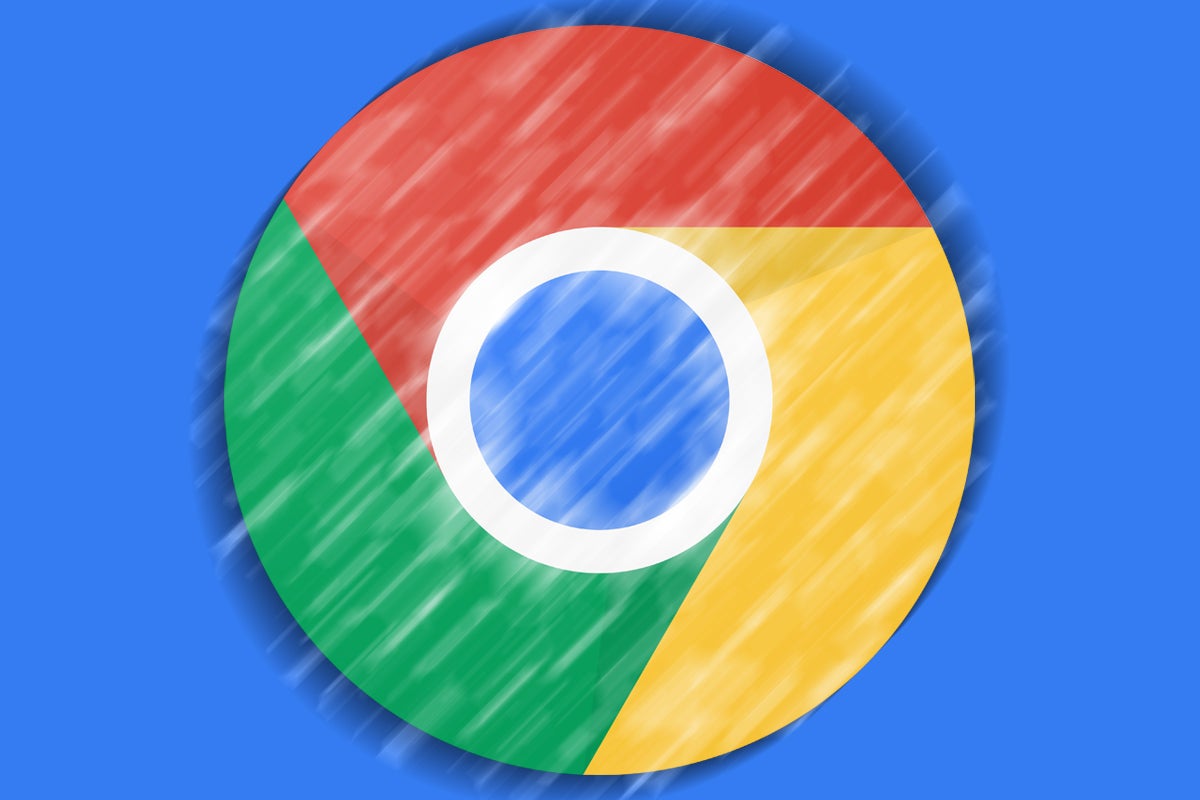
    A tweet from Google Chrome designer Elvin Hu reveals that for the first time in eight years, Google is changing Chrome’s icon. The new look debuted with the update to the Chrome Canary app which is an experimental and unstable version of the browser used by developers and early adopters. Other versions of Chrome that Android users can install are the stable, beta, and Dev versions.

    And not that it has anything to do with the new icon, you still might want to know the difference between each one. As we noted, Chrome Canary offers an untested build of Chrome which might not run at times. Google recommends that only developers and advanced users install it on their handsets since most Canary updates won’t proceed any further.

    Installing the Chrome Dev version of the browser allows you to test out the latest features of the Chrome browser even though, as Google says, they will be “rough around the edges.” Google is hoping that Android users will provide them with early feedback when testing out new features that may never make it to the Beta or stable versions of the app.

    And there is also the Chrome Beta app which is the last step for a new feature before it is added to the stable version. It is not as unstable as the Dev version and features receive their final tweaks on the Chrome Beta app before millions of people use them on the stable version of Chrome.

    Lastly, the stable Chrome app is the safest version of the browser and is the one that you’ll see in the Play Store if you search for Google Chrome. Most of you shouldn’t install Canary or Dev while some of you might have an interest in downloading the Beta version of Chrome on your phone.

    As for the main branding of the Chrome logo, the shadows between the colors (which are easily seen between the red and yellow colors) are being removed. This removes the slight 3D effect that made it appear as though the red area was raised above the yellow. Removing that small shadowy area makes the colors on the newly updated main icon appear flat.

    Chrome’s Hu also noted that “We simplified the main brand icon by removing the shadows, refining the proportions and brightening the colors, to align with Google’s more modern brand expression.” Google found that placing certain shades of Green and Red next to each other created what Hu called “an unpleasant color vibration.” To combat this, Google used a more subtle gradient (so subtle that you might not notice it) in order to prevent the unpleasant vibration from bothering the viewer.

    Interestingly, Google created different variants of the Chrome icon for each operating system. As Elvin said, “We want the icons to feel recognizably Chrome, but also well crafted for each OS. For example, on Windows, the icons take on an obviously gradated look, appearing at home on Windows 10 & 11.”

    On ChromeOS, brighter colors will be used without gradients so that the icon can match the rest of the system icons. On MacOS, a small shadow will soon be employed to give the icon a 3D appearance. On iOS, the Chrome Beta will  show the logo in a blueprint-style background to show that it is a developer-focused app.

    The new Chrome icons are expected to hit your devices soon. Google has been shrinking the size of the Chrome icon going back to 2008 when it had the appearance of a 3D ball. There really is a lot of thought that comes into play even when trying to design a simple app icon.

  • Page Zoom is a new accessibility feature in Chrome for Android

    Page Zoom is a new accessibility feature in Chrome for Android

    Google is working on a new Page Zoom accessibility feature for its Chrome browser on mobile devices.

    It appears that the reasoning behind this new feature is that text scaling on mobile devices produces variable results and often causes bugs. There’s a long thread on Chrome support forums concerning the issue, and it seems that Google developers have listened to the users and implemented the new Page Zoom feature.

    Page Zoom works much like the zoom feature in the desktop version of Chrome. Once you choose a zoom level for a certain page it will be stored in the browser and next time you open the same page Chrome will automatically adjust the zoom level for you.

    The feature is already available in Chrome Canary, and will probably roll out to Chrome for Android with the next stable release.

  • Google Chrome delays removal of third-party cookies to 2023

    Google Chrome delays removal of third-party cookies to 2023

    Google has moved to an updated time frame for fulfilling its 2020 plan to eventually remove all third-party cookies from its official browser, Chrome. That annoying third-party data collection prompt asking you to “accept” or “reject” cookies, on most websites we visit these days, will soon be a thing of the past.

    This new leap is just one of Google’s recent initiatives to associate its brand name with a bit of privacy awareness, although everyone knows how Google gets its big bucks: AdSense and advertising services. And that goes hand-in-hand with the fact that the more Google uses tracking and data collection to target audiences, the more money there is to be made.

    It’s a bit of a catch-22 situation, but with the Privacy Sandbox initiative announced back in 2019, Google has seemingly been trying to work towards a slightly less privacy-invasive balance.

    Today, Google announced that by the end of 2023, we can expect third-party cookies to be gone entirely from Chrome. More specifically, they will be phased out over a period of exactly three months, “starting in mid-2023 and ending in late 2023.” The original plan was to remove them in early 2022.

    The reason for leaving two years in between is because, Google wants to have certain “key technologies” in place by the end of next year. Among these key technologies is the “widely disabled FLoC” (an algorithm that allows ad selection without sharing individuals’ browsing behavior), as well as other APIs driven by privacy.-

    Google has shared the following two-step plan for phasing out third-party cookies in Chrome.

    • Stage 1 (Starting late-2022): Once testing is complete and APIs are launched in Chrome, we will announce the start of stage 1. During stage 1, publishers and the advertising industry will have time to migrate their services. We expect this stage to last for nine months, and we will monitor adoption and feedback carefully before moving to stage 2.
    • Stage 2 (Starting mid-2023): Chrome will phase out support for third-party cookies over a three-month period finishing in late 2023.

    It’s already been over a year since Google began searching for ways to limit personally identifying data while still being able to deliver ads to the right groups of people “sufficiently large enough to maintain anonymity,” with the Google Sandbox. We can’t fool ourselves that the search will ever be on the same level as Apple when it comes to browsing and privacy, but it’s definitely taken a couple of steps in the right direction.

  • DuckDuckGo reveals how you can block Google’s new method of tracking Chrome users

    DuckDuckGo reveals how you can block Google’s new method of tracking Chrome users

    Privacy-first search engine DuckDuckGo on Friday posted a blog that discussed Google’s new data-tracking system called Federated Learning of Cohorts (FLoC). Using an algorithm and browsing histories, Google groups together those with similar interests and demographics. FLoC replaces the use of cookies to track users and feed them ads and other targeted content.

    When Google added FLoC to Chrome, it did so without giving users a choice as the tracking system is enabled by default. As DuckDuckGo noted in its blog post, “The criteria for being opted into FLoC are somewhat hidden and conflicting.” As scary as that sounds for those who value their privacy, there are things that you can do to block FLoC from trying to fit you into a category.

    Google claims that FLoC is good for privacy. And while FLoC, in theory, replaces third-party cookies, the latter won’t be removed until 2023 at the earliest. Thus, Google is getting to track users via two different methods for the time being.

    With FLoC, the websites you visit will be able to target ads since they will know things about you from the moment you enter the site. While Google says that you are placed in a group of others with the same interests in demographics, you are more protected as an individual. However, the data that is available to websites, combined with your IP address (which these sites receive automatically), means that you remain tracked as an individual.

    It seems fairly straightforward, but if you don’t want to be tracked by Google Chrome, use a different browser on your iOS and Android devices and on the desktop. If you own an iPhone and don’t like Safari, this writer has started using the recently updated version of Opera Browser which is available for iOS and Android). Besides Opera, on Android the Samsung Internet Browser would be a great choice to replace Chrome.

    If you must continue to use Chrome, DuckDuckGo says that you might be able to avoid FLoC by changing the settings on the Chrome browser. Some suggestions include logging out of your Google account, avoid syncing your history data with Chrome, disabling “Web & App Activity” or “Include Chrome history and activity from sites, apps, and devices that use Google services” in Google Activity Controls. In Google Ad Services you should shut down “Ad Personalization” or “Also use your activity & information from Google services to personalize ads on websites and apps that partner with Google to show ads.”

    Since Google has been profiling users for years, even if FLoC reduces you to a series of numbers based on your interests and demographics, it will only be a matter of time until the code is broken and your identity becomes known. Google says that FLoC is 95% as effective as third-party cookies and DuckDuckGo says that this means that Google will continue “to target people based on age, gender, ethnicity, income, and many other factors. This targeting, regardless of how it’s done, enables manipulation, discrimination, and filter bubbles that many people would like to avoid.”

    DuckDuckGo has also enhanced its tracking blockers on its extension. This protection from FLoC appears on version 2021.4.8 and newer of the DuckDuckGo extension and is also in the process of being approved for the Chrome Web Store. Keep in mind though that by default it will set your default search engine and homepage to DuckDuckGo Search.

    Several organizations dealing with privacy pleaded with Google not to use FLoC, but to no avail. While Google makes it sound as though it is trying to improve privacy online, replacing third-party cookies with a tracking system that is enabled by default certainly sounds just as bad.

  • Chrome OS introduces a Phone Hub for Android devices

    Chrome OS introduces a Phone Hub for Android devices

    Chrome OS is celebrating its 10th birthday with some new features. The desktop OS’ latest version is introducing a Phone Hub which connects the user’s Android device to their laptop and synchronizes different data between the devices. The Phone Hub’s goal is to make moving between Android and ChromeOS devices easy.

    The Phone Hub shows different data from the user’s phone like its battery percentage and network reception. It also allows the user to access different phone features and settings from their Chrome OS device, such as enabling their Wi-Fi hotspot or switching to vibrate or silent modes. The different Chrome tabs opened on the user’s smartphone will also show up in this new hub.

    The Phone Hub feature will work wirelessly, as long as the two devices are connected two the same Wi-Fi network. Wi-Fi Sync has also been expanded so if only one of the devices has the network password, it is able to sync it with the other one.

    There are also other new features introduced with the anniversary update of Chrome OS. A new Screen Capture tool is featured in the Quick Settings menu, allowing users to take precise screenshots and screen recordings without using keyboard commands. The Quick Settings menu has also added media controls and pinning files with both these tools appearing in the menu when in use.

    Another new addition to Chrome OS is the ability to add a school account for children. This is managed with the company’s Family Link feature. With Family Link, a parent can automatically generate a school account for their child when signing them up to the Chrome OS device and then supervise them while they write their homework.

    Other smaller improvements in the new version of Chrome OS are found in the Desks app and Select-to-speak feature.

  • Time is running out for Google to fix frustrating Chrome OS bug found on Android apps

    Time is running out for Google to fix frustrating Chrome OS bug found on Android apps

    Google is racing against the clock to get a bug fix out in time because in just three days, Chrome OS 87 is to be released on the Stable channel. Android apps have never fared well on Chrome OS and now this bug is greatly slowing down the input speeds that a user deals with when typing on the keyboard while running an Android app on Chrome OS 87. The keyboard input slows down to a crawl forcing the user to wait for the previous line he typed to hit the screen before typing the next line. The issue has been affecting users on the Beta, Dev, and Canary channels on Chrome OS 87.

    Even though the slowdown doesn’t affect the Stable channel at the moment, that could change because after the aforementioned three days, Chrome OS 87 starts running on the Stable channel bringing the keyboard input bug to those who are used to a relatively bug-free experience on that channel. Chrome OS users have been complaining about the issue on the Google support page. One member with the user name of Mattev writes, “Some apps are very slow to type into. What I mean is, if I’m typing stuff like this, the characters lag and take a few seconds to appear on the screen. The Chrome browser works fine. The problem happens in other apps like Opera browser. I’m on the beta channel. Another problem is that when hovering over a tab in Chrome browser, some other tabs flicker light/dark. I don’t know if it’s related.”

    A Diamond product expert named Jim Dantin, considered to be at the top of those helpers that browse through Google support communities seeking to answer questions, had some solutions for a short-term fix. He wrote “The usual cause of “slow” issues, is one or more extensions causing problems, flags that you may have altered, too many tabs open, you haven’t completely turned off your Chromebook recently, you are low on storage space, or you have too many extensions installed.

    • Reboot your Chromebook, don’t just close the lid, every night.
    • Reset all flags. Flags are really intended for the Google engineering/development team, not end users.
    • Delete or disable unneeded extensions. Or, do a Browser Reset to disable them all.
    • Keep the number of open tabs to a minimum, especially if you are doing something where performance matters.
    • Make sure that you have adequate (more than just a few GB) of available space on your internal storage.

    Check your internet speed. I like speedof.me or speedtest.net as a test. Compare to what you should be getting from your internet provider.”

    There is no question that creating documents or just generally typing with this latency bug is frustrating. Last month, Chrome OS users had another issue taken care of. To make sure that Android apps can be readable on Chrome OS, they were universally scaled to be 25% larger. The problem with this is that in the process of scaling these apps, content appears to be too big on the screen resulting in the cutting off of content. Another problem was that users with a digital pen discovered that the tip of the pen was not matching up with where the “ink” was starting from on the display. In other words, the “ink” trailed the tip of the digital pen making it hard for users to draw since the lines were off to the bottom right. Users would be forced to guess when they put the pen’s tip on the display, where the actual drawing was going to show up. And since there was no way to shut off uniform scaling, some workarounds were suggested such as the use of an app called Activity Launcher.

    1) Install the app, launch it, and search for “display.” 2) Click on com.android.settings. DisplaySettings to launch hidden display settings.3) Click on “Advanced” and then “Screen Size.” 4) Move the display size to “small” bymoving the slider to the left.You must repeat these instructions from step two to four every time you log out or restart your Chromebook. Following this workaround will return the apps to the way they looked before uniform scaling was first tried on Chrome OS.

  • New Chrome feature being tested for Android can save battery life and data

    New Chrome feature being tested for Android can save battery life and data

    Google is testing a new feature for the Chrome browser app on Android. A “download later” feature will allow Chrome users to schedule downloads on the mobile browser. All the user needs to do is select the time and date when he wants the browser to start downloading. This feature can also be set to start a download from the browser when a Wi-Fi connection is detected.

    The “Download later” feature is being tested on version 86 of the Chrome Canary app. This is a very unstable version of Chrome that can be installed from the Google Play Store. You can enable the feature by downloading the Canary app on your Android phone. Then you need to enable a flag by following these directions: Open Chrome Canary and type in chrome://flags. Search for “Enable download later.” You will see three options from a drop-down menu; select “Enabled” and restart the Chrome Canary app. Once this has occurred, whenever you try to download a webpage from Chrome you will see the options to “Choose when to download” with Now, over Wi-Fi, and “Pick date and time” as options.

    We don’t know when this new feature will be made available to a stable version of Chrome and it is likely that Google will tweak it several times before “Download later” is ready for prime time. The advantage of offering this feature is that if you want to download content from the Chrome browser, you can do so without using up your data or battery life by arranging for the downloading process to take place at a certain time or over Wi-Fi.

  • Google updates Google app with a shortcut for Chrome incognito mode

    Google updates Google app with a shortcut for Chrome incognito mode

    The Google app’s default option for browsing incognito has been around for nearly a year. However, the feature contained one major flaw that made going incognito meaningless – when clicking on a search result from the incognito tab, the window that opens is not incognito and all activity is saved to your Google account’s history.

    However, according to Android Police, Google is going to provide a solution to this issue. Some users have noticed a new option added to the Google app – the possibility to open a new Chrome incognito tab.

    Apparently, the feature is a shortcut which reportedly will lead you to Chrome to browse in incognito there. When tapping on the option, you get the usual disclaimer for an incognito window, advising you that data might still be visible to carriers, websites and employers or schools.

    Unfortunately, this is another server-side update from Google, as the one for Google Photos, and it cannot be manually installed, even if you have a beta version of the Google app. So, we will wait and see when this feature will be rolled out to all the users.

  • Chrome for iOS goes dark after the latest update

    Chrome for iOS goes dark after the latest update

    Although iOS 13 has been around for about a month now, Apple’s own adoption figures show 50% of eligible iPhones are running the new version of the operating system. It’s not a bad number of course, but those who haven’t updated yet are missing quite a lot.

    Besides the new features and improvements that the iOS 13, a lot of third-party apps are adding new options specification for this version of the platform. One of the most common new features that these third-party apps are adding is dark mode.

    Many developers have already implemented the dark mode into their iOS apps, but Google has somehow missed to opportunity to offer Chrome users this specific feature. Thankfully, the latest update fixes the issue, so if you update Google’s mobile browser to the latest version, you’ll also be getting dark mode.

    Also, the update adds the ability to add a new credit directly in Chrome from the settings page. Lastly, Bookmarks, History, Recent Tabs and Reading List are now presented as cards on iOS 13. Keep in mind that most of the new features won’t be available until you update to iOS 13.

  • Chrome for Android updated with group tabs and grid layout

    Chrome for Android updated with group tabs and grid layout

    Google is bringing important improvements to its mobile browser – Chrome. The app received many updates that added loads of new features since its initial release seven years ago, but few included tabs improvements.

    Well, that’s about to change, as Google has announced that over the next few weeks, Android users will see a new grid layout, which should help them select tabs more easily and preview thumbnails of the tabs they open.

    These changes are only meant for Android users since those with iPhones will already see this tab grid layout. Besides the new grid layout, there’s also a new way to group tabs on an Android phone or tablet, which should help users keep track of the open tabs.

    You can now easily switch between the tabs in a group using the new tab switcher at the bottom of the screen, after opening one of the grouped tabs. And to make things even more convenient, you can now preview your tabs by hovering over them with your cursor.

    Finally, Google is also adding built-in help on both desktop and Android browsers. With the latest version of Chrome, answers will show up inside Chrome’s address bar when you search for something, which means you’ll be getting results faster than ever.

  • Google Chrome on Android is getting a seriously useful new feature

    Google Chrome on Android is getting a seriously useful new feature

    Opening a ton of tabs in Chrome, even the mobile version, is something that many of us are all too familiar with. The current card-style interface of the Chrome app is alright when you have only a few opened tabs, but going over 10 often leads to confusion and excessive scrolling to find what you’re looking for. A new feature headed to Google Chrome on Android aims to resolve this issue by introducing tab grouping and a redesigned tabs screen.

    The long-press menu will offer a new option, “Open in new tab group,” that allows you to bunch sites together in groups. Starting a group makes a bottom navigation bar appear where the various tabs in the group are displayed as favicons for easy switching between them. Tapping the “Tab” icon next to the search bar brings you to the new tabs screen. The card stack interface is gone, and in its place is a thumbnail view that shows snapshots of where you left of on different pages in a vertical gallery style.

    Tab groups are displayed like folders, each showing the total number of tabs inside the group, alongside thumbnail previews and favicons for the first four pages. Taping on a group opens an expanded view, which is very similar to the tabs screen. This really helps when you have quite a few tabs opened in Chrome, and you want to group some of them based on topic.

    The new interface is currently a work in progress, so it’s lacking some polish, but should be ironed out in the near future. Like most other features added to Google Chrome, this one is already accessible in the Canary version on Android. As such, it is still in the testing stages and may not perform as it will in the final release. Still, if you’re eager to try it out, you can do so by typing “chrome://flags” in the URL bar in Chrome Canary, and searching for “enable-tab-groups-ui-improvements.” Enable the option, restart the browser twice, and you should be ready to go.

  • Google Earth Timelapse Finally arrives on Mobile

    Google Earth Timelapse Finally arrives on Mobile

    The zoomable time-lapse video feature that allows Google Earth users to see how the planet’s surface has changed in the last 35 years, Google Earth Timelapse is now available on mobile. The Mountain View company has just announced it has released a new update that adds two additional years of imagery, as well as mobile support and visual improvements to make exploring more user-friendly.

    Besides being able to see how various parts of the Earth have changed in the last 35 years, Google Earth Timelapse allows more in-dept geospatial analysis since it includes more than 15 million satellite images coming from the US Geological Suvey/NASA Landsat and European Sentinel programs.

    Naturally, Google Earth Timelapse is available tablets as well, not just on smartphones. Apparently, mobile browsers would disable the ability to autoplay videos, which is absolutely mandatory for Timelapse. However, Chrome and Firefox have reinstated support for autoplay (sound muted), which is why Google was able to add mobile support with the latest update.

    Along with support for mobile, Google also added the new Material Design to Timelapse, which features simple, clean lines and clear focal ares to make is easier for usersd to navigate Google Earth Timelapse’s huge imagery database. Also, a new “Maps Mode” toggle is now available for mobile users to enable them to navigate the map using Google Maps.

  • Could Samsung Internet actually be killing Chrome on mobile?

    Could Samsung Internet actually be killing Chrome on mobile?

    Chrome is the most popular Internet browser in the world. It’s cross-platform, it syncs effortlessly across devices, it’s fast and capable, and it comes with every Android handset, ready to rock. It’s so widely preferred by users that Android manufacturers kind of gave up on developing their own browsers and just release their phones with nothing but Chrome.

    Well, most of them.

    Through the years, Samsung has persisted and kept developing its Samsung Internet browser — an app that was once a laggy mess — and has managed to make a fast, powerful browser that supports a lot of useful plugins and works in unison with other elements across the One UI interface.

    We thought we’d ask you — do you prefer Samsung Internet over Chrome? And it turns out the result is almost 50/50! Not only that, some people report that they are on another Android phone, but make it a point to go to the Play Store and download the Samsung Internet browser.