Retail News CRM

Tag: Google

  • Google Messages to Unveil AI-Edit Detector, Aims to Curb Fake Photos Spread

    Google Messages to Unveil AI-Edit Detector, Aims to Curb Fake Photos Spread

    Google Messages, the popular messaging app, is in the process of developing a tool that can identify whether an image shared in a conversation has been created or modified by artificial intelligence (AI). Evidence of this feature was uncovered in the app’s source code, indicating that it will take advantage of C2PA content credentials – integral data that can verify the creation and manipulation history of an image file. Regardless of the device used, this feature is expected to be a standard element in the Google Messages application, which is pre-installed on most top-level Android phones.

    Distinguishing the Authentic from the Artificial

    The discovery of this development was made by AssembleDebug, a skilled code investigator who has a history of revealing Google’s yet-to-be-released features. The initial groundwork for this tool has been detected in various recent releases of the app, although it isn’t operational at this time. It should be seen as a significant signal of what’s to come, rather than an available feature.

    The Coalition for Content Provenance and Authenticity (C2PA) is the organization behind the standard that records the creation and editing history of an image. Essentially, this would mean your phone could inform you whether a photo you received was taken with a camera or generated via AI.

    This aligns with Google’s broader strategy of integrating SynthID watermark detection into Google Photos and Gemini, and now extending this into Google Messages. The tool is expected to have around 18 labels, distinguishing between photos taken with cameras, those modified by partial AI edits, and fully AI-generated media, demonstrating Google’s emphasis on nuanced detection.

    Addressing Growing Concerns

    This development comes amidst growing apprehension around the increasing sophistication of AI-generated images. Some fear that even those with technical know-how are starting to fall for these hyper-realistic images, underlining the critical need for such detection tools.

    However, execution is not without potential pitfalls. Meta Platforms, the company behind Facebook, Instagram, and WhatsApp, implemented a similar feature, which encountered issues due to false positives. For instance, genuine photos were incorrectly flagged as AI-generated due to metadata left behind by standard Photoshop edits. Google Messages’ adoption of the C2PA standard might face similar issues.

    The primary beneficiaries of this tool would be users who often receive forwarded images, group-chat memes, and screenshots. A simple tap to verify the image’s provenance would be more efficient than manually scrutinizing the image.

    In terms of accessibility, users would be able to reach this feature by clicking on an image, opening the overflow menu, and selecting “View details”. It’s also worth noting that this feature isn’t live yet, so there’s nothing to test currently.

    Interestingly, Google, which has developed impressive image-generating models like Nano Banana, is now building a tool to detect the products of such models. Despite the seeming contradiction, it’s a necessary step towards ensuring authenticity and transparency in digital communication. If Google’s tool proves more reliable than Meta’s version, it will be a game-changer.

    Questions & Answers

    What is the purpose of the new tool being developed for Google Messages?
    The tool aims to identify whether an image shared in a chat has been created or manipulated by AI, helping users distinguish real photos from AI-generated ones.

    What is the C2PA standard?
    The C2PA (Coalition for Content Provenance and Authenticity) standard records the creation and editing history of an image, allowing verification of whether a photo was captured with a camera or generated by AI.

    What potential issues might arise with this tool?
    Similar to Meta’s implementation, Google’s tool may encounter issues with false positives, where genuine photos are incorrectly flagged as AI-generated due to the metadata left behind by standard editing tools such as Photoshop.
  • Google Chrome Enhances User Experience with Game-Changing Vertical Tabs and Full-Page Reading Mode

    Google Chrome Enhances User Experience with Game-Changing Vertical Tabs and Full-Page Reading Mode

    Google has introduced two new features to its Chrome browser, aiming to elevate the user experience. These additions, which include vertical tabs and a full-page reading mode, have been available on other browsers, but Chrome users can now avail of these options.

    Introduction of Vertical Tabs

    Google’s Chrome browser now supports vertical tabs, a feature that arranges open tabs in a sidebar format rather than a row at the top. While previously available through advanced settings in recent Chrome builds, the feature is now easily accessible to all users. The “Show Tabs Vertically” option can be activated by right-clicking on any Chrome window.

    This new perspective offers an organized list of tabs on the side, effectively moving the address bar higher up in the window. This adjustment allows for additional vertical space for browsing. Furthermore, this innovative feature makes navigating through tabs significantly easier, making it an appealing addition for power users.

    One can further customize their browsing experience by diminishing the tabs sidebar to display only the websites’ favicons. This option virtually eliminates the Chrome interface, thus promoting a minimalist user experience.

    Full-Page Reading Mode

    The second feature that Google has introduced is a comprehensive page reading mode. As the name suggests, this mode eliminates any unnecessary elements on a webpage, thus creating a more reader-friendly view.

    Users can activate this mode by right-clicking on a page and selecting the “Open in reading mode” option.

    Keeping Pace

    The concept of vertical tabs is not a novel one. They have gained popularity through other modern web browsers that adopt a more minimalist approach. However, Google’s introduction of this feature allows users to maximize their horizontal screen space more efficiently, providing more room for vertical scrolling.

    The vertical tabs feature has been a significant factor in retaining users for competing browsers. Its ease of navigation and efficiency are touted as major benefits.

    With these new additions, Google hopes to replicate this success and potentially re-attract users who have migrated to other browsers.

    Questions & Answers

    How can I activate vertical tabs on Google Chrome?
    You can activate vertical tabs by right-clicking on any Chrome window and selecting the “Show Tabs Vertically” option.

    What is the new reading mode feature on Google Chrome?
    The new reading mode feature eliminates unnecessary elements on a webpage, thus creating a more reader-friendly view. This mode can be activated by right-clicking on a page and selecting the “Open in reading mode” option.

    What benefits do vertical tabs offer?
    Vertical tabs offer a more organized, efficient browsing experience by providing a list of tabs on the side rather than the top. This adjustment allows for additional vertical space for browsing and promotes ease of navigation.

  • Google Meet Zooms onto CarPlay: A Hands-Free Meeting Revolution Android Auto Can’t Join Yet

    Google Meet Zooms onto CarPlay: A Hands-Free Meeting Revolution Android Auto Can’t Join Yet

    Google has recently introduced its video meeting application to automobile dashboards, enhancing the in-vehicle experience for iPhone users. Now, through CarPlay, drivers can join Google Meet calls hands-free while commuting. However, it’s worth mentioning that this feature is not yet available for Android Auto users.

    Google Meet on CarPlay: An Audio-Only Experience

    Google has officially confirmed that Google Meet is now accessible on Apple CarPlay. The feature was launched on March 23rd and is expected to be available to all users within a fortnight.

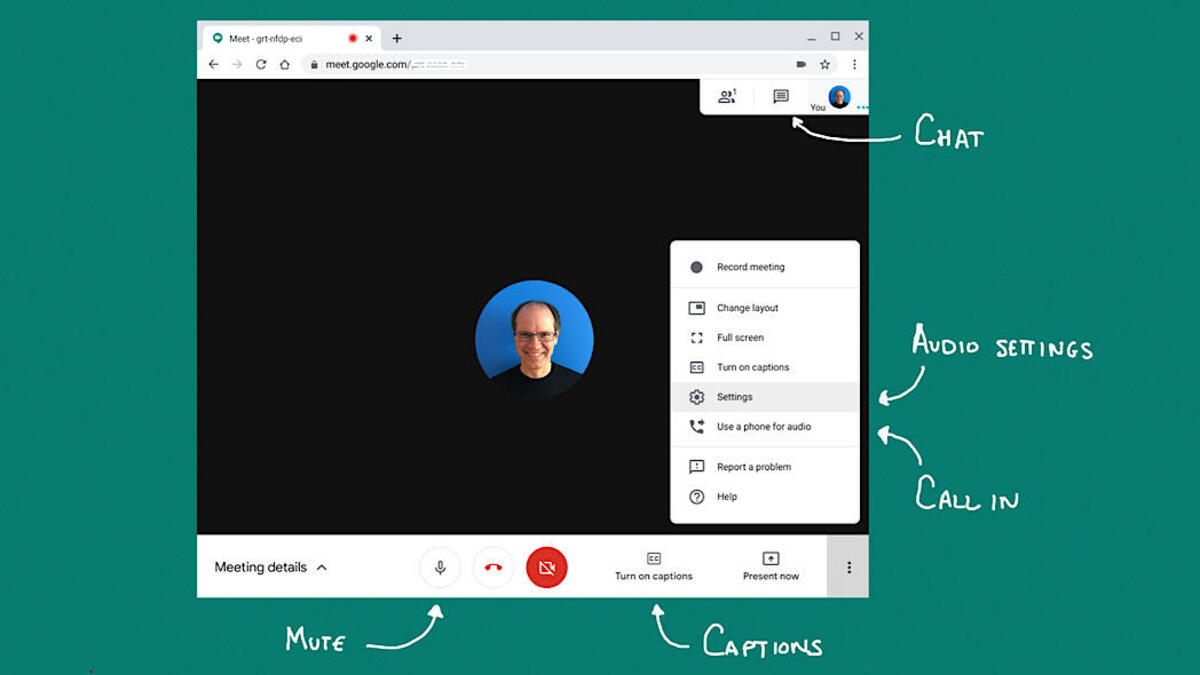
    The operation is simple and user-friendly. Upon connecting your iPhone to a CarPlay-compatible vehicle, the Google Meet application automatically appears on your vehicle’s display. Users can view their upcoming meetings and join them with a single click, enjoying an audio-only call experience.

    By design, there is no video functionality in this setting. The camera remains off, and users will not see other participants’ video feeds. The interface is simplified to only include two buttons—one to mute the call and another to leave the meeting. For a comprehensive meeting experience, users are advised to park their vehicle and switch to their phones.

    A minor setback for Google is the lack of this feature for Android Auto users. The company has confirmed that an Android Auto version of Google Meet is underway but has provided no further details regarding its release.

    Significance for Commuters

    This new feature holds significant potential for millions of individuals who use Google Meet for work. Commuters with tight schedules no longer need struggle with their phones to join meetings. The real advantage lies in the calendar integration, which presents upcoming meetings directly on the vehicle’s display.

    This development aligns well with the broader evolution of CarPlay. As Apple continues to enhance the capabilities of CarPlay, the presence of Google applications on this platform bolsters its appeal and functionality.

    Questions & Answers

    What is the new Google Meet feature on Apple CarPlay?
    Google Meet is now accessible on Apple CarPlay, allowing users to join meetings with a single click and engage in audio-only calls.

    Is the Google Meet feature available for Android Auto users?
    Currently, the Google Meet feature is not available for Android Auto users. However, Google has confirmed that it is working on a version for Android Auto.

    What are the benefits of Google Meet’s integration with Apple CarPlay?
    The integration of Google Meet with Apple CarPlay simplifies the process of joining meetings for commuters. The calendar integration feature, which displays upcoming meetings on the vehicle’s screen, is particularly beneficial for users with busy schedules.

  • Google Messages Ends QR Code Pairing: What it Means for Your Web Setup

    Google Messages Ends QR Code Pairing: What it Means for Your Web Setup

    Google Messages is set to eliminate its QR code pairing feature for the web, opting instead for Google Account log-in as the sole method of access. The change will enhance the stability and functionality of the Google Messages for Web feature.

    Google Messages: An Evolution

    Google Messages for Web is a popular and convenient feature, allowing users to send and receive texts from their computers, thus eliminating the need to constantly check their phones. Up till now, the feature offered two ways to connect to a computer: scanning a QR code with a phone or logging in through a Google Account.

    The QR code method, which has been part of the feature since its launch, is quite straightforward. Users open the app and scan the QR code displayed on their computer screens. This method requires neither passwords nor accounts, simplifying the connection process.

    A Shift in The Connection Process

    However, Google has decided that the QR code pairing method is insufficient and will cease to be an option. Instead, Google Account log-in will become the only way to access the Messages feature on the web.

    While this change may seem like a minor adjustment, its impact is significant. When a Messages session is linked to a Google Account rather than just a phone, the connection becomes more stable. Currently, if a phone loses signal or restarts, the web session can be disrupted. However, account-based sessions are more resilient to these problems.

    Fostering Device-to-Device Continuity

    This modification aligns with Google’s recent focus on strengthening its apps around the Google Account. The tech giant is striving to achieve the seamless, device-to-device continuity Apple has enjoyed with iMessage for years. This shift in Google Messages for Web brings the feature closer to this goal, transforming it from a remote display for a phone into an independent application.

    Questions & Answers

    What is the main change announced for Google Messages for Web?
    Google has decided to remove the option to access Google Messages for Web via QR code, shifting to Google Account log-in as the sole method of access.

    How does this change affect the stability of the Messages feature?
    When a Messages session is linked to a Google Account rather than a phone, the connection becomes more stable and resilient to disruptions like signal loss or phone restarts.

    What is the broader strategy behind this change?
    This change aligns with Google’s efforts to foster seamless, device-to-device continuity across its applications, similar to what Apple offers with iMessage.

  • Revolutionizing Language Switch: Google Translate’s New Pinned Languages Feature for Android and iOS Users

    Revolutionizing Language Switch: Google Translate’s New Pinned Languages Feature for Android and iOS Users

    Google Translate, the language translation app that has become an essential tool for global travelers and multilingual professionals, is set to introduce a new feature that will streamline the process of switching between languages. Launched in 2011, Google Translate currently boasts a user base of one billion monthly active users worldwide, translating over one trillion words each month.

    Enhancing Language Access

    The upcoming update of the Google Translate app (version 10.8.48.878519627.2) will introduce a feature that allows users to pin their frequently used languages to the language selection page. This feature will enable users to have up to 10 language options readily available for quick selection.

    Currently, the app offers a ‘Recent languages’ list, which displays up to nine recently used languages at the top of the screen. However, adding another language to the list causes one to be removed. The forthcoming ‘Pinned languages’ section, which will be positioned above the ‘Recent languages’ list, will allow users to keep up to 10 languages permanently visible on the screen.

    Though it may seem like a minor addition, for those who regularly switch between languages, this feature could significantly enhance the functionality of the app. For instance, when visiting a country with multiple prominent languages, users will be able to conveniently switch between them via the ‘Pinned languages’ section.

    Using the Pinned Languages List

    To pin a language, users should open the Google Translate app and tap the button on the left side, which showcases the language being translated from. Under the ‘Recent languages’ heading, users can select a language and swipe right to reveal a pin icon next to the language name. Tapping the pin icon will add the chosen language to the pinned section in the app. If users wish to unpin a language, the process is the same, but instead, an unpin icon will be displayed next to the pinned languages, which can be tapped to remove the language from the pinned list.

    Questions & Answers

    What does the new feature of Google Translate do?
    The new feature allows users to pin their frequently used languages to the language selection page, enabling quick and convenient language switching.

    How many languages can be pinned to the Google Translate app?
    Users can pin up to ten languages on the Google Translate app.

    How can a language be pinned or unpinned in Google Translate?
    In the app, under the ‘Recent languages’ section, users can swipe right on a language to reveal a pin icon. Tapping this icon will pin the language. Similarly, tapping the unpin icon next to a pinned language will remove it from the pinned list.

  • Google Photos Upgrade: New Toggle Empowers User Control over Fast or Intelligent Searches

    Google Photos Upgrade: New Toggle Empowers User Control over Fast or Intelligent Searches

    In response to user feedback, Google has announced modifications to the Google Photos app, providing users with greater control over their search results. Users can now opt between the traditional ‘fast search’ function and the more advanced ‘Ask Photos’ results. To facilitate this choice, a new toggle feature has been incorporated into the Google Photos app, allowing users to effortlessly switch between the two options.

    Enhanced Search Options

    Fast Search, also known as ‘Classic Search,’ employs a keyword-based tool, providing users with instant responses. Google cites this search mode as the optimal choice for straightforward inquiries such as “beach 2022” or “cat photos.”

    On the other hand, the ‘Intelligent mode’ or ‘Ask Photos’ utilizes the more advanced Gemini 3 AI models. This makes it a powerful search option, albeit slower than Classic Search, as the models must analyse your entire photo library. This search mode is more suitable for complex queries such as “Show me the day we brought our puppy home” or “What was the name of that street in Manhattan we walked across after the blizzard in New York?”

    Google assures that it will provide results using the search method most suitable for your specific query. However, the new toggle feature allows users to switch views at will, ensuring they receive the desired search results. The Google Photos app, available on both Android and iOS, will soon include this new toggle feature.

    Recognizing the Toggle Feature

    The new toggle feature can be easily identified on the left side of the display, just under the “Back” arrow. When Classic Search is active, the toggle is off and the AI Mode icon (depicted as a magnifying glass with a Gemini spark) appears in white on a gray button. Conversely, when the Ask Photos function is activated, the toggle is white, with the AI Mode icon appearing in blue on a button encased in a blue pill.

    Questions & Answers

    What is the new feature in the Google Photos app?
    Google has introduced a new toggle feature in its Photos app that allows users to switch between ‘Classic Search’ and ‘Ask Photos’ modes.

    How does the ‘Classic Search’ function work in Google Photos?
    ‘Classic Search’ is a keyword-based tool that provides users with instant responses, ideal for straightforward searches.

    What makes the ‘Ask Photos’ function different from ‘Classic Search’?
    The ‘Ask Photos’ function utilizes the Gemini 3 AI models, making it a powerful but slower search option. It’s designed for more complex queries that require an analysis of the entire photo library.

  • Google Messages Embraces Trash Feature, Enhancing Message Recovery: A Page from Samsung and Apple’s Playbook

    Google Messages Embraces Trash Feature, Enhancing Message Recovery: A Page from Samsung and Apple’s Playbook

    Google Messages has been the focal point of numerous updates recently. With a keen emphasis on enhancing user experience, developers have introduced new features and improvements. One such feature is an updated Details page, designed to increase usability. Further modifications are on the horizon, with a significant change in the pipeline concerning how the platform handles message deletion.

    Recovering Mistakenly Deleted Messages

    Presently, if a user attempts to delete a message in Google Messages, a pop-up warns the user that deletion is permanent and irreversible. This means once the “Delete” button is clicked, the message is permanently erased. However, situations may arise where a conversation is accidentally deleted, or a user realizes they need a message that was previously deleted.

    In response to such scenarios, Google has implemented a Trash feature in their messaging app. Notable in the beta version 20260227 of the app, this feature aims to retain accessibility to deleted messages.

    New Trash Feature Replaces the Delete Option

    The new trash feature supersedes the existing delete option in Google Messages. With this feature, when a message is deleted, it is moved to a new trash folder instead of being permanently discarded. This folder can be accessed by tapping the profile icon located in the top-right corner of the app and selecting the “Trash” option.

    Deleted messages remain in the trash folder for 30 days. Users have the option to restore all messages or delete them all simultaneously using the ‘restore all’ or ‘delete all’ icons. There’s also a provision for restoring or deleting individual messages.

    The previous delete option, which appeared when opening a conversation and tapping the three-dot menu, has been replaced with the new Trash feature. The swipe actions menu has also been updated to display the new Trash option in place of Delete.

    Consequently, upon the rollout of this update, users cannot permanently delete messages immediately. Instead, messages will first transition to the Trash section, providing users with a second chance to review their content. If a user is certain that a specific message isn’t required, they can permanently delete it from the trash section.

    Google Messages Follows in the Footsteps of Samsung and Apple Messages

    The concept of a trash folder may seem familiar to users of Samsung Messages or Apple Messages. Samsung’s app features a dedicated Recycle Bin section, storing deleted chats for 30 days before permanently erasing them.

    Likewise, Apple devices move deleted messages to a Recently Deleted section, where users can choose to either restore the message or permanently delete it. Both Samsung and Apple’s messaging platforms have incorporated this feature for years, and Google Messages now joins the bandwagon.

    Questions & Answers

    What happens when a message is deleted in the new Google Messages update?
    When a message is deleted in the new Google Messages update, it is moved to a Trash folder instead of being permanently erased. Users can access this folder from their profile icon.

    How long will deleted messages remain in the Trash folder?
    Deleted messages will be stored in the Trash folder for 30 days.

    Can users restore deleted messages from the Trash folder?
    Yes, users have the option to restore all messages at once or select individual messages for restoration. They can also permanently delete all or selected messages from the Trash folder.

  • Embrace the Modern: Google Maps Unveils Fresh Icon Design on Android and iOS

    Embrace the Modern: Google Maps Unveils Fresh Icon Design on Android and iOS

    Google Maps, one of Google’s most popular apps and a fixture on the first-generation iPhone, has undergone another update. In its pursuit of continual improvement, Google has added new features and refined the app’s user interface over the years. Now, the tech giant has updated the Maps app icon for both Android and iOS versions.

    A Modern Look for Google Maps

    The new icon continues to feature the recognizable “pin” symbol, but its design has been significantly modified. The most prominent change is the color gradient that seamlessly transitions from one shade to another. This is a departure from the previous icon, which showed a diagonally placed “pin” with separate, differently colored boxes (blue, green, yellow, and red). The revamped “pin” is also larger, with the circle within it having increased in size. Consequently, the top ring of the pin has become much thinner.

    If you recall the Google Maps icon on the first iPhone, it depicted two intersecting lines, representing roads, with a red pin and a sign for Highway 280. Subsequently, the icon evolved into a folded map featuring blue, green, yellow, and white blocks, with a red pin to the right and a lowercase “g” in the upper left corner. The Android version of the app icon was similar but replaced the “g” with a capital letter.

    New Icon for Google Maps on iOS or Android

    The new icon should be visible in version 26.09.06.873668274 of Google Maps for Android users and version 26.09.5 for iOS users. If you are yet to see the new design, you may need to update your Google Maps app.

    For Android users, this can be done by opening Google Play Store, tapping on the profile icon in the right corner, selecting “Manage apps & device”, and viewing “details”. You can then scroll down to find Google Maps, and if an update is available, tap on “Update”.

    For iOS users, the process involves opening the App Store, tapping on the profile icon in the right corner, selecting “Updates”, and scrolling down to find Google Maps. If there is an update available, tap on the “Update” button.

    After the update, the new Google Maps icon should be visible on your phone, signifying a more modern-looking Google Maps.

    A Brief History of Google Maps

    For many, Google Maps has been an essential tool since its inception. I first used the app in 2007 on my iPhone. In 2009, I experienced Google Maps with turn-by-turn directions on the Motorola Droid, the first phone equipped with Android 2.0. It felt revolutionary at the time and was one of the key selling points for the Droid and other Android phones. It wasn’t until December 2012 that this feature was finally added to the iPhone.

    Questions & Answers

    What is the most notable change in the new Google Maps icon?
    The new icon features a color gradient, transitioning smoothly from one shade to another. This replaces the previous design of separate, differently colored boxes. The “pin” is also larger, with an enlarged circle inside it, making the top ring of the pin thinner.

    How can I update the Google Maps app to see the new icon?
    For both Android and iOS users, you may need to update the app through Google Play or the App Store. If an update is available, select “Update” and the new icon should appear once the update is complete.

    When was turn-by-turn navigation first introduced in Google Maps?
    Turn-by-turn navigation was first introduced on the Motorola Droid in 2009, which operated on Android 2.0. This feature was later added to the iPhone version of the app in December 2012.

  • Google Messages Revamps Read Receipts and Teases Real-Time Location Sharing: An Enhanced Chat Experience Ahead

    Google Messages Revamps Read Receipts and Teases Real-Time Location Sharing: An Enhanced Chat Experience Ahead

    Google’s messaging app, Google Messages, has recently undergone a series of tweaks to improve its user experience. One significant change is the simplification of the group creation process, which allows users to chat with multiple individuals simultaneously. However, this isn’t the only modification to the app.

    Revamped Read Receipts

    The read receipts feature in Google Messages has been revamped in its latest version. Previously, the read receipt was composed of two small circles, commonly referred to as the “Double Bubble” design, located outside the text bubble. The latest version relocates the read receipt within the text bubble, specifically at its lower right corner, and changes its design to a single circle.

    This new version incorporates four states to indicate the status of the sent message: an ellipsis within a circle denotes a message in the process of being sent; a single check within a circle indicates a message has been sent; double checks within a circle signifies the message has been delivered; and finally, a solid circle with double checks mean the message has been read.

    End-to-End Encryption Verification

    Users are now able to verify whether their message was encrypted end-to-end (E2EE) by swiping the text bubble to the left. This action will reveal the time the message was sent and its E2EE status. If a lock with a line through it is displayed, it means the message was not encrypted. Conversely, a lock without a line through it signifies the message was sent via E2EE.

    Real-Time Location Sharing Feature

    Google Messages is rumored to be introducing an exciting feature that will enable users to share their real-time location with others. Currently, the app only allows for a one-time location share, which remains static even when the user is on the move. However, the new “Real-time Location” feature will show the user’s location as they move in real time.

    This feature requires location permissions and can be enabled to share the user’s location in chats. A banner will be displayed at the top of the chat when this feature is active, indicating the remaining time before it is automatically switched off.

    Interestingly, the user can share their live location even if the recipient does not have the same feature enabled on their device. If the recipient has the Google Find Hub app installed, the shared live location link will open in the app. Otherwise, the link will open in a web browser, revealing the sender’s real-time location. To disable location sharing, users simply need to tap the banner at the top of the conversation and select “Stop” from the options at the bottom.

    Questions & Answers

    What are the four states of the new read receipt design in Google Messages?
    The read receipt can be in one of four states: an ellipsis within a circle indicates a message being sent; a single check within a circle shows the message has been sent; double checks within a circle signify the message has been delivered; and a solid circle with double checks means the message has been read.

    How can users verify if a message was encrypted end-to-end in Google Messages?
    Users can swipe the text bubble to the left to reveal the time the message was sent and its encryption status. A lock with a line through it means the message was not encrypted, while a lock without a line through it indicates end-to-end encryption.

    What is the new “Real-time Location” feature in Google Messages?
    The “Real-time Location” feature allows users to share their real-time location with others in chats. A banner will appear at the top of the chat when this feature is active, revealing how much time remains before the feature is automatically turned off.

  • Google Simplifies Safari-to-Chrome Switch on iOS: Seamless Browser Transition in Your Pocket

    Google Simplifies Safari-to-Chrome Switch on iOS: Seamless Browser Transition in Your Pocket

    Google has reportedly developed a new feature to simplify the process of switching from Safari to Chrome on iOS devices. This innovation should help to streamline what is often considered a complex and inconvenient task due to Apple’s stringent data protection measures.

    A New Tool for iOS Users

    Google is said to be in the process of creating a feature that allows individuals to transition from Safari to Chrome directly on their iPhone, negating the need for a desktop computer. This feature, referred to as the “Safari import” tool, utilizes the Export Browsing Data functionality of iOS.

    To use the new tool, individuals must first create a ZIP file containing their Safari data. Google Chrome provides a clear guide to assist users in this process:

    • Access Safari’s application settings
    • Select ‘Export Browsing Data’
    • Choose the specific data you wish to export
    • Save the created ZIP file to ‘Downloads’

    Once these steps are complete, Google provides an import feature that allows users to decide what data they wish to transfer. This includes passwords, bookmarks, browsing history, and credit card information, with all of the chosen data then stored in the user’s Google account.

    Improved User Experience

    A notable aspect of this new feature is that, once the import process is complete, Chrome issues a warning that the exported Safari file contains private data and presents the user with a swift option to erase it. The feature is currently part of Chrome’s latest beta for iOS, suggesting that it may be incorporated into the forthcoming public version of the browser.

    This development is expected to be well-received by users as the process of switching from Safari on mobile has traditionally been a daunting task, usually necessitating starting afresh with a new browser or resorting to the use of a computer.

    Questions & Answers

    What is Google’s new feature for iOS users?
    Google is reportedly developing a ‘Safari import’ tool that will simplify the process of switching from Safari to Chrome on iOS devices.

    How can users utilize the new tool?
    Users can utilize the new tool by creating a ZIP file of their Safari data, then using Google’s import feature to choose what data they want to transfer to Chrome.

    What happens after the import process is completed?
    Once the import process is completed, Chrome issues a warning that the exported Safari file contains private data and offers a quick option to delete it.

  • Revamp Unveiled: Discover the New Features in Google’s Updated Voice Search UI on Android

    Revamp Unveiled: Discover the New Features in Google’s Updated Voice Search UI on Android

    The user interface (UI) of Google’s Android voice search feature has recently undergone a transformation that might be refreshing to those who were not fond of the previous version. Earlier, when the microphone icon was tapped on the Google app, it led users to a page featuring a disembodied face. Since this voice search feature responded orally to user queries, the face’s mouth was designed to move in sync with Google’s vocal reply, which unsettled some users.

    A Digital Assistant Makeover

    In recent updates, the presence of Gemini, the new digital assistant, seemed to have replaced the unusual disembodied face. During the initial few weeks after introducing Gemini, the face disappeared. Despite Gemini performing all tasks previously assigned to Google Assistant, such as answering inquiries and setting alarms and timers, the face made a brief comeback in the new UI.

    Accessing Voice Search

    There is a multitude of ways for an Android user to access the voice search feature. The overhauled voice search UI now places the Google logo at the top center of the page, with a back button on the left and a three-dot overflow icon on the right. Users need to tap this icon to access the Voice settings. From here, the feature of Spoken Results can be activated, which will read out search results audibly. Users can also select from four distinct voices – Cosmo, Neso, Terra, or Cassini – to read out the results. Furthermore, they can select the preferred language for the voice search from a wide range of options. The dark theme too has witnessed an upgrade.

    Google’s voice search can be accessed by tapping the microphone icon within the Google Search widget on the home screen, by using the persistent Pixel Launcher search bar located at the bottom of the display on Pixel phones, or by saying “Hey Google,” if enabled.

    Revised Search Bar and Microphone Icon

    The use of the search bar and microphone icon for accessing voice search displays the previously mentioned disembodied face along with the word “Listening,” topped with a four-color arc. The new, enlarged “Search a song” button appears below the arc. This button opens a song search UI that prompts whether the user wants to “Play, Sing, Hum.” To top it all, there’s a shortcut to the Song Search history in the top right corner.

    Questions & Answers

    What changes have been brought to the Google’s Android voice search UI?
    The new UI has replaced the disembodied face with the Google logo, placed at the top center. The voice search settings can be accessed via the three-dot overflow icon on the right.

    How can Android users access the voice search feature?
    Users can access the voice search feature by tapping the microphone icon within the Google Search widget on the home screen, by using the persistent Pixel Launcher search bar, or by saying “Hey Google,” if this feature is enabled.

    What is the functionality of the “Search a song” button in the new UI?
    The “Search a song” button opens a song search UI that prompts whether the user wants to “Play, Sing, Hum.” It is also accompanied by a shortcut to the Song Search history.

  • Unleashing Personal Intelligence: Google’s Gemini Update Revamps App Connection for Efficient Answers

    Unleashing Personal Intelligence: Google’s Gemini Update Revamps App Connection for Efficient Answers

    Google has introduced a novel feature that allows its AI chatbot, Gemini, to sift through user emails and photos in a bid to answer specific queries about the user’s life. Currently, the feature, known as ‘Personal Intelligence,’ is being rolled out as a beta version for paying subscribers in the United States.

    Gemini – More Personalized Than Ever

    In a bid to facilitate users, Google has now given Gemini access to the user’s virtual storage. This new feature, dubbed ‘Personal Intelligence,’ allows Gemini to access information stored across various Google apps, including Gmail, Google Photos, and YouTube. The aim here is to simplify tasks such as finding specific receipts or locating a license plate number from years’ worth of photos. Instead of users spending time on these tasks, they can just ask Gemini to do it. Gemini is capable of cross-referencing data, for example, recognizing a car part from a photo and then locating the purchase confirmation in user emails. The feature is being rolled out in beta from January 14, exclusively for users with a Google AI Pro or AI Ultra subscription in the U.S. However, the feature is off by default, meaning users have to choose to let Gemini access their personal data.

    How to Activate the Feature

    If you are a paying subscriber and are interested in testing out the beta version, you can manually activate it if it does not pop up automatically. Open the Gemini app and go to settings. Tap on the new ‘Personal Intelligence’ menu. Select ‘Connected Apps’ to decide which services (like Gmail or Photos) Gemini can access.

    Google’s latest update is an attempt to make AI chatbot more personalized. By exploiting its extensive ecosystem, Google aims to transform Gemini into a practical assistant. However, this extensive level of integration has raised privacy concerns among users. Granting an AI model access to private emails and personal photos requires a substantial level of trust. Google, however, has assured that the personal data accessed via this feature will not be used to train the fundamental models, a crucial reassurance for users concerned about their privacy. With this move, Google aims to stay competitive with Apple Intelligence, which heavily relies on personal context available on-device.

    Still in Beta

    Although this feature seems incredibly useful in theory, its real-world effectiveness will depend on its execution. Google’s provided example—locating tire specs from an old photo and cross-referencing it with emails—speaks volumes about the potential usefulness of this technology. However, Google acknowledges that the AI might over-personalize or misconstrue the context. As this feature requires a paid subscription, it is primarily targeted at power users. If you are already engrossed in the Google ecosystem and pay for the premium tier, it might be worth opting in to potentially expedite your daily administrative tasks. Nonetheless, users should monitor what the AI pulls up.

    Questions & Answers

    What is the new feature Google has introduced to Gemini?
    Google has introduced a new feature called ‘Personal Intelligence’ that allows Gemini to access information stored across various Google apps, including Gmail, Google Photos, and YouTube, to answer specific user queries.

    Who can access the new Personal Intelligence feature?
    The feature is being rolled out in beta from January 14, exclusively for users with a Google AI Pro or AI Ultra subscription in the U.S.

    What are the concerns related to this new feature?
    The primary concern is related to user privacy, as granting an AI model access to private emails and personal photos requires substantial trust. However, Google has assured that personal data accessed via this feature will not be used to train the fundamental models.

  • Google’s New Ai Service Revolutionizes Retail: Woolworths First To Adopt Gemini Enterprise

    Google’s New Ai Service Revolutionizes Retail: Woolworths First To Adopt Gemini Enterprise

    Google has recently introduced its new Gemini Enterprise artificial intelligence (AI) service, designed to enhance the overall customer experience. Notably, one of the first companies to leverage this new technology is Woolworths.

    Introducing Gemini Enterprise

    The Gemini Enterprise service acts as a digital concierge for customers, offering recommendations, storing relevant information, and performing complex tasks on the user’s behalf. This state-of-the-art ‘shopping agent’ is capable of comprehending image, video, and voice inputs – eliminating the need for customers to type their queries or requirements into a search bar.

    Google representatives explain that whether an agent is cross-referencing kitchen electrical specifications to find a compatible induction range, or resolving a fulfillment error and issuing an instant refund, the new solution will provide a more streamlined experience for customers at every touchpoint.

    Global Impact on Retail

    This novel technology was announced at the NRF 2026 event. Amanda Bardwell, CEO and MD of Woolworths Group, lauded Google Cloud’s Gemini Enterprise for customer experience as a global game-changer for the retail industry.

    As the first Australian retailer to form a partnership with Google’s agentic platform, Woolworths plans to evolve their digital shopping assistant, Olive, into a proactive partner that anticipates customers’ needs. This includes planning meals based on individual preferences and identifying relevant specials based on the user’s budget.

    Bardwell also emphasizes the practicality and convenience of this innovation, explaining that it’s designed to do the heavy lifting for customers, making shopping easier and saving them precious time. Woolworths now stands alongside Kroger, Lowe’s, and Papa John’s as a global pilot business for Gemini Enterprise.

    Towards a New Era of Commerce

    Darshan Kantak, VP of applied AI at Google Cloud, notes that they are merging the best of Google Cloud’s AI and infrastructure with a business’s own institutional intelligence to power a truly agentic commerce journey.

    With this new technology, businesses can bridge the gap between sales and service to deliver premium, personalized experiences from the point of discovery to post-purchase support, enhancing customer satisfaction and fostering long-term brand loyalty.

    Furthermore, one of the key features of Google’s AI is its ability to add items to a customer’s cart and manage the checkout process, provided the customer has given their consent.

    Questions & Answers

    What is the purpose of Google’s new Gemini Enterprise service?
    The Gemini Enterprise service is designed to enhance the overall customer experience. It acts as a digital concierge for customers, offering recommendations, storing relevant information, and performing complex tasks on the user’s behalf.

    What unique capabilities does the Gemini Enterprise shopping agent have?
    The shopping agent can comprehend image, video, and voice inputs, eliminating the need for customers to type their queries or requirements into a search bar.

    How does Woolworths plan to utilize the Gemini Enterprise service?
    Woolworths plans to evolve their digital shopping assistant, Olive, into a proactive partner that anticipates customers’ needs. This includes planning meals based on individual preferences and identifying relevant specials based on the user’s budget.

  • Apple Taps Google’s Gemini AI for Long-Awaited Siri Upgrade: A Game-Changing Partnership Unveiled

    Apple Taps Google’s Gemini AI for Long-Awaited Siri Upgrade: A Game-Changing Partnership Unveiled

    Several years ago, Apple assured its customer base of an improved, more intelligent Siri. While some loyalists might have lost hope, the company has now confirmed its speculated collaboration with Google, a move that could potentially transform Siri into a highly competent personal assistant.

    Google’s Gemini AI Powers Siri’s Significant Upgrade

    Apple has declared that Google’s Gemini AI model will be the driving force behind the long-awaited, more personalized iteration of Siri. The company stated that Google’s technology forms the most suitable basis for their model.

    Following a thorough evaluation, Apple determined that Google’s technology offers the most capable foundation for Apple’s foundation models. Apple expressed excitement about the innovative new experiences that this partnership could unlock for its users.

    Though Apple has not divulged further details about the agreement or given a precise timeline for the Siri update, reports suggest that its pact with Google forms part of a multi-year deal.

    A Much-Anticipated Update

    Nearly a year ago, Apple postponed the AI-enhanced version of Siri, initially promised at WWDC 2024. The company admitted that the development of a more personalized Siri was taking longer than anticipated.

    In June of the previous year, speculations suggested Apple was exploring partnerships with OpenAI and Anthropic. A few months after, rumors of a prospective partnership with Google started to make rounds. Later, it was reported that Apple planned to use a custom variant of Gemini to develop the new Siri and pay Google $1 billion annually for it.

    Apple is predicted to launch the new Siri with iOS 26.4 in a matter of weeks. The AI-powered assistant is rumored to comprehend the context of what is displayed on the iPhone’s screen, sift through personal data, and manage complex tasks based on this information. The update is likely to be released in March, potentially eclipsing any AI enhancement Samsung might introduce with One UI 8.5 and the Galaxy S26 series.

    The Right Decision for Apple

    Last year, Google made waves with the release of Gemini 3, now the leading AI model. Despite the unpredictability of LLM development, this was a significant triumph for the company. It also suggests that Apple might have picked the right partner. While it’s too early to get overly excited about the final version of the AI-powered Siri, it wouldn’t be surprising if it performs exceptionally well.

    Questions & Answers

    What does the partnership with Google mean for Apple’s Siri?
    The partnership means that Siri will be powered by Google’s Gemini AI model, making it more intelligent and personalized.

    When is the AI-powered Siri expected to be launched?
    The upgraded Siri is expected to be introduced with iOS 26.4, rumored to be released sometime in March.

    What enhancements can users expect from the new Siri?
    The new Siri is expected to understand the context of what’s displayed on the iPhone’s screen, navigate through personal data, and perform complex tasks based on that information.

  • Experience Effortless Chatting: Google Messages Launches Dynamic One-Hand Context Menu

    Experience Effortless Chatting: Google Messages Launches Dynamic One-Hand Context Menu

    In the latter part of last month, Google announced its intent to replace the Hamburger icon menu with a dynamic context menu. The aim was to streamline navigation for Google Messages users, particularly those with larger-screen phones. When the Google Messages app receives the dynamic context menu, users will no longer have to perform the finger gymnastics previously required to access the hamburger menu in the top-right corner.

    Rollout of the New Google Messages Menu

    The new menu format is now being deployed to the beta versions of the Google Messages app. Following the update, long pressing on a chat/message will activate the Reactions menu which appears at the top of the message. This allows users to quickly add a reaction. Below the message, however, is a vertical box presenting various options, some of which were previously only accessible by stretching to tap the hamburger icon in the far top-right corner of the screen.

    This new menu provides options such as:

    – Reply
    – Forward
    – Copy
    – Star
    – Delete
    – Select more
    – Info

    This simplification of Google Messages is certainly sufficient to make usage more convenient; there’s no need to strain your hand to reach certain features. To keep the vertical box as compact as possible, the app comprehends the context of the long-pressed message, and presents different options based on that context.

    Deleting Multiple Messages

    There have been some misconceptions about the new interface, with one user on Reddit believing that the redesign had removed the ability to delete multiple messages at once. In fact, this is not the case. To delete several messages, users simply need to long-press on the first message they wish to remove and then select ‘Select more’ from the vertical box. They can then scroll down to the next message they wish to delete and tap on it.

    A counter will be visible in the upper left-hand corner of the screen, indicating the number of messages selected for deletion. Once all desired messages have been selected, users just need to tap the trash can icon in the top right corner to remove them.

    Accessing the New Features

    I have personally been able to access this feature on my Pixel 6 Pro running the most recent Android 16 QPR3 Beta. However, it’s important to note that access to these features requires membership in the Google Messages Beta program. To confirm membership, users can open the Google Play Store app and search for the Google Messages listing. Those who are part of the beta program will see the word (Beta) in parentheses.

    Becoming a beta tester allows users to experience new features before the public and provide feedback to developers. However, availability is limited and those interested may not always see the “Join the beta” prompt. If it’s not visible, it’s recommended to check back later.

    Questions & Answers

    How can I access the new Google Messages menu?
    You can access the new menu by long pressing on a chat/message. This will activate the Reactions menu and the new dynamic context menu at the bottom of the message.

    Is the ability to delete multiple messages at once still available in the new menu?
    Yes, the ability to delete multiple messages hasn’t been removed. It’s simply accessed in a different manner. You need to long-press on the first message you want to delete, then select ‘Select more’ from the vertical options box. Then you can scroll to and select the other messages you wish to delete.

    How can I become a Google Messages beta tester?
    To join the Google Messages beta program, open the Google Play Store app and search for the Google Messages listing. If there is availability, you will see an option to “Join the beta”. It may take a few minutes to 24 hours to process the request. If you don’t see this option, there may not be any openings at the moment, so try again later.