Tag: photos

  • Google Messages to Unveil AI-Edit Detector, Aims to Curb Fake Photos Spread

    Google Messages to Unveil AI-Edit Detector, Aims to Curb Fake Photos Spread

    Google Messages, the popular messaging app, is in the process of developing a tool that can identify whether an image shared in a conversation has been created or modified by artificial intelligence (AI). Evidence of this feature was uncovered in the app’s source code, indicating that it will take advantage of C2PA content credentials – integral data that can verify the creation and manipulation history of an image file. Regardless of the device used, this feature is expected to be a standard element in the Google Messages application, which is pre-installed on most top-level Android phones.

    Distinguishing the Authentic from the Artificial

    The discovery of this development was made by AssembleDebug, a skilled code investigator who has a history of revealing Google’s yet-to-be-released features. The initial groundwork for this tool has been detected in various recent releases of the app, although it isn’t operational at this time. It should be seen as a significant signal of what’s to come, rather than an available feature.

    The Coalition for Content Provenance and Authenticity (C2PA) is the organization behind the standard that records the creation and editing history of an image. Essentially, this would mean your phone could inform you whether a photo you received was taken with a camera or generated via AI.

    This aligns with Google’s broader strategy of integrating SynthID watermark detection into Google Photos and Gemini, and now extending this into Google Messages. The tool is expected to have around 18 labels, distinguishing between photos taken with cameras, those modified by partial AI edits, and fully AI-generated media, demonstrating Google’s emphasis on nuanced detection.

    Addressing Growing Concerns

    This development comes amidst growing apprehension around the increasing sophistication of AI-generated images. Some fear that even those with technical know-how are starting to fall for these hyper-realistic images, underlining the critical need for such detection tools.

    However, execution is not without potential pitfalls. Meta Platforms, the company behind Facebook, Instagram, and WhatsApp, implemented a similar feature, which encountered issues due to false positives. For instance, genuine photos were incorrectly flagged as AI-generated due to metadata left behind by standard Photoshop edits. Google Messages’ adoption of the C2PA standard might face similar issues.

    The primary beneficiaries of this tool would be users who often receive forwarded images, group-chat memes, and screenshots. A simple tap to verify the image’s provenance would be more efficient than manually scrutinizing the image.

    In terms of accessibility, users would be able to reach this feature by clicking on an image, opening the overflow menu, and selecting “View details”. It’s also worth noting that this feature isn’t live yet, so there’s nothing to test currently.

    Interestingly, Google, which has developed impressive image-generating models like Nano Banana, is now building a tool to detect the products of such models. Despite the seeming contradiction, it’s a necessary step towards ensuring authenticity and transparency in digital communication. If Google’s tool proves more reliable than Meta’s version, it will be a game-changer.

    Questions & Answers

    What is the purpose of the new tool being developed for Google Messages?
    The tool aims to identify whether an image shared in a chat has been created or manipulated by AI, helping users distinguish real photos from AI-generated ones.

    What is the C2PA standard?
    The C2PA (Coalition for Content Provenance and Authenticity) standard records the creation and editing history of an image, allowing verification of whether a photo was captured with a camera or generated by AI.

    What potential issues might arise with this tool?
    Similar to Meta’s implementation, Google’s tool may encounter issues with false positives, where genuine photos are incorrectly flagged as AI-generated due to the metadata left behind by standard editing tools such as Photoshop.
  • Google Photos Upgrade: New Toggle Empowers User Control over Fast or Intelligent Searches

    Google Photos Upgrade: New Toggle Empowers User Control over Fast or Intelligent Searches

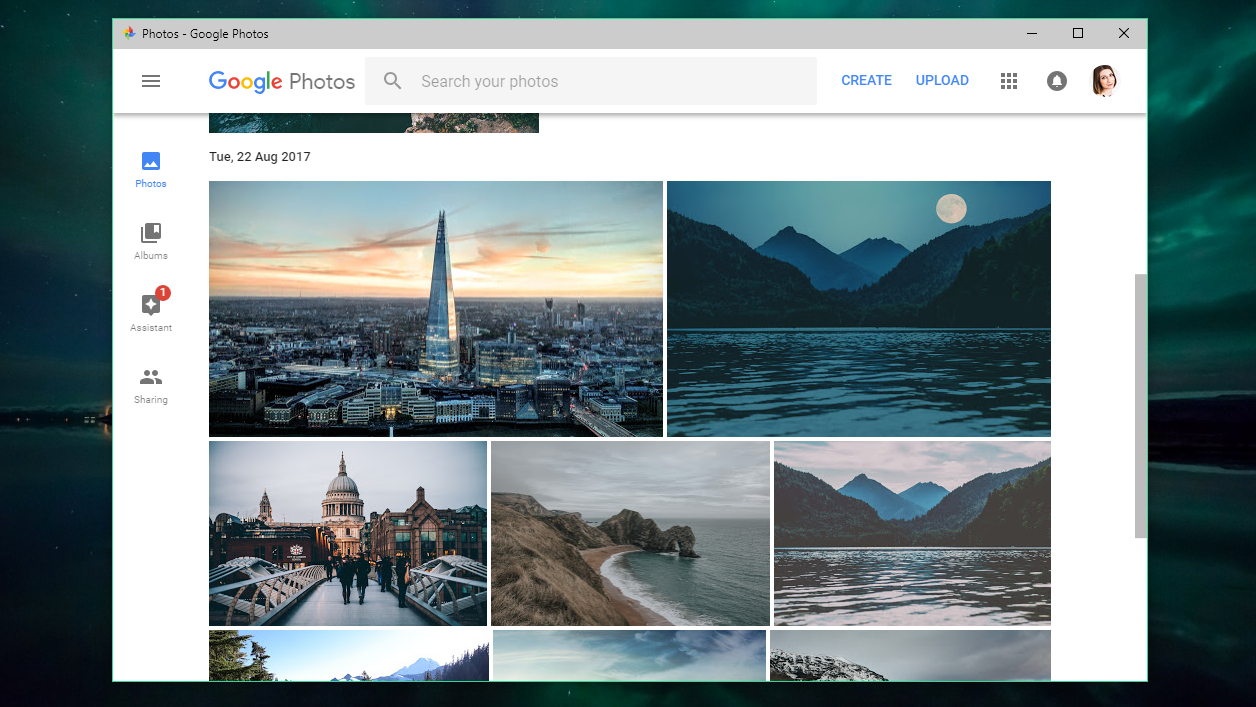
    In response to user feedback, Google has announced modifications to the Google Photos app, providing users with greater control over their search results. Users can now opt between the traditional ‘fast search’ function and the more advanced ‘Ask Photos’ results. To facilitate this choice, a new toggle feature has been incorporated into the Google Photos app, allowing users to effortlessly switch between the two options.

    Enhanced Search Options

    Fast Search, also known as ‘Classic Search,’ employs a keyword-based tool, providing users with instant responses. Google cites this search mode as the optimal choice for straightforward inquiries such as “beach 2022” or “cat photos.”

    On the other hand, the ‘Intelligent mode’ or ‘Ask Photos’ utilizes the more advanced Gemini 3 AI models. This makes it a powerful search option, albeit slower than Classic Search, as the models must analyse your entire photo library. This search mode is more suitable for complex queries such as “Show me the day we brought our puppy home” or “What was the name of that street in Manhattan we walked across after the blizzard in New York?”

    Google assures that it will provide results using the search method most suitable for your specific query. However, the new toggle feature allows users to switch views at will, ensuring they receive the desired search results. The Google Photos app, available on both Android and iOS, will soon include this new toggle feature.

    Recognizing the Toggle Feature

    The new toggle feature can be easily identified on the left side of the display, just under the “Back” arrow. When Classic Search is active, the toggle is off and the AI Mode icon (depicted as a magnifying glass with a Gemini spark) appears in white on a gray button. Conversely, when the Ask Photos function is activated, the toggle is white, with the AI Mode icon appearing in blue on a button encased in a blue pill.

    Questions & Answers

    What is the new feature in the Google Photos app?
    Google has introduced a new toggle feature in its Photos app that allows users to switch between ‘Classic Search’ and ‘Ask Photos’ modes.

    How does the ‘Classic Search’ function work in Google Photos?
    ‘Classic Search’ is a keyword-based tool that provides users with instant responses, ideal for straightforward searches.

    What makes the ‘Ask Photos’ function different from ‘Classic Search’?
    The ‘Ask Photos’ function utilizes the Gemini 3 AI models, making it a powerful but slower search option. It’s designed for more complex queries that require an analysis of the entire photo library.

  • Google To Enhance Photo Access And Privacy In Messages App With Android 16 Update

    Google To Enhance Photo Access And Privacy In Messages App With Android 16 Update

    Navigating to your photos in the Google Messages app for Android is simple, though it could be more streamlined. To begin, you’ll have to open Google Messages and select any prior message. A round button with a “plus sign [+]” icon is located to the left of the text input area. Clicking on this button reveals a range of options, including:

    – Gallery
    – Camera
    – GIFs
    – Stickers
    – Files
    – Location
    – Contacts
    – Schedule Send

    When you choose the Gallery option, the most recent images and videos stored locally on your device, as displayed by the Google Photos customized media selector, will be visible. However, if you need to access your photos via the Google Photos app using the Android System photo selector, you’ll have to press the Folders button situated at the bottom of the screen. This represents an additional step if you want to see the photos stored in the cloud rather than just on your device.

    Google is reportedly developing a solution to this issue, aiming to erase the additional step required to access your photos from the Google Photos app within Google Messages.

    Security and Access Concerns

    While the additional step may not bother some, it does raise a significant security concern. Google’s custom picker requires access to your full media gallery to function effectively. In contrast, Android’s photo picker allows applications to access only the photos and videos that you select. However, there is promising news — Google is said to be working on a way to allow users to access their photos from the Photos app via Google Messages without the need for the extra tap on the Folders button.

    New Developments in Android 16

    Android 16 introduces a new integrated photo picker equipped with its APIs, enabling apps to incorporate this photo picker directly into their interface. This provides app developers with a media gallery that feels native to their app, while also offering the security and privacy inherent in the Android system photo picker. This is because comprehensive media permissions no longer need to be sought. It was discovered that this embedded photo picker was present on a OnePlus 13 running OxygenOS 16.

    The Gallery button, when pressed, displays cloud-hosted photos and videos together with photos and videos stored on the local device. Before the introduction of the embedded photo picker with Android 16, users would have had to take the extra step and tap the Folders button to see their cloud-hosted photos and videos from the Google Photos app.

    Privacy Improvements

    Once the embedded photo picker is rolled out, there will be no need to grant the Google Messages app “Photos and videos” permission to share photos or videos. In fact, this permission can be revoked once the embedded photo picker is available.

    Questions & Answers

    What is the embedded photo picker in Android 16?
    The embedded photo picker in Android 16 is a new feature that allows apps to integrate a photo picker directly into their interface. This provides a media gallery that feels native to the app while also offering improved security and privacy.

    Does the Google Messages app require access to all my photos and videos?
    Currently, to function effectively, Google’s custom picker requires access to your entire media gallery. However, with the forthcoming embedded photo picker feature in Android 16, this will no longer be necessary.

    What is the benefit of the embedded photo picker?
    The embedded photo picker will eliminate the need for users to make an extra step when accessing cloud-hosted photos and videos from the Google Photos app. Additionally, it will enhance privacy as broad media permissions will no longer be required.

  • Revolutionizing Photo Editing: Google Photos Unveils Voice-commanded Tool

    Revolutionizing Photo Editing: Google Photos Unveils Voice-commanded Tool

    Google has unveiled a new tool within its Google Photos application, allowing users to alter and enhance their photos with simple voice or typed commands. Equipped with the ability to understand conversational English, the feature offers users a user-friendly and innovative way to edit their photos.

    Using Google Photos’ New Feature

    To access this new tool, Android users can open the Google Photos app and select the image they wish to modify. Once the photo is chosen, tapping on the “Help me edit” option in the editor will prompt the user to either speak or type their desired changes. No need for complicated photo editing terms or jargon; the feature responds to plain English instructions.

    Google provided several examples showcasing the potential of this new tool. In one instance, a photo was marred by an unwanted window reflection. By simply telling the app to “Remove the reflection on the window,” the user could effortlessly rectify this issue, resulting in an improved image.

    Transforming Photos Using Conversational English

    In another scenario, a photo depicted a child standing before an unsightly fence. To remedy this, the user could instruct the app to “Erase the text and the fence in bottom, zoom out, and sharpen.” The outcome was a vastly improved photo where the child, not the fence, took center stage.

    The feature is not limited to landscape or portrait photography and can be applied to selfies as well. If a user desires to brighten a shadowy selfie, they can instruct the app to “Add studio lighting to make me stand out.”

    Expanding the Frame with Imagination

    Users can also manipulate the composition of their photos using this feature. By saying, “Expand the composition and make it better,” the tool can effectively broaden the photo’s borders, enhancing the overall aesthetic. If a user wishes to add elements to an otherwise empty background, they can instruct the tool to “Reimagine this room with a bookshelf and lights.”

    Google’s new feature demonstrates how the use of conversational English can significantly alter an image. A simple command such as “Fill the grass with beautiful sunflowers” can completely transform a photo, adding an entirely new dimension to the image.

    Questions & Answers

    Does the Google Photos feature work on selfies?
    Yes, the tool can be used to enhance any type of photo, including selfies.

    Can the tool add elements to a photo’s background?
    Yes, the tool can add elements to a photo’s background. For example, a user can instruct the tool to add a bookshelf and lights to an empty room.

    Is it possible to remove unwanted elements from a photo using this tool?
    Yes, the tool allows users to remove unwanted elements. For instance, a reflection on a window or an unsightly fence can be removed with a simple instruction.

  • Google Unveils Enhanced Image Editor For Google Photos: A Closer Look At User-friendly Features

    Google Unveils Enhanced Image Editor For Google Photos: A Closer Look At User-friendly Features

    Google has just released a revamped image editor for its Google Photos application on Android. This newly designed feature, which users might find more user-friendly, can be accessed by selecting a photo from your Google Photos gallery and then hitting the Edit option located on the bottom bar of the screen.

    On the lowest part of the screen, a carousel featuring six options is now available: Auto, Actions, Markup, Filters, Lighting, and Color. Each of these options opens up a variety of editing tools that you can utilize to perfect your image.

    Further Editing Options

    Additional editing tools are available above the image preview. Here, you’ll find icons such as Auto frame, a dropdown menu with various aspect ratio choices, an icon to flip the photo, and another to rotate the image. The top left corner of the screen houses the exit button, labeled “X”, while on the right, there’s a Save button and a three-dot icon that opens a pop-up, which can be used to provide feedback to Google.

    Interactive Image Manipulation

    Once a photo is selected for editing, users can tap, brush, or draw a circle around any portion of the image they wish to edit. This action prompts a menu to appear, presenting all the relevant editing options you have at your disposal.

    For instance, after enclosing a squirrel in a photo with a circle, I was provided with options to Erase the squirrel, Move it to a different location within the photo, or use AI to Reimagine the image. After opting for the last choice and indicating my desire for the squirrel to be holding a baseball cap and wearing a hat, the software generated the requested image.

    Availability of the Feature

    This feature is currently being deployed on version 7.44 of the Google Photos app for Android, following a server-side update initiated by Google. If you haven’t received it yet, you can manually update by navigating to Settings > Apps > See all apps and scrolling to Photos. Tap on Photos, and when you see the App info page, press on Force stop.

    Questions & Answers

    What are the new editing options available on the Google Photos app?
    The redesigned Google Photos app offers a variety of editing tools including Auto, Actions, Markup, Filters, Lighting, and Color.

    How can users manipulate a specific part of an image?
    Users can tap, brush, or draw a circle around the part of the photo they wish to edit, prompting a menu with relevant editing options to appear.

    How can users access the redesigned image editor if it hasn’t automatically updated?
    Users can manually update by navigating to Settings > Apps > See all apps and scrolling to Photos. After tapping on Photos, they can press Force stop on the App info page.

  • Google Photos to Apple iCloud Photos direct transfer tool rolling out next week

    Google Photos to Apple iCloud Photos direct transfer tool rolling out next week

    The users of Google’s Photos service will finally be able to send all of their media content collected there directly to Apple’s iCloud Photos. The Google Photos to iCloud Photos transfer tool is again provided thanks to the open-source Data Transfer Project (DTP) stack of the Data Transfer Initiative (DTI) that first made the reciprocal transfers from iCloud Photos to Google Photos a reality.
    The new tool will be available starting next week and, according to the new Apple and Google photo collection transfer guidelines, it will allow an easy and direct way to take your entire picture, album, and video collection with you by importing it into the competing service when getting a new device.
    If you got a new iPhone and want to bring your Google Photos content to iCloud, here’s what needs to be done:
    1. Go to Google Takeout and mark which albums you’d like to export
    2. Pick Apple – iCloud Photos as import service and sign in with your Apple ID.
    3. Tap Allow to share permission with Google to add photos and videos to iCloud.
    Alternatively, pick Photos under the Recently used Google services or Other Google services entries in your Google Account Dashboard, and tap the Transfer data button.
    Apple says that you will get a confirmation email when the Google Photos transfer is complete, while Google reminds that this can take anywhere from a few hours to a few days, depending on the size and complexity of the transfer.
    Your photos and videos will then appear in the Photos app, all tucked in a dedicated album, with the name Import from Google and the date of the actual transfer. Since not all photos and videos can be indexed along with their metadata, if some appear missing, they will most likely be in a folder with the same name in your iCloud Drive storage system.
    The Data Transfer Initiative’s open-source Data Transfer Project technology stack counts Apple, Google, and Meta as its founding partners and provides tools like the direct Google Photos to iCloud Photos transfer for billions of their users.
  • Google Photos opens up Magic Editor and other AI image-editing tools to everyone

    Google Photos opens up Magic Editor and other AI image-editing tools to everyone

    Google Photos is expanding the availability of its powerful photo editing tools, including the popular Magic Editor, to a wider audience. This move, which was initially announced last month, is now gradually becoming a reality for many users of Pixel smartphones.

    Google Photos users can now access an array of AI-powered tools, including Magic Editor, Magic Eraser, Unblur, and various photo and video enhancements, without requiring a Google One subscription. This development is part of Google’s broader effort to democratize advanced photo editing capabilities and make them accessible to a larger user base.

    Magic Editor, which was originally introduced with the Pixel 8 and 8 Pro, allows users to easily modify photos by moving, resizing, or erasing elements, as well as applying different styles and effects. With a simple tap, circle, or brush selection, users can make precise adjustments to their images, and the zoom function enhances this capability further. The tool also offers contextual presets like Sky, Golden hour, and Stylized to provide a range of creative options.

    While Google is extending access to these tools to all Android and iOS users, there are some limitations in place. Users will be able to save up to 10 edited photos per month using Magic Editor. To exceed this limit, a Google One Premium (2+TB) plan or a Pixel smartphone is required. Additionally, Android users will need to meet specific hardware requirements, including Android OS 8.0 or higher, 4GB of RAM, and a 64-bit chipset.

    This expansion of access is great news for those with older Google phones or non-Google phones who would like to try out these AI editing features without having to sign up for Google One. By removing the subscription requirement for these tools, Google is empowering users to enhance their photos and videos with ease, irrespective of their technical expertise or subscription status. This move is expected to be well-received by users who seek to elevate their content without investing in additional subscriptions or complex software.

  • Google Photos adding option to tailor your memories based on your activity

    Google Photos adding option to tailor your memories based on your activity

    Google Photos is adding another feature intended to make your cherished memories more easily accessible and enjoyable. In addition to the recently expanded rollout of automatic Stacks (which organize similar photos together), Google has unveiled a new setting called “Activity-based personalization.” This powerful feature enhances the app’s “Memories” section.

    The “Memories” section, which you might recognize as that carousel of photos and videos at the top of the Google Photos app, can now be set to learn from your actions within it. Activity-based personalization learns about the way you engage with Memories — those you linger on and those you may skip — and uses that information to make them more relevant.

    Activity-based personalization is by default enabled, ensuring that you get the most out of Memories right away. However, you can easily disable this setting at any time. If you do, data about your Memories interactions from the last 18 months will be deleted. Don’t worry, though; this won’t affect your photo library, other Memories, or the Creations that Google Photos generates.

    For now, it appears that setting can only be accessed from the web version of Google Photos, although it isn’t appearing for everyone yet. That said, the Memories carousel is present on both the web and mobile (Android and iOS) versions of the app, so whatever setting you choose for it will affect your experience throughout.

    To check if the feature has rolled out to you and to tweak it, you’ll need to head to photos.google.com on your computer, then click on “Settings” at the top right of the page. From there, you’ll need to scroll down to the “Memories” sub-section to find the “Activity-based personalization” toggle, which should be grouped with the “Time-based memories” and “Themed memories” toggles for featured memories.

    Google Photos is a great app for backing up and enjoying photos and videos, and this new feature joins a range of options already available to personalize your experience. It’s great to see that the app continues to get better and offer more options to those who choose it as the keeper of their previous memories.

  • Google Photos media could soon be accessible via Android’s new Photo Picker

    Google Photos media could soon be accessible via Android’s new Photo Picker

    Android 13’s Photo Picker was a breath of fresh air for privacy-conscious users. Unlike the all-or-nothing access of app-specific pickers, it granted granular control over what photos and videos you share. But its usefulness was limited – your local library was all it knew. However, good news is on the horizon, with cloud media providers like Google Photos finally preparing to join the party.

    Recent Google Photos updates reveal full support for the Photo Picker for cloud support. Activating this feature via a hidden flag opens a new “Cloud media app” page in settings, where you can enable Google Photos. This, in turn, unlocks a “Google Photos access” option within the Photos app, letting you grant the Photo Picker permission to your cloud library.

    This functionality was announced during Google I/O 2022 and has since then been recently added to apps like Google Keep, Google Chat, and Google Messages on devices running Android 11 with the November 2023 Google Play system update. However, adoption outside of Google’s own apps requires app developers to implement the API, and adoption has been slow.

    Now, with the addition of Google Photos, and hopefully the wider rollout of this feature, developers might now be encouraged to adopt the Photo Picker, giving users unparalleled control over their shared memories. Hopefully, with Google Photos paving the way, other cloud providers like Microsoft OneDrive will follow suit, creating a truly universal and privacy-respecting sharing experience on Android.

    As great as this all sounds, some issues still need to be worked out with the Photo Picker. For example, as noted by Android expert, Mishaal Rahman, app-created albums like Snapseed’s remain hidden in the “Photos” tab, absent from “Albums.” Additionally, he’s found that cloud media doesn’t appear in the new Android 14 permission dialog for partial access.

    Yet, these are minor hiccups in a major step forward. The hope is that other cloud providers will see the benefit of using the Photo Picker and begin to have their app developers implement the changes necessary to turn this feature on for them. Google has already taken the first step to make this happen.

  • Google Messages update allows users to send Photos links for sharper videos and pictures

    Google Messages update allows users to send Photos links for sharper videos and pictures

    Some changes are rolling out to the Google Messages app and it appears that hamburger is back on the menu. Or perhaps we should say that the hamburger menu is back. The redesign has surfaced for some who are using the beta version of the Messages app and it replaces the three-dot menu in the upper right corner with a hamburger menu on the left side of the display.

    Options currently found in the three-dot menu will be moved to the hamburger menu such as “Messages,” “Starred,” “Archived,” and “Spam & blocked.” Other options such as “Device Pairing” and “Choose Theme” will be listed in a separate section at the bottom of this menu.

    You’ll know when the change has hit your phone because the first time you open the app after the update, you’ll be prompted to enable Google Photos integration for the Messages app. “Share videos as they’re meant to be seen” reads the prompt follow-up with “Preserve sharp video clarity when you sign in and send Google Photos links.” A link at the bottom of the page allows for the use of the Messages app without a Google account.

    You will have a couple of choices that you can toggle on including one that will always send a link to Google Photos when you use Messages to share a video by text (SMS/MMS), and another option that will always send a Google Photos link when you text images via SMS/MMS. By allowing the Google Photos link to be sent with videos and images, you are giving the recipients of such content via Google Messages the ability to view them in a higher quality than if you sent them via MMS.

    While the update is being disseminated to some of those who are members of the app’s beta program, not all beta members are currently receiving it. Certainly, Google will widen the distribution of the update once it hears feedback from users.

    If you’ve received complaints about the quality of the videos and pictures that you’ve shared via Google Messages, this is a clever way to send higher quality content using that app with an assist from Google Photos.

  • Google Photos launches more print and canvases size options, home delivery

    Google Photos launches more print and canvases size options, home delivery

    Google Photos is getting some much-needed improvements for users in the United States. Google confirmed that it’s now rolling out larger photo print sizes, a new option to get prints delivered home, as well as new canvas print sizes.

    First off, Google Photos users in the United States will now have the option to have photo prints delivered directly to their home, whereas until now they would need to visit a CVS, Walmart, or Walgreens location to get them.

    Customers in the US can choose between exists 4×6, 5×7 or 8×10, or four additional sizes: 11×14, 12×18, 16×20 and 20×30 prints. To have them delivered to your home, you’ll have to pay $0.18 per print plus shipping. If you don’t want to wait, you can still pick them up from the local CVS, Walgreens or Walmart in the US or 7-Eleven in Japan.

    Additionally, Google announced that in the next few weeks, it will add six more canvas print size options to the Google Photos print store: 8×10, 16×16, 20×30, 24×36, 30×40 and 36×36.

  • Important Google Photos storage policy changes rolling out in June

    Important Google Photos storage policy changes rolling out in June

    It’s no secret that Google will no longer offer unlimited free photo and video backup at “high quality” come June 2021. The Mountain View company announced late last year a change to its high-quality storage policy, which will drop as early as June 1.

    So, starting next month, Google will roll out the new changes so that any new photos and video users back up will count toward the free 15GB of storage that comes with every Google Account or the additional storage purchased as a Google One member.

    However, there are a couple of things that Google Photos users should know before the new storage policy change comes into effect on June 1. First off, any photos or videos that you backed up in high quality before June 1, 2021, will not count toward your Google Account storage. Yes, these photos and videos will remain free and exempt from the storage limit.

    Another important aspect that Google Photos users should be aware of is that Google estimates that more than 80 percent of its users should still be able to store roughly three more years of memories in high quality with the free 15GB of storage.

    If your storage nears 15GB, you’ll receive a notification from Google directly in the app, as well as via email. All Google Photos users should see an estimate that takes into account how frequently they back up photos, videos, and other content to their Google Account.

    Furthermore, Google announced it will roll out a new tool in the Photos app that will help users manage the photos and videos they’ve back up that count toward their storage quota. The new storage management tool will display photos and videos that can potentially be deleted due to being blurry or too large.

    Last but not least, to make it less confusing for Google Photos users, the search giant will rename its high-quality storage tier to Storage saver. Until this change is deployed, all photos and videos will continue to be stored at the same high quality.

  • Google Photos now lets users add media files to albums when they’re offline

    Google Photos now lets users add media files to albums when they’re offline

    To add pictures or videos to your albums in Google Photos, you’ll need to be online. But that’s about to change, as Google is now rolling out a small update that makes it possible to upload content to albums even when a user is offline.

    The new feature isn’t something that you can force on your Android smartphone, so you’ll have to wait for Google to push it out to your device. Once you add your pictures and videos to an album, they will be synchronized to Google servers immediately after your smartphone goes online.

    Although there are plenty of Google Photos alternatives out there, Google’s app probably remains the best solution when it comes to sharing and storing media content online. Although you’ll soon have to pay for Google Photos storage, occasional users will still be able to take advantage of its benefits free of charge.

    Those of you who can’t wait to try out the new feature might want to download the latest version of Google Photos, but if the option to add picture and videos to albums while offline is not available even after updating, you’ll most likely have to wait for a server-side switch to flip.

  • Google adds another “Memories” collection to the Photos app

    Google adds another “Memories” collection to the Photos app

    Just a few days ago, we told you that Google had added a new collection of photos for the Memories feature on the Google Photo app. These photographs all included images of beer; beer in glasses, beer in cans, beer in bottles and more. The photos show up in a collection called “Cheers.” The latest Memories collection is named “In the spotlight” and it shows photos containing stages and crowds. So those photos you took at the Billie Eilish concert you attended (before the pandemic, of course) will probably show up.

    To check out this feature, open the Google Photos app and tap on Photos at the bottom of the screen. At the top of the display, you’ll find images collected in Memories. As we told you last week, you can customize the Memories that appear in the carousel by opening the Google Photos app. At the top right of the display, tap your profile picture or initials and go to Memories > Featured memories. You’ll be able to enable or disable the receipt of photos taken in the current week years ago, photos from recent weeks, and photos about people, places, or things.

    The Memories feature on Google Photos appears to be giving users a look back at those carefree days before the pandemic when a trip to the pub wasn’t a big deal, and going to see your musical idols in concert was normal. And while it might make you feel sad when the “Cheers” and “In the spotlight” collections appear, it should also bring back those happy feelings and help you strive for the return of your normal, pre-pandemic life.

    Whether you see such photos in your Google Photos app has everything to do with the images that Google scans. And even if you do have photographs that meet the definition for the new category, keep it mind that it can take up to two weeks for them to noticed by Google’s servers.

  • WhatsApp is working on encrypted chat backups, disappearing photo feature

    WhatsApp is working on encrypted chat backups, disappearing photo feature

    We’ve got a bit of welcome news from a WhatsApp leak today, especially in this era of constant bombardment with news about data spills and app security breaches all over the place.

    “WhatsApp is working on cloud backups encryption,” the independent but reliable source WABetaInfo claims in the Twitter leak. Apparently, WhatsApp is introducing a new password-protected chat backup feature on their messaging app. You can choose to lock any of your chats behind a password, and not even WhatsApp will have access to these private passwords. Upon reinstallation of WhatsApp, or installation on a new device, you will receive a password prompt to unlock your protected messages.

    Although the chat database is already encrypted, the encryption does not extend to shared media, and according to WABetaInfo, the algorithm is reversible and not end-to-end encrypted.

    The cloud-backup encryption feature should become available on a future update for both Android and iOS.

    This is not the only security update news we’ve got from WhatsApp, however. A few days ago, it was revealed WhatsApp is also testing a function for sending messages which disappear after 24 hours, as well as self-destructing photos—Snapchat-style.

    In order to use any of these features, though, you will have to agree to WhatsApp’s new privacy policy before the May 15 deadline. Failing to do so will make you lose the functionality of the app and all upcoming features.