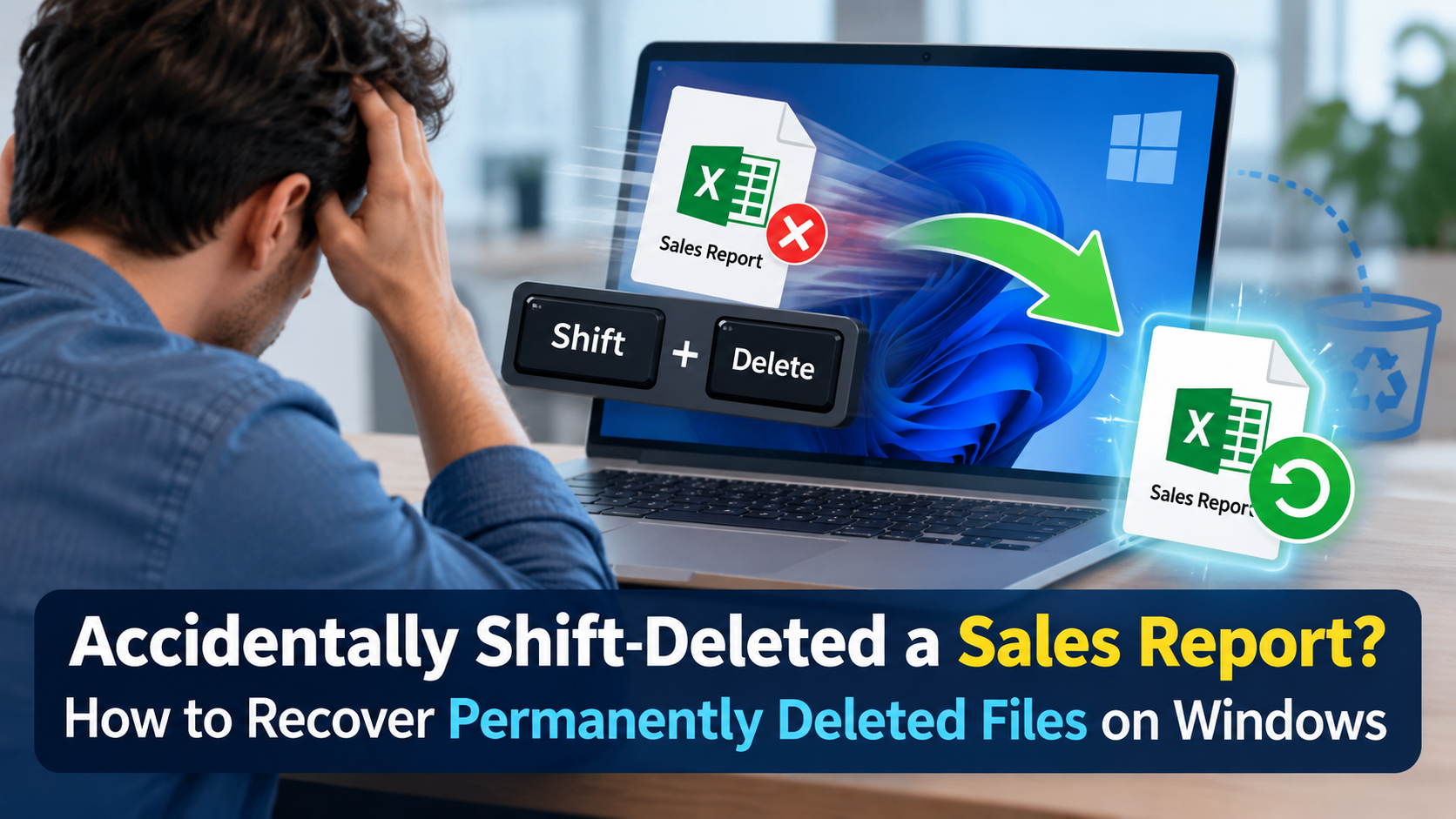
Retail teams rely on Windows PCs to manage sales reports, POS exports, inventory spreadsheets, supplier invoices, product photos, and promotional creatives. Accidentally deleting one of these files using Shift+Delete can disrupt daily operations and delay important business tasks.
Shift+Delete skips the Recycle Bin, so Windows no longer shows the file, but the data may remain on the drive until it is overwritten or otherwise becomes unrecoverable. Recovery may be possible through backups, cloud storage, Windows recovery utilities, or data recovery software. The chances of success depend on the storage device, its configuration, and whether the deleted data remains recoverable.
In this guide, we’ll explore different options to recover lost files in Windows with ease. Let’s get started!
What Happens When You Delete Files Using Shift + Del Keys?
Normally, when your POS exports, inventory spreadsheets, supplier invoices, or other files are deleted on Windows using Delete, Windows temporarily moves them to the Recycle Bin. This allows you to restore it using basic recovery workarounds. However, deleting files using the Shift+Delete keys bypasses the Recycle Bin and leads to permanent deletion. In the latter case, Windows displays a confirmation message asking whether you want to permanently delete the selected item.
If confirmed, the file is removed from its normal directory. Importantly, “permanently deleted” does not necessarily mean that every piece of the file’s data has immediately disappeared from the storage device. The chances of successful file recovery are better if:
- The file was deleted recently.
- You stopped using the affected drive after deletion.
- New files have not overwritten the deleted data.
- The storage device is functioning normally.
- You have a backup or another copy of the file.
- You are recovering data from a traditional HDD rather than an SSD with active TRIM.
Continued usage of your device for storing new files can overwrite the occupied storage space and make recovery complex.
Shift+Delete vs. Delete: What’s the Difference?
The main difference is that a normal deletion usually gives you an easy recovery option through the Recycle Bin, while Shift+Delete bypasses that safety mechanism.
| Comparison Point | Delete | Shift+Delete |
| Deletion Method | Moves selected files to the Recycle Bin by default. | Deletes selected files directly, bypassing the Recycle Bin. |
| Recovery Option | Deleted files can usually be restored from the Recycle Bin. | Recovery may require specialized software if no backup exists. |
| Storage Space | Files generally remain stored until the Recycle Bin is emptied. | Storage space may become available for reuse immediately. |
| Recovery Difficulty | Recovery is usually straightforward through the Recycle Bin interface. | Recovery is more difficult and depends on data overwriting. |
| Best Use Case | Suitable for removing files you might need again. | Useful when you intentionally want to bypass the Recycle Bin. |
Immediate Steps to Take After Shift + Delete
Before you proceed with any data recovery process, there are certain precautionary measures that you should consider in order to increase the chances of successful recovery.
1. Avoid Using the Affected Drive
Avoid saving new files, downloading reports, installing applications, or copying large folders to the drive containing the deleted data. If you need to install third-party free data recovery software, install it on a different drive.
2. Do Not Format the Drive
If Windows unexpectedly asks you to format a drive, do not proceed if it contains files you need. Formatting can complicate recovery, especially if new data is subsequently written to the drive.
3. Check if Another Copy Exists
Prior to using any free data recovery software, it is good to check for other places where a copy of the file may reside, for example:
- Cloud backups such as OneDrive or Google Drive
- External hard disk drive
- USB drives
- Network drives
- Attachments in emails
- Previously used folders
- Another computer or online storage services
SSDs and TRIM Can Affect Recovery
Many modern retail and office PCs use solid-state drives (SSDs). When TRIM is enabled, Windows can notify the SSD that certain storage blocks are no longer needed. The SSD may then clear those blocks, making recovery of Shift+Delete files difficult or impossible.
This means recovery software cannot guarantee that a deleted file will be restored, even if the deletion happened only moments earlier. Traditional hard disk drives (HDDs) may offer better recovery opportunities when the deleted data has not been overwritten, although success is never assured.
Quick Methods to Recover Your Shift-Deleted Files on Windows
Go through the below methods one by one to recover files deleted using the Shift + Del keys on your Windows PC:
Restore the File Using File History or Previous Versions
Windows offers an in-built File History backup utility that can save copies of files in selected folders to an external drive or network location. If this backup feature is synced on your PC before the deletion, it may be the most straightforward way to recover a sales report, inventory workbook, or other business document. All you have to do is:
- Open File History and go to the folder containing your deleted files.
- Right-click the folder and select Restore previous versions or tap the “Show more options” first (depending on your Windows version).
- Browse through available backups and choose the one that contains your deleted files.
- Once found, select Restore to return the folder to its original location, or use Restore to if available to save the recovered copy elsewhere.
Recover Files Using OneDrive Recycle Bin
Retail teams often sync their shared document in OneDrive or SharePoint, which makes sales reports, inventory records, invoices, and product assets accessible across authorised devices. If the deleted file was stored in OneDrive, check its online Recycle Bin.
Here’s how to recover files from OneDrive:
- Visit the OneDrive official website and log in to the same Microsoft account that you’ve synced on Windows PC.
- Go to Recycle Bin from the left-navigation pane.
- Browse through deleted files and select the item that you want to recover.
- Click Restore and wait till OneDrive returns the file to its original location.
Once done, open your synced OneDrive folder in File Explorer and confirm that the restored file appears again on your PC.
Note: Microsoft states that deleted items are generally retained for up to 30 days in personal OneDrive accounts and 93 days in work or school accounts, unless an administrator changes the retention settings. Items permanently deleted from the online Recycle Bin may no longer be recoverable through this method.
Use Windows File Recovery
Microsoft offers the Windows File Recovery tool, which is a command-line application that enables recovery of deleted files from local storage drives. This can help you especially if the files are no longer available through the Recycle Bin or normal data recovery options.
You can execute the following command in the Windows File Recovery command-line interface, mentioning the source drive along with a different destination drive:
winfr C: E: /regular /n \Users\<username>\Documents\
This command will save the recovered data from the source drive, i.e., C:, to the E: destination drive. Windows File Recovery utility offers different recovery modes – varying as per different file systems and deletion scenarios.
Important trade-off: Windows File Recovery must be installed, typically through the Microsoft Store. Also, installing it on the same drive that contains the deleted data can write new data to that drive.
Recover Files Using Free Data Recovery Software
If backups, cloud storage, and Windows File Recovery do not help, free data recovery software tools like Stellar Data Recovery Free, Recuva, and PhotoRec can assist you. These tools typically search the drive for information associated with deleted files and attempt to reconstruct recoverable data. You can use this software to recover deleted files of various types, including photos, videos, documents, emails, and many more.
If you want to recover your deleted POS exports, inventory spreadsheets, supplier invoices, and other files using third-party software, don’t install it on the affected drive. Install it on another drive or use a separate computer, connect the affected drive as a secondary device, and save recovered files to a different storage device. If the deleted data is on C:, installing recovery software on C: creates a risk of overwriting data that might otherwise be recoverable.
Wrapping Up
Recovering files deleted using the Shift + Del keys may seem complex, but that’s not the case. Fortunately, several free data recovery methods are available online that can help you recover your permanently deleted files with ease. Start by checking backups like built-in File History, cloud storage, and other copies. However, if you don’t have any backup, Windows File Recovery or dedicated free data recovery software like Stellar Data Recovery Free may help locate and restore deleted files.
The most important step after accidental deletion is to stop using the affected drive and avoid unnecessary writes. While no recovery method can guarantee success, acting quickly and maintaining regular backups can significantly improve your options for recovering important files.
Frequently Asked Questions
Can IT recover a file deleted from a shared store PC?
Possibly. IT can check cloud Recycle Bins, network backups, File History, and previous versions. If no backup exists, free data recovery software may help if the deleted data remains recoverable.
Does deleting a file from a OneDrive-synced folder delete it for the whole team?
It can. Deleting a shared file may remove it from the shared cloud location and other synced devices. Check the online Recycle Bin and ask the site’s administrator for help if needed.
Can I recover a deleted sales report without a backup?
You can try Windows File Recovery or compatible recovery software, but success depends on whether the underlying data remains recoverable. Save recovered files to a separate drive.
How can retail teams prevent inventory file loss?
Use managed OneDrive or SharePoint folders, configure appropriate backups, limit unnecessary administrator rights, and test restoration procedures regularly.
Leave a Reply