Retail News CRM

Tag: android

  • Google Meet Zooms onto CarPlay: A Hands-Free Meeting Revolution Android Auto Can’t Join Yet

    Google Meet Zooms onto CarPlay: A Hands-Free Meeting Revolution Android Auto Can’t Join Yet

    Google has recently introduced its video meeting application to automobile dashboards, enhancing the in-vehicle experience for iPhone users. Now, through CarPlay, drivers can join Google Meet calls hands-free while commuting. However, it’s worth mentioning that this feature is not yet available for Android Auto users.

    Google Meet on CarPlay: An Audio-Only Experience

    Google has officially confirmed that Google Meet is now accessible on Apple CarPlay. The feature was launched on March 23rd and is expected to be available to all users within a fortnight.

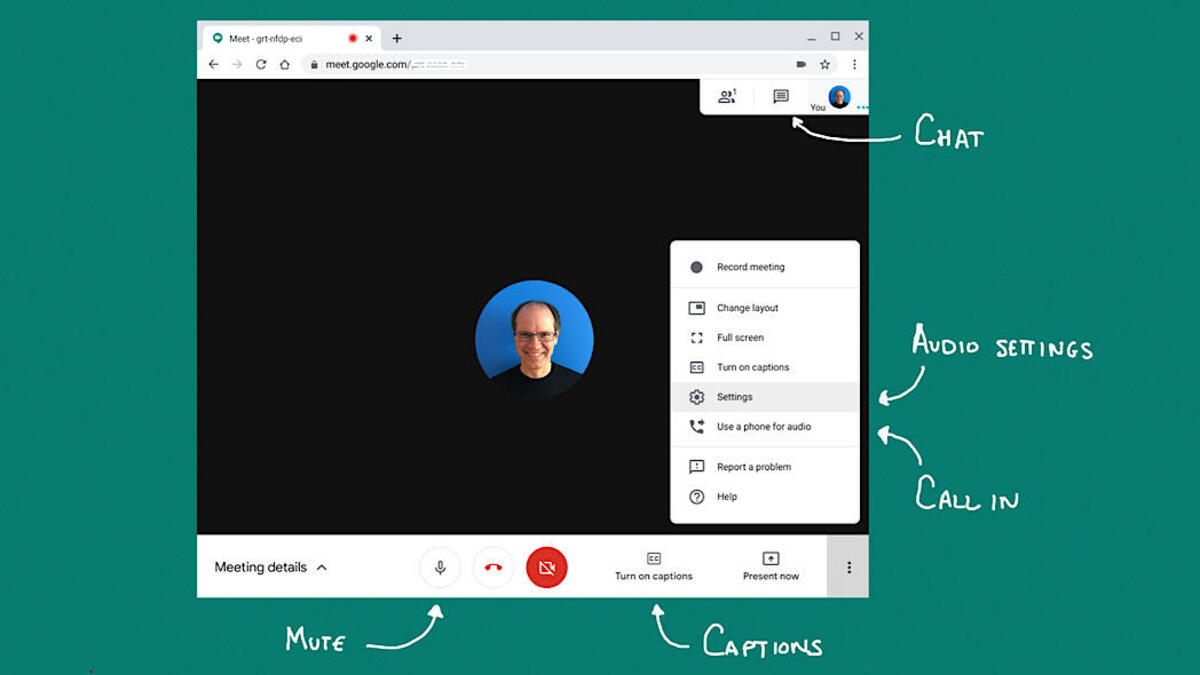
    The operation is simple and user-friendly. Upon connecting your iPhone to a CarPlay-compatible vehicle, the Google Meet application automatically appears on your vehicle’s display. Users can view their upcoming meetings and join them with a single click, enjoying an audio-only call experience.

    By design, there is no video functionality in this setting. The camera remains off, and users will not see other participants’ video feeds. The interface is simplified to only include two buttons—one to mute the call and another to leave the meeting. For a comprehensive meeting experience, users are advised to park their vehicle and switch to their phones.

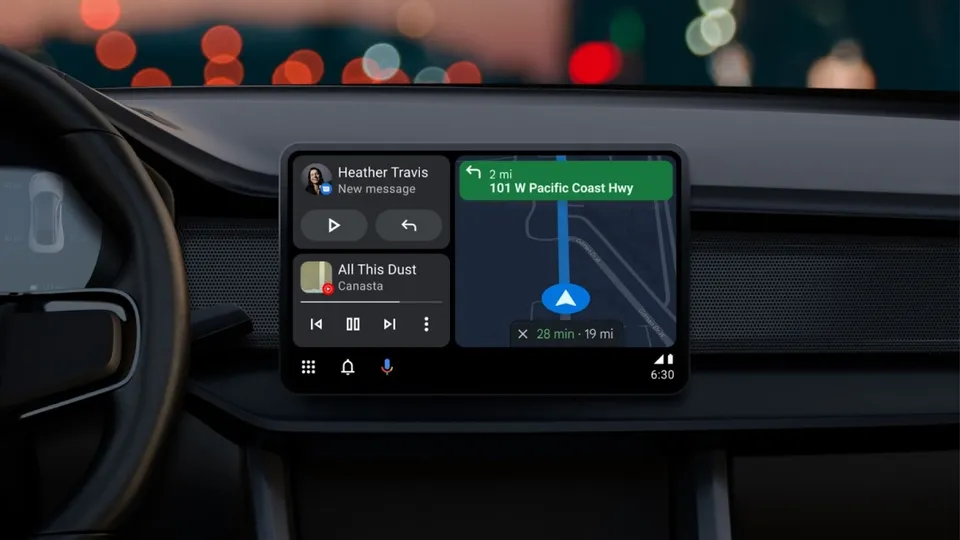
    A minor setback for Google is the lack of this feature for Android Auto users. The company has confirmed that an Android Auto version of Google Meet is underway but has provided no further details regarding its release.

    Significance for Commuters

    This new feature holds significant potential for millions of individuals who use Google Meet for work. Commuters with tight schedules no longer need struggle with their phones to join meetings. The real advantage lies in the calendar integration, which presents upcoming meetings directly on the vehicle’s display.

    This development aligns well with the broader evolution of CarPlay. As Apple continues to enhance the capabilities of CarPlay, the presence of Google applications on this platform bolsters its appeal and functionality.

    Questions & Answers

    What is the new Google Meet feature on Apple CarPlay?
    Google Meet is now accessible on Apple CarPlay, allowing users to join meetings with a single click and engage in audio-only calls.

    Is the Google Meet feature available for Android Auto users?
    Currently, the Google Meet feature is not available for Android Auto users. However, Google has confirmed that it is working on a version for Android Auto.

    What are the benefits of Google Meet’s integration with Apple CarPlay?
    The integration of Google Meet with Apple CarPlay simplifies the process of joining meetings for commuters. The calendar integration feature, which displays upcoming meetings on the vehicle’s screen, is particularly beneficial for users with busy schedules.
  • Revolutionizing Language Switch: Google Translate’s New Pinned Languages Feature for Android and iOS Users

    Revolutionizing Language Switch: Google Translate’s New Pinned Languages Feature for Android and iOS Users

    Google Translate, the language translation app that has become an essential tool for global travelers and multilingual professionals, is set to introduce a new feature that will streamline the process of switching between languages. Launched in 2011, Google Translate currently boasts a user base of one billion monthly active users worldwide, translating over one trillion words each month.

    Enhancing Language Access

    The upcoming update of the Google Translate app (version 10.8.48.878519627.2) will introduce a feature that allows users to pin their frequently used languages to the language selection page. This feature will enable users to have up to 10 language options readily available for quick selection.

    Currently, the app offers a ‘Recent languages’ list, which displays up to nine recently used languages at the top of the screen. However, adding another language to the list causes one to be removed. The forthcoming ‘Pinned languages’ section, which will be positioned above the ‘Recent languages’ list, will allow users to keep up to 10 languages permanently visible on the screen.

    Though it may seem like a minor addition, for those who regularly switch between languages, this feature could significantly enhance the functionality of the app. For instance, when visiting a country with multiple prominent languages, users will be able to conveniently switch between them via the ‘Pinned languages’ section.

    Using the Pinned Languages List

    To pin a language, users should open the Google Translate app and tap the button on the left side, which showcases the language being translated from. Under the ‘Recent languages’ heading, users can select a language and swipe right to reveal a pin icon next to the language name. Tapping the pin icon will add the chosen language to the pinned section in the app. If users wish to unpin a language, the process is the same, but instead, an unpin icon will be displayed next to the pinned languages, which can be tapped to remove the language from the pinned list.

    Questions & Answers

    What does the new feature of Google Translate do?
    The new feature allows users to pin their frequently used languages to the language selection page, enabling quick and convenient language switching.

    How many languages can be pinned to the Google Translate app?
    Users can pin up to ten languages on the Google Translate app.

    How can a language be pinned or unpinned in Google Translate?
    In the app, under the ‘Recent languages’ section, users can swipe right on a language to reveal a pin icon. Tapping this icon will pin the language. Similarly, tapping the unpin icon next to a pinned language will remove it from the pinned list.

  • Embrace the Modern: Google Maps Unveils Fresh Icon Design on Android and iOS

    Embrace the Modern: Google Maps Unveils Fresh Icon Design on Android and iOS

    Google Maps, one of Google’s most popular apps and a fixture on the first-generation iPhone, has undergone another update. In its pursuit of continual improvement, Google has added new features and refined the app’s user interface over the years. Now, the tech giant has updated the Maps app icon for both Android and iOS versions.

    A Modern Look for Google Maps

    The new icon continues to feature the recognizable “pin” symbol, but its design has been significantly modified. The most prominent change is the color gradient that seamlessly transitions from one shade to another. This is a departure from the previous icon, which showed a diagonally placed “pin” with separate, differently colored boxes (blue, green, yellow, and red). The revamped “pin” is also larger, with the circle within it having increased in size. Consequently, the top ring of the pin has become much thinner.

    If you recall the Google Maps icon on the first iPhone, it depicted two intersecting lines, representing roads, with a red pin and a sign for Highway 280. Subsequently, the icon evolved into a folded map featuring blue, green, yellow, and white blocks, with a red pin to the right and a lowercase “g” in the upper left corner. The Android version of the app icon was similar but replaced the “g” with a capital letter.

    New Icon for Google Maps on iOS or Android

    The new icon should be visible in version 26.09.06.873668274 of Google Maps for Android users and version 26.09.5 for iOS users. If you are yet to see the new design, you may need to update your Google Maps app.

    For Android users, this can be done by opening Google Play Store, tapping on the profile icon in the right corner, selecting “Manage apps & device”, and viewing “details”. You can then scroll down to find Google Maps, and if an update is available, tap on “Update”.

    For iOS users, the process involves opening the App Store, tapping on the profile icon in the right corner, selecting “Updates”, and scrolling down to find Google Maps. If there is an update available, tap on the “Update” button.

    After the update, the new Google Maps icon should be visible on your phone, signifying a more modern-looking Google Maps.

    A Brief History of Google Maps

    For many, Google Maps has been an essential tool since its inception. I first used the app in 2007 on my iPhone. In 2009, I experienced Google Maps with turn-by-turn directions on the Motorola Droid, the first phone equipped with Android 2.0. It felt revolutionary at the time and was one of the key selling points for the Droid and other Android phones. It wasn’t until December 2012 that this feature was finally added to the iPhone.

    Questions & Answers

    What is the most notable change in the new Google Maps icon?
    The new icon features a color gradient, transitioning smoothly from one shade to another. This replaces the previous design of separate, differently colored boxes. The “pin” is also larger, with an enlarged circle inside it, making the top ring of the pin thinner.

    How can I update the Google Maps app to see the new icon?
    For both Android and iOS users, you may need to update the app through Google Play or the App Store. If an update is available, select “Update” and the new icon should appear once the update is complete.

    When was turn-by-turn navigation first introduced in Google Maps?
    Turn-by-turn navigation was first introduced on the Motorola Droid in 2009, which operated on Android 2.0. This feature was later added to the iPhone version of the app in December 2012.

  • WhatsApp’s Major Redesign: Status Updates to Take Centre Stage in Latest Android Beta

    WhatsApp’s Major Redesign: Status Updates to Take Centre Stage in Latest Android Beta

    As social media evolves, two prominent trends have emerged: the prevalence of private chats and the popularity of temporary “stories,” which allow users to share snippets of their lives without leaving a permanent digital footprint. This shift towards more intimate and transient forms of communication is evident in the recent changes that WhatsApp is implementing.

    WhatsApp’s Interface Revamp

    WhatsApp, a widely-used messaging platform, is piloting an updated design that prioritizes status updates, or “stories.” The latest beta version of the Android app showcases a new approach to these status updates. The most recent updates from a user’s contacts now appear at the top of the Chats tab, presented alongside the profile pictures of those who have posted them.

    The stories that populate the top of the Chats tab reflect the user’s most frequent interactions. In other words, the status updates of those contacts the user frequently communicates with and who have shared a status update will be prominently displayed. However, the traditional Updates tab, typically found at the bottom of the screen, remains intact. This suggests that WhatsApp may not be planning to discard it entirely, although as this is an early beta version of the feature, the final outcome could potentially differ.

    The new design maintains one key feature from its predecessor: the ability to mute status updates. If a user has muted updates from a specific contact in the Updates tab, these updates will not appear in the new top bar. As of now, this redesign has been seen only in the Android beta version, and it is not yet clear whether it will be rolled out to iOS platforms.

    Transitioning towards a Social Media Platform

    While WhatsApp initially positioned itself as a simple chat service, it is rapidly expanding its offerings and pushing into the realm of social media with this new feature. Regardless of the fact that there are currently no banner ads within the app, WhatsApp’s parent company, Meta, could potentially generate revenue by users swiping through these stories, paralleling strategies employed by its other applications.

    Questions & Answers

    What significant change is WhatsApp experimenting with?
    WhatsApp is testing a new interface that prioritizes status updates, or “stories,” from users’ most frequently interacted contacts at the top of the Chats tab.

    Will the traditional Updates tab be removed with the new design?
    At this stage, the Updates tab appears to be preserved in the new design. However, as this is an early beta version of the feature, the final version could potentially differ.

    Could this change allow WhatsApp’s parent company, Meta, to generate revenue?
    While WhatsApp currently does not host banner ads, Meta could potentially monetize users’ interactions with their friends’ stories, in a manner similar to its other applications.

  • Revamp Unveiled: Discover the New Features in Google’s Updated Voice Search UI on Android

    Revamp Unveiled: Discover the New Features in Google’s Updated Voice Search UI on Android

    The user interface (UI) of Google’s Android voice search feature has recently undergone a transformation that might be refreshing to those who were not fond of the previous version. Earlier, when the microphone icon was tapped on the Google app, it led users to a page featuring a disembodied face. Since this voice search feature responded orally to user queries, the face’s mouth was designed to move in sync with Google’s vocal reply, which unsettled some users.

    A Digital Assistant Makeover

    In recent updates, the presence of Gemini, the new digital assistant, seemed to have replaced the unusual disembodied face. During the initial few weeks after introducing Gemini, the face disappeared. Despite Gemini performing all tasks previously assigned to Google Assistant, such as answering inquiries and setting alarms and timers, the face made a brief comeback in the new UI.

    Accessing Voice Search

    There is a multitude of ways for an Android user to access the voice search feature. The overhauled voice search UI now places the Google logo at the top center of the page, with a back button on the left and a three-dot overflow icon on the right. Users need to tap this icon to access the Voice settings. From here, the feature of Spoken Results can be activated, which will read out search results audibly. Users can also select from four distinct voices – Cosmo, Neso, Terra, or Cassini – to read out the results. Furthermore, they can select the preferred language for the voice search from a wide range of options. The dark theme too has witnessed an upgrade.

    Google’s voice search can be accessed by tapping the microphone icon within the Google Search widget on the home screen, by using the persistent Pixel Launcher search bar located at the bottom of the display on Pixel phones, or by saying “Hey Google,” if enabled.

    Revised Search Bar and Microphone Icon

    The use of the search bar and microphone icon for accessing voice search displays the previously mentioned disembodied face along with the word “Listening,” topped with a four-color arc. The new, enlarged “Search a song” button appears below the arc. This button opens a song search UI that prompts whether the user wants to “Play, Sing, Hum.” To top it all, there’s a shortcut to the Song Search history in the top right corner.

    Questions & Answers

    What changes have been brought to the Google’s Android voice search UI?
    The new UI has replaced the disembodied face with the Google logo, placed at the top center. The voice search settings can be accessed via the three-dot overflow icon on the right.

    How can Android users access the voice search feature?
    Users can access the voice search feature by tapping the microphone icon within the Google Search widget on the home screen, by using the persistent Pixel Launcher search bar, or by saying “Hey Google,” if this feature is enabled.

    What is the functionality of the “Search a song” button in the new UI?
    The “Search a song” button opens a song search UI that prompts whether the user wants to “Play, Sing, Hum.” It is also accompanied by a shortcut to the Song Search history.

  • Game Changer: Apple TV+ Android Update Adds Long-Awaited Google Cast Support

    Game Changer: Apple TV+ Android Update Adds Long-Awaited Google Cast Support

    Apple TV+ has finally introduced the much-anticipated update, enabling Android users to enjoy premium content on large screens. Previously, Android users could only view this content on their 6-inch phone screens unless they had specific hardware.

    Apple TV+ for Android Now Compatible with Larger Screens

    February marked the arrival of the Apple TV app on Android devices, much to the delight of streaming enthusiasts. Despite the excitement surrounding its launch, the app’s capability was seemingly limited. The most notable limitation was that Android users were confined to watching premium content on their small phone screens, unless they possessed particular hardware.

    However, a novel update from Apple has changed the game. Google Cast support has now been officially introduced in the Android app, making it possible to stream shows like Severance or Slow Horses directly from your Pixel or Samsung device to your Chromecast or Google TV setup.

    Revolutionary Features in the Update

    The updated features include Google Cast Support, which allows streaming via Wi-Fi or cellular to compatible TVs. The Offline Viewing feature lets users download movies and episodes for travel, while the Sync Continuity feature ensures that the “Continue Watching” option picks up from where the user last stopped, regardless of the device. Furthermore, Library Management provides full access to your Watchlist to manage upcoming viewing.

    While it may appear to be a minor technical adjustment, it’s a significant change in the app’s usability. For several months, the Apple TV app on Android seemed somewhat detached—a unique and often frustrating experience in a landscape where competitors such as Netflix, Disney+, and Hulu have supported casting for over a decade.

    By incorporating this feature, Apple is signaling a shift away from its “walled garden” approach when it comes to marketing a streaming service. Given that a substantial portion of the global audience comprises Android phone and Google TV users, this upgrade levels the playing field, making Apple TV+ a more appealing primary streaming service for households with mixed ecosystems, rather than just an additional feature for iPhone owners.

    Better Late Than Never

    Truthfully, the initial launch of the app without Cast support felt somewhat incomplete. There was a sense that Apple was only doing the bare minimum to get the app into the Play Store, without much regard for the user experience. It was challenging to recommend the service to Android users when they could not easily watch Apple TV+ on their actual television.

    Questions & Answers

    What is the new update in the Apple TV+ app for Android users?
    Apple has introduced Google Cast Support in the Apple TV+ app, enabling Android users to stream content directly to their Chromecast or Google TV setup.

    What are the key features of this update?
    The update includes Google Cast Support, Offline Viewing, Sync Continuity, and Library Management.

    What does the introduction of Google Cast Support signify?
    By incorporating Google Cast Support, Apple is acknowledging the importance of Android phone and Google TV users as a significant portion of its audience. This feature makes Apple TV+ a compelling primary streaming service for households with mixed ecosystems.

  • App Lock Security Coming to Android 17: A Much-Anticipated Upgrade for User Privacy

    App Lock Security Coming to Android 17: A Much-Anticipated Upgrade for User Privacy

    In a rapidly digitalizing world, smartphones have become the vaults of our sensitive data, often stored within various applications. These applications, at times, require an additional layer of security for optimal safeguarding. Android, despite its Private Space feature, lacks a user-friendly method to secure these apps. However, this could potentially change with the forthcoming major update of Google’s mobile operating system (OS).

    App Lock Feature in Android 17

    In a bid to enhance the security on its platform, Google might finally incorporate a native app lock feature in its Android 17 update. This function is expected to operate at the system level of the OS. Recent investigations into the code of an Android Canary release revealed indications of this feature.

    The code introduced a fresh App Lock Application Programming Interface (API), compatible with any default launcher. This implies that the function will not be exclusive to Pixel phones but will be available across all Android devices.

    Bridging the Gap

    Android users may already be using app locks and might be puzzled by this update. However, it’s essential to note that these locks are not native to the OS. Instead, they are solutions developed independently by Original Equipment Manufacturers (OEMs), such as OnePlus.

    Google’s indigenous solution, known as Private Space, differs significantly from elementary app locking. Apps within Private Space are entirely segregated from the rest of the OS, function under a separate user profile, and are challenging to access.

    On the contrary, an app lock feature merely secures apps, necessitating face unlock, fingerprint authentication, or a passcode for access. Apart from this, the apps stay connected to the rest of the operating system and can be placed on the home screen. Google already provides a similar feature with its Google Photos app.

    Tech giant Apple was one of the first major brands to introduce an app lock feature with its iOS 18. In contrast, Samsung, Google, and Motorola don’t have this feature. Samsung supports a Secure Folder, and Motorola has its own Moto Secure menu containing folders, both of which function similarly to Google’s Private Space.

    A Much-needed Feature

    The introduction of an app lock feature is a move many find surprising it wasn’t implemented earlier in more devices. It strikes the ideal balance between security and convenience, potentially serving a broader user base than any isolated space.

    Questions & Answers

    What is the new feature expected in Android 17?
    There are indications that Android 17 may include a native app lock feature.

    How does the app lock feature differ from Google’s Private Space?
    Unlike the Private Space, which completely isolates certain apps from the rest of the OS, an app lock merely requires face unlock, fingerprint authentication, or a passcode for access, while the apps remain connected to the rest of the operating system.

    Which other major brand has an app lock feature?
    Apple was one of the first major brands that introduced an app lock feature with iOS 18.

  • Waze Unleashes Phone Access: Major Android Auto Hurdle Finally Overcome

    Waze Unleashes Phone Access: Major Android Auto Hurdle Finally Overcome

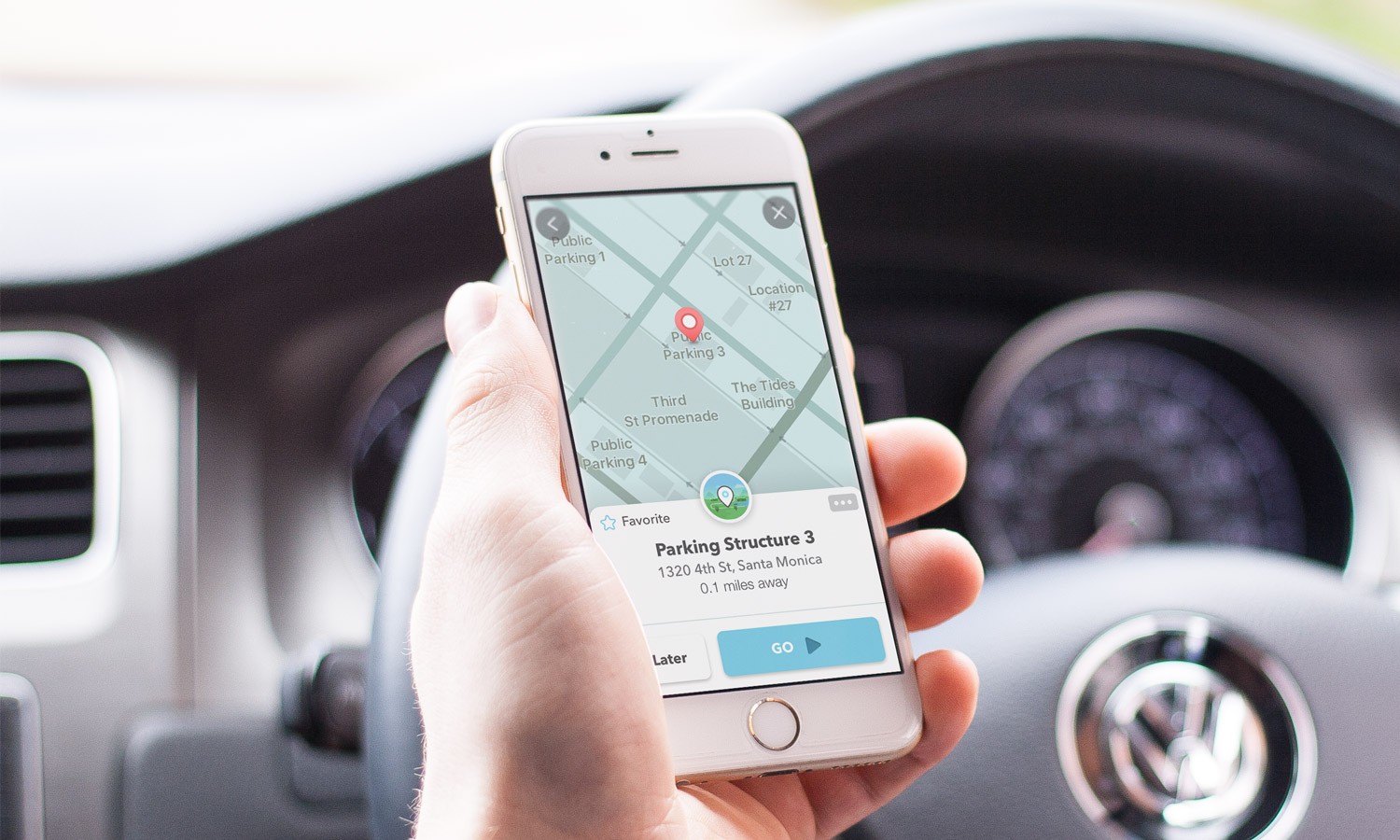
    Waze, the popular navigation application, is set to enhance its user experience on Android Auto by finally removing a significant hurdle that has been a point of frustration for many of its users. The app will now allow the use of phones while connected to the vehicle, aligning its functionality more closely with its direct competitor, Google Maps.

    Unlocking the User Experience

    Android Auto users who are fans of Waze have had a notably frustrating issue for some time. Upon connecting their device to their vehicle, the application would effectively freeze on their phone, often presenting a black screen or a banner urging the user to concentrate on the dashboard. This made the phone virtually impractical for entering directions. Fortunately, this source of exasperation is now being addressed.

    A widespread update is being rolled out that permits users to access and operate the Waze app on their mobile device while it concurrently runs on the car’s display. Although this feature has been seen in beta versions over the last few months, it now seems to be accessible to all in the stable builds.

    This enhancement has been anticipated for quite some time. Google Maps, a close cousin and rival to Waze, resolved this exact restriction back in 2023. Prior to this amendment, Maps users faced the same predicament of a ‘locked screen,’ a situation that was universally disliked.

    The Importance of This Update

    The significance of this update lies in the fact that in-car infotainment systems are often less responsive than smartphones. Inputting an address on a dashboard touchscreen can be clumsy, slow, and distracting. Older vehicles or specific models frequently rely on rotary dials instead of touchscreens, making the task of typing an address like ‘Main Street’ by scrolling through an alphabet wheel incredibly tedious.

    However, this alteration evens the odds. It enables a passenger to conveniently pick up the phone to add a stopover or check alternative routes without obstructing the driver’s map view on the larger screen. This update recognizes that the phone is often the superior input device, even though the vehicle may offer a better viewing experience.

    A Timely Improvement

    Many users, including myself, find themselves in a constant quandary over which of the two navigation behemoths – Google Maps or Waze – to choose. While Google Maps scores higher for its neater user interface and superior lane guidance, Waze is unmatched in its real-time police spotting and hazard alerts. Nonetheless, the inability to swiftly grab my phone and change a destination on Waze was a significant disincentive that often led me back to Maps.

    This update overcomes that obstacle. It makes Waze significantly less restrictive and considerably more contemporary. It’s a quality-of-life improvement that may sway me to consistently use Waze for my daily commute. If you are yet to see this feature in action, try force-stopping the app and reopening it while connected; this appears to activate the new pop-up.

    Questions & Answers

    What does the new Waze update entail?
    The update allows Waze users to access and operate the app on their phone while it’s simultaneously running on their car’s display.

    Why is this update significant?
    This update brings an end to the frustration of being unable to use the phone for navigation once connected to the car, a problem that had been a major issue for Waze users on Android Auto.

    Is this feature already available on Google Maps?
    Yes, Google Maps resolved this exact issue back in 2023, allowing users to operate the app on their phone while it’s connected to their vehicle’s infotainment system.

  • Gemini Revolutionizes Android Auto: Introducing a Smarter, More Conversational AI Assistant for Productive Hands-Free Driving

    Gemini Revolutionizes Android Auto: Introducing a Smarter, More Conversational AI Assistant for Productive Hands-Free Driving

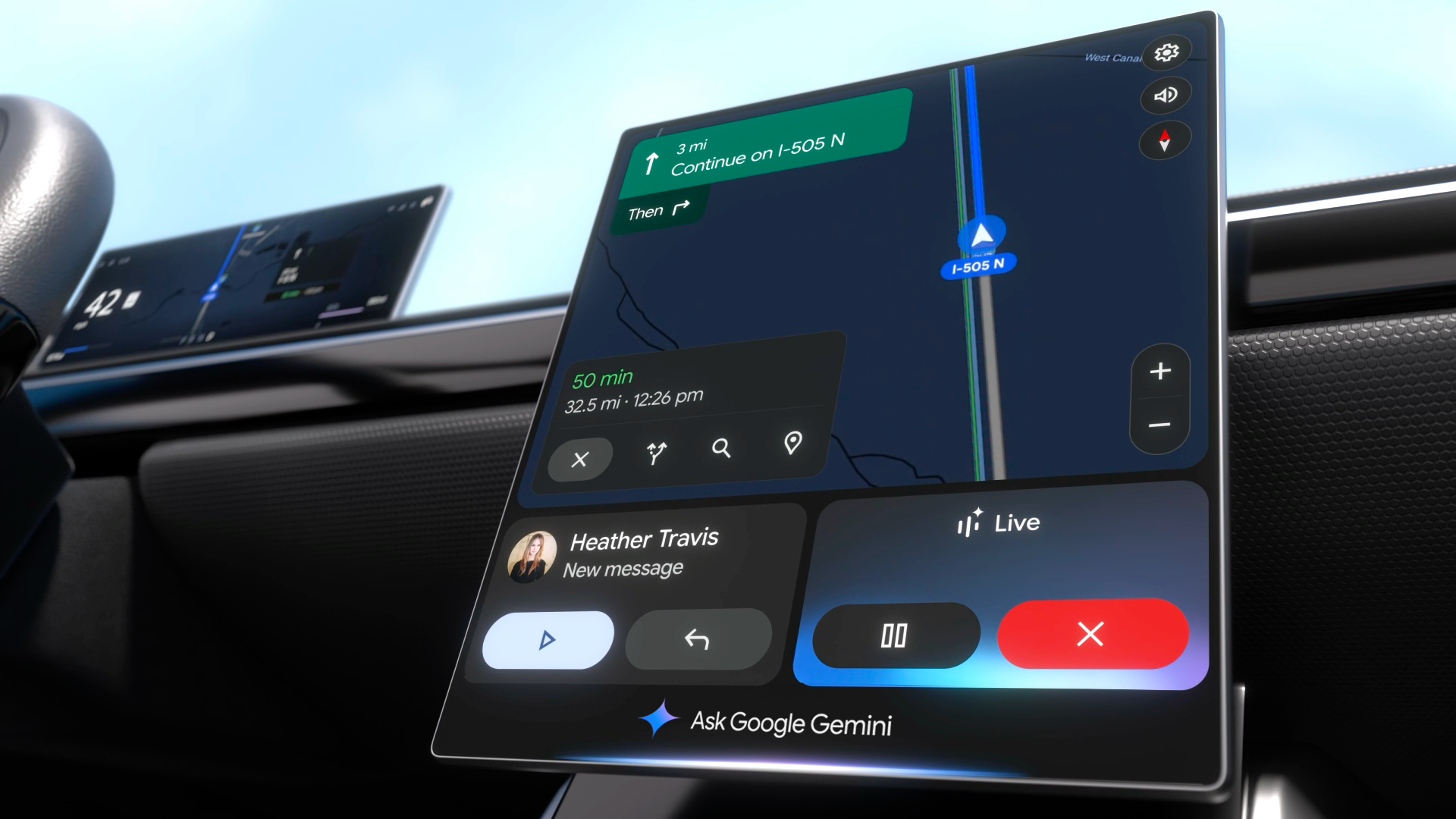
    Gemini, a new conversational AI, is set to enhance the Android Auto experience by improving voice command capabilities. This latest update offers an elevated hands-free driving experience by integrating with emails, real-time reviews, and more.

    Gemini’s Arrival to Android Auto

    Android Auto users have traditionally utilized built-in voice commands for elementary tasks like navigation and phone calls. The previous Google Assistant, while functional, was somewhat inflexible, often requiring precise phrasing.

    The introduction of Gemini, a more interactive and intuitive AI assistant, aims to change this. This new conversational AI has begun its global rollout to Android Auto users who have updated their devices. The implication of this is a less taxing and more natural interaction with the system while maintaining safe, hands-free control of the vehicle.

    Google confirmed that, while continuing to handle basic hands-free tasks, Gemini will extend its functionality as a comprehensive conversational AI. This means the need for memorizing specific phrases is eliminated, allowing users to interact with the system using natural language.

    The rollout is currently underway and all users need to access Gemini is the app on their Android device. Users can initiate interaction with the AI by simply saying “Hey Google,” or by using the on-screen or steering wheel controls.

    The Leap Towards a Better User Experience

    This significant update is set to revolutionize Android Auto’s user experience, which until now, has been somewhat clunky due to the requirement for very precise wording. This update is set to tackle this issue head-on, resulting in less distraction and a more authentically helpful virtual assistant.

    Comparatively, Apple’s CarPlay uses Siri, which is capable of handling rudimentary commands and integrating with Apple Music and Maps. However, Siri has not been known to provide the in-depth, cross-app conversational intelligence that Gemini offers.

    Gemini is poised to redefine the in-car AI experience, offering superior conversational utility and outpacing its competition. Its introduction is a significant victory for the multitude of vehicles already equipped with Android Auto, and for regular drivers and commuters who stand to benefit immensely from this product.

    The Future of Driving Assistance

    This update represents a momentous advancement towards driving assistance’s future. Although the former Google Assistant was adequate, its limited ability to process complex queries or follow up on previous commands often left users frustrated.

    The transition to a truly conversational AI in a hands-free environment is a game-changer. The “Live” feature allows users to brainstorm or rehearse, turning monotonous commutes into productive journeys. It can summarize emails or find addresses in Gmail, offering practical, frictionless utility. Android users eagerly await the arrival of this update on their devices.

    Questions & Answers

    What is the Gemini update in Android Auto?
    Gemini is a new conversational AI update in Android Auto that enhances the built-in voice command capability. It allows for more natural language interaction, making hands-free tasks less taxing and more efficient.

    How does the Gemini update compare to Siri on Apple’s CarPlay?
    While Siri on Apple’s CarPlay can handle basic commands and integration with Apple Music and Maps, it does not offer the same level of in-depth, cross-app conversational intelligence that Gemini provides on Android Auto.

    What are the benefits of the Gemini update for Android Auto users?
    The Gemini update offers Android Auto users a more genuinely helpful virtual assistant. It reduces distraction, supports safe driving, and turns potentially unproductive commute time into useful “done time” by completing tasks such as summarizing emails or finding addresses within Gmail.

  • Google Moves To Rectify Ios-android Disparity: Incognito Search Feature Coming To Android App

    Google Moves To Rectify Ios-android Disparity: Incognito Search Feature Coming To Android App

    It’s a well-worn stereotype that iOS applications tend to receive upgrades before their Android equivalents. Surprisingly, even Google’s app, a tool one might expect to transcend such norms, has perpetuated this trend. For years, a particularly useful feature has been available exclusively to iOS users. However, Google is now reportedly taking steps to rectify this inexplicable disparity.

    Android to Receive Incognito Search Access

    In the past, the Google app on iOS has enabled users to switch their search to incognito mode directly from the in-app search bar. This capability has been conspicuously absent from the Android version of the app, until now. An incognito feature has been detected in a beta version of the Google app for Android, indicating that this functionality will soon be implemented.

    Similar to the iOS app, when a new search is initiated, a toggle appears above the keyboard. In the Android version, this toggle is labelled “History Off Search”, as opposed to “Incognito Mode” on iOS. Activating the toggle ensures that the search results don’t open within the Google app, but via a Chrome Custom Tab, which is already in incognito mode.

    Once engaged, this mode allows for continued browsing and link clicking, all activities are conducted in incognito mode. Should a link be opened in Chrome, the browser will also automatically launch in incognito mode.

    Features Still Lacking on Android

    This is not the only feature Android users have been missing out on. Another less apparent iOS functionality allows users to switch the Google app to incognito mode by tapping and holding on their avatar. Unfortunately, this is yet another feature unavailable for Android users.

    While the new incognito toggle has not yet been activated on the Google app for Android, it is expected to become available in an upcoming update.

    Google’s Room for Improvement

    Given the prevailing stereotype, it is perplexing that Google would initially launch an incognito feature on a competitor’s operating system. If Android users were aware of this discrepancy, they might feel frustrated, especially considering this is not the first time Google has prioritized iOS over Android.

    Questions & Answers

    What is the unique feature that the Google app has on iOS but not on Android?
    The feature that allows users to switch a search to incognito mode directly from the search bar within the app had been exclusive to iOS.

    Has Google taken steps to correct this disparity?
    Yes, Google plans to implement this feature on Android. The functionality was recently spotted in a beta version of the Google app for Android.

    Is there any other unique feature on the Google app for iOS?
    Yes. iOS users can tap and hold on their avatar to switch the Google app to incognito mode, a feature not available to Android users.

  • Revolutionizing Photo Editing: Google Photos Unveils Voice-commanded Tool

    Revolutionizing Photo Editing: Google Photos Unveils Voice-commanded Tool

    Google has unveiled a new tool within its Google Photos application, allowing users to alter and enhance their photos with simple voice or typed commands. Equipped with the ability to understand conversational English, the feature offers users a user-friendly and innovative way to edit their photos.

    Using Google Photos’ New Feature

    To access this new tool, Android users can open the Google Photos app and select the image they wish to modify. Once the photo is chosen, tapping on the “Help me edit” option in the editor will prompt the user to either speak or type their desired changes. No need for complicated photo editing terms or jargon; the feature responds to plain English instructions.

    Google provided several examples showcasing the potential of this new tool. In one instance, a photo was marred by an unwanted window reflection. By simply telling the app to “Remove the reflection on the window,” the user could effortlessly rectify this issue, resulting in an improved image.

    Transforming Photos Using Conversational English

    In another scenario, a photo depicted a child standing before an unsightly fence. To remedy this, the user could instruct the app to “Erase the text and the fence in bottom, zoom out, and sharpen.” The outcome was a vastly improved photo where the child, not the fence, took center stage.

    The feature is not limited to landscape or portrait photography and can be applied to selfies as well. If a user desires to brighten a shadowy selfie, they can instruct the app to “Add studio lighting to make me stand out.”

    Expanding the Frame with Imagination

    Users can also manipulate the composition of their photos using this feature. By saying, “Expand the composition and make it better,” the tool can effectively broaden the photo’s borders, enhancing the overall aesthetic. If a user wishes to add elements to an otherwise empty background, they can instruct the tool to “Reimagine this room with a bookshelf and lights.”

    Google’s new feature demonstrates how the use of conversational English can significantly alter an image. A simple command such as “Fill the grass with beautiful sunflowers” can completely transform a photo, adding an entirely new dimension to the image.

    Questions & Answers

    Does the Google Photos feature work on selfies?
    Yes, the tool can be used to enhance any type of photo, including selfies.

    Can the tool add elements to a photo’s background?
    Yes, the tool can add elements to a photo’s background. For example, a user can instruct the tool to add a bookshelf and lights to an empty room.

    Is it possible to remove unwanted elements from a photo using this tool?
    Yes, the tool allows users to remove unwanted elements. For instance, a reflection on a window or an unsightly fence can be removed with a simple instruction.

  • Chrome for Android, iOS, adds important summarization feature

    Chrome for Android, iOS, adds important summarization feature

    Have you ever found yourself struggling to comprehend the content of some webpages? For those using Chrome Browser for Android, a new tool might solve this problem. This feature, powered by artificial intelligence (AI), is set to enhance your browsing experience on Google’s browser – courtesy of Gemini.

    Introducing the Gemini Overlay with a Summarize Feature

    The Gemini overlay is available on the stable versions of Android 16 as well as the latest Android 16 QPR2 Beta 2 update. It kicks off with an intuitive prompt that allows you to input a question for Gemini to address. Following this, you will find the “ask about page” option. This feature enables Gemini to clarify or elaborate on a section of the webpage you’re currently viewing. You can also utilize this button to request Gemini to compare two specific items featured on the webpage. Lastly, the overlay comes equipped with a Summarize button that generates a brief synopsis of the webpage displayed on your screen.

    If you have the Gemini app installed on your Pixel device, initiating a long press on the power button should activate the Gemini overlay.

    How to Use the New Summarize Feature

    To make use of this feature, launch Chrome Browser on your Pixel phone and visit a website. Hold down the power button to bring up the Gemini Overlay. Tapping on the Summarize button will provide a concise summary of the webpage content on your screen. This feature can be utilized not only when reading a story on Chrome or viewing a Chrome custom tab like Discover, but it can also summarize Search results and stories read on the Google News app.

    Above the Summarize button, you’ll find the “Share screen with Live” option. Tapping on this, Gemini Live can view and interpret the content displayed on your phone’s screen, transforming Gemini into a powerful visual assistant. Whether you’re looking at a shopping app or directions on the screen, Gemini can provide additional information or help you comprehend complicated instructions.

    The Summarize button is accessible on both Android and iOS platforms. For iOS users, you can access this feature by opening the Chrome app and navigating to a website. Tap on the icon that looks like a stack of paper with text on it and a “+” sign, located on the left side of the Chrome address bar. A “Page tools” pop-up will appear from the bottom of your screen, offering two options: “Search screen” and “Ask Gemini”. Choose the “Ask Gemini” option, which will bring up the Gemini overlay. Click on the Summarize button to view a summary of the displayed content.

    Utilizing Gemini as Your Digital Assistant

    In order to take advantage of this feature, you should have the Gemini app installed on your device. Android phone users can install the app from the Play Store, while iPhone users can download it from the App Store.

    If you’re a Pixel user looking for more comprehensive responses to your queries, you might consider using Gemini as a replacement for Google Assistant. You can do so by opening the Gemini app, clicking on the profile icon in the upper right, and navigating to Settings > Digital assistants from Google. Here, you can choose between Gemini and Google Assistant.

    Questions & Answers

    What is the Gemini overlay?
    The Gemini overlay is a feature on Google’s Chrome browser that uses AI to help users better understand webpage content.

    How can I use the Summarize feature on my Android device?
    To use the Summarize feature, open a website using the Chrome Browser on your Android device. Long-press the power button to bring up the Gemini Overlay, then tap on the Summarize button to get a concise summary of the webpage content.

    Can I use Gemini as a replacement for Google Assistant?
    Yes, if you’re looking for more comprehensive responses to your queries, you might consider using Gemini as a replacement for Google Assistant. This can be done via the settings in the Gemini app.

  • Google’s Android Auto Enhances Driver Safety With Innovative Call Screening And Notes Features

    Google’s Android Auto Enhances Driver Safety With Innovative Call Screening And Notes Features

    Google has announced the implementation of new features to Android Auto, designed to augment safety and convenience for drivers. The recent update incorporates Call Screening and Call Notes, enabling drivers to handle calls in a more sophisticated way, without diverting their attention from driving.

    Call Screening in Your Car

    The latest update allows Android Auto to screen incoming calls, particularly from unknown or unsaved numbers, on behalf of the driver. When a call is received, the system prompts the caller to identify themselves and state the purpose of the call. The driver is then relayed the responses, providing them the choice to accept or reject the call without having to answer it manually.

    This innovative feature helps to deter unwanted interruptions while driving, ensuring that drivers only receive pertinent calls. By reducing distractions, it offers a smart safety solution.

    Call Notes: Keep Track of Key Points

    Android Auto plans to support Call Notes later this year. This tool automatically generates a summary of your calls in text format. It proves particularly beneficial for business or crucial conversations that cannot be recorded while driving.

    Call Notes was initially introduced with Google’s Pixel 9 phones. Now, by incorporating it into Android Auto, it aims to enhance productivity on the move.

    Why These Additions Matter

    These two enhancements offer tangible benefits for drivers:

    Reduced Distractions: Drivers no longer need to physically manage each incoming call while driving.

    Better Context: Call Notes enables drivers to capture key points from calls without the necessity of manually taking notes.

    Keeping Up with Competition: Apple’s iPhones already provide call screening within CarPlay. Google is maintaining its competitive edge by integrating this feature into Android Auto.

    Questions & Answers

    What are the new features introduced in Android Auto?
    The new features introduced are Call Screening and Call Notes, aimed at reducing distractions and improving convenience for drivers.

    What is the purpose of the Call Screening feature in Android Auto?
    Call Screening allows Android Auto to screen incoming calls on behalf of the driver. The system prompts the caller to identify themselves and state their reason for calling, giving the driver the option to accept or reject the call without manually answering it.

    What is the function of Call Notes in Android Auto?
    Call Notes is a feature that automatically creates a text summary of your calls. It assists drivers in keeping track of important points from calls without having to manually take notes.

  • Whatsapp Unveils Real-time Translation Feature, Ensuring Privacy And Expanding Global Communication

    Whatsapp Unveils Real-time Translation Feature, Ensuring Privacy And Expanding Global Communication

    WhatsApp, owned by Meta, is introducing a fresh translation feature for its Android and iOS applications. This new function will enable users to translate their messages in real-time.

    Real-Time Translation on WhatsApp

    Meta is planning a “gradual” introduction of a new translation feature for WhatsApp on both Android and iOS platforms. This feature will offer users the chance to translate their messages in direct chats, groups, and Channels. This can be done by holding the message for a longer duration and selecting the “Translate” option. Users will then have the freedom to select the languages for translation.

    According to Meta, each translation will be processed on the device itself, which means that WhatsApp will not have access to the content of the messages, thereby ensuring that all conversations are kept encrypted.

    Diverse Features for Different Platforms

    Android users will receive a more enhanced translation feature, even though the number of supported languages is less. Following the translation of a message, they will have the option to activate the automatic translation for the entire conversation and view the translated versions of all future messages.

    On the other hand, iPhone users will have the privilege of using the feature in a wider range of languages. In total, WhatsApp on iOS will support translation between 19 languages, as supported by Apple’s Translate app. However, Android users will only have access to translation services in six languages.

    This new feature from Meta follows closely on the heels of Apple’s own introduction of Live Translation on its Messages app in iOS 26. Similar to what Meta offers Android users on WhatsApp, this feature operates automatically while messages are being typed.

    The Upsurge of Automated Translation

    The introduction of this translation feature on WhatsApp could be seen as part of a larger trend of automated translation technology, which has been gaining popularity in recent years. Learning new languages can be a daunting task, making reliable translation tools a necessity for many. Given the global reach of WhatsApp, this feature could potentially have greater impact than Apple’s Live Translation tool.

    Questions & Answers

    What is the new feature being introduced by WhatsApp?
    WhatsApp is introducing a real-time translation feature for Android and iOS users.

    Will WhatsApp have access to the content of my messages?
    No, WhatsApp will not have access to the content of your messages as all translations are processed on the device itself.

    How does the feature work on Android and iOS?
    Android users will have the option to activate automatic translation for entire conversations once they translate a message. iPhone users, however, will have access to translation between a wider range of languages.

  • Google Unveils Enhanced Image Editor For Google Photos: A Closer Look At User-friendly Features

    Google Unveils Enhanced Image Editor For Google Photos: A Closer Look At User-friendly Features

    Google has just released a revamped image editor for its Google Photos application on Android. This newly designed feature, which users might find more user-friendly, can be accessed by selecting a photo from your Google Photos gallery and then hitting the Edit option located on the bottom bar of the screen.

    On the lowest part of the screen, a carousel featuring six options is now available: Auto, Actions, Markup, Filters, Lighting, and Color. Each of these options opens up a variety of editing tools that you can utilize to perfect your image.

    Further Editing Options

    Additional editing tools are available above the image preview. Here, you’ll find icons such as Auto frame, a dropdown menu with various aspect ratio choices, an icon to flip the photo, and another to rotate the image. The top left corner of the screen houses the exit button, labeled “X”, while on the right, there’s a Save button and a three-dot icon that opens a pop-up, which can be used to provide feedback to Google.

    Interactive Image Manipulation

    Once a photo is selected for editing, users can tap, brush, or draw a circle around any portion of the image they wish to edit. This action prompts a menu to appear, presenting all the relevant editing options you have at your disposal.

    For instance, after enclosing a squirrel in a photo with a circle, I was provided with options to Erase the squirrel, Move it to a different location within the photo, or use AI to Reimagine the image. After opting for the last choice and indicating my desire for the squirrel to be holding a baseball cap and wearing a hat, the software generated the requested image.

    Availability of the Feature

    This feature is currently being deployed on version 7.44 of the Google Photos app for Android, following a server-side update initiated by Google. If you haven’t received it yet, you can manually update by navigating to Settings > Apps > See all apps and scrolling to Photos. Tap on Photos, and when you see the App info page, press on Force stop.

    Questions & Answers

    What are the new editing options available on the Google Photos app?
    The redesigned Google Photos app offers a variety of editing tools including Auto, Actions, Markup, Filters, Lighting, and Color.

    How can users manipulate a specific part of an image?
    Users can tap, brush, or draw a circle around the part of the photo they wish to edit, prompting a menu with relevant editing options to appear.

    How can users access the redesigned image editor if it hasn’t automatically updated?
    Users can manually update by navigating to Settings > Apps > See all apps and scrolling to Photos. After tapping on Photos, they can press Force stop on the App info page.