Tag: Google

  • Google Messages is testing an easier way to send multiple images

    Google Messages is testing an easier way to send multiple images

    Google Messages, the default messaging app for most Android devices, offers a reliable and consistent experience when sending text messages. However, compared to other messaging apps, it does lack in certain areas pertaining to multimedia, such as when sending multiple images at once. Thankfully, it looks like Google is working on improving this experience.

    Currently, sending an image from your gallery in Google Messages is a fairly simple process: tap the image attachment icon, pick your photo, and send. The app even has a built-in camera shortcut, so you can snap a photo on the fly. But for those in a rush, the workflow needs refinement. Each new photo requires you to reopen the attachment sheet, negating the time-saving benefits of the in-app camera.

    The latest Google Messages beta (version 20240318 openbeta_dynamic) brings a UI refresh designed for quicker image sharing. In this version, the preview screen of a newly snapped photo shows the biggest change. The button at the bottom right now says “Send,” cutting out an extra step for single images. The bottom left gains an “Add more” shortcut, reopening the attachment sheet for further selections or to use the camera again. This is far easier than saving to your camera roll.

    That said, this change does have its downsides. One curious omission in this beta is the “Edit” option for basic photo annotations. Knowing that the new UI is still being tested, we are hopeful that these tools will be restored prior to making it to the production phase. We need more features added, not taken away!

    Regardless of this small setback, this streamlining is a welcome change for Google Messages. With such broad testing, we can likely expect a stable release soon, potentially bringing back those missing editing tools. While not a huge change, it demonstrates Google’s continued efforts to refine the core messaging experience.
  • Google Wallet is rolling out support for Apple Wallet pass files

    Google Wallet is rolling out support for Apple Wallet pass files

    Last year, Google Wallet rolled out a new feature that allowed users to share boarding passes and event tickets with others via a link. This feature was designed as a convenient way to share passes with friends and family, but mostly for those who didn’t actually have the Google Wallet app installed on their devices, such as iOS users. Now, a new update is rolling out that expands on this and now allows Apple Wallet passes to be used in Google Wallet as well.

    This update, which Android expert Mishaal Rahman documented, aims to narrow the disparity with Apple Wallet. Apple currently holds an advantage in this area due to its wide use among apps and services that distribute digital tickets and passes on iPhones. Additionally, it provides a more streamlined and integrated experience for users, as it most often provides the “Add to Apple Wallet” option.

    This hasn’t always been the case with Android devices, as “Add to Google Wallet” isn’t as universally available and recognized. However, with Google Wallet adopting support for “pkpass” files, which are used to add passes to Apple Wallet on the iPhone, this can quickly change and help standardize the process across both Android and iPhone devices.

    By expanding support for “pkpass” files, Android devices can now offer a similar level of convenience and integration when it comes to adding tickets and passes. This move by Google Wallet could potentially bridge the gap between the two platforms in terms of digital ticketing services.

    As promised over a year ago by Google, this support is now beginning to reach some Android users. However, despite some users confirming that “pkpass” files are opening in Wallet and importing to the app successfully, the functionality remains a server-side update on Google’s end. It will be interesting to see how this change impacts the user experience and convenience for consumers using Google Wallet on Android devices.

  • Google Messages gets new Camera UI for users to access during a chat

    Google Messages gets new Camera UI for users to access during a chat

    Google is adding a new camera UI for Google Messages that Android users can employ instead of relying on their phones’ default viewfinder. The camera UI can be accessed from within a Google Messages conversation using the camera icon inside the text field. Before Google started to push out this change, those using the Google Messages app would have to use the system camera app for a preview.

    Before the update, Pixel users accessing the system camera app could customize the White Balance, and exposure, and set a timer if they so desired. The new viewfinder for Google Messages users is built using the Compose toolkit that Google recommends for building Android user interfaces, and it is stripped down more than the system camera app UI used now. The controls will allow users to adjust the zoom using three default settings and pinch-to-zoom. There is also a button to enable or disable flash, found in the upper right corner, and a button to switch between using the rear and front-facing cameras.

    A new feature added to the Google Messages camera UI appears on the bottom of the screen and allows users to switch between taking a photograph and recording a video. With this new feature, you can choose between capturing an image or recording a video after opening the camera app. Previously, the user had to make this decision before opening the Google Messages camera UI.

    The new Google Messages camera UI is being disseminated today via a server-side update and appears on beta version 20240312_00_RC00 of the Google Messages app. To see which version of the Google Messages app you’re running on your Android phone, go to Settings > Apps and tap on “See all xxx apps.” Scroll down to Messages and tap on it. That takes you to the Google Messages App info page. Scroll all the way to the bottom to see which version of the app you’re running.

    On my Pixel 6 Pro running Android 14 QPR3 beta 2, the version of Messages I have is 20240126_04_RC00 which means that I do not have the new Messages camera UI at this time. You can see if the update with the latest version is in your app update queue by opening the Play Store and tapping on the profile icon in the upper right corner. From the menu that appears, click on Manage apps & device, and under Updating apps, tap the blue link to Update all and hope that the new feature is part of an update pushed out to Google Messages that was waiting to be installed.

  • Google Messages rolls out custom RCS conversation color themes more widely

    Google Messages rolls out custom RCS conversation color themes more widely

    Back in November, Google announced some new features for its Messages app as part of its celebration of reaching the one billion monthly active RCS users milestone. Many of these promised features, such as animated emoji, Photomoji, and screen effects, have already been rolled out to users. However, one feature has taken quite a while to roll out widely: custom themes.

    Custom themes were announced as a customization feature allowing users to change the bubble and background colors of individual conversations. Presumably, this feature was to help eliminate the limitations of blue versus green bubbles and to aid users with differentiating conversations.

    It appears that this feature is currently receiving a wider rollout. Although some users started seeing this option with the latest version of the Google Messages app in beta (v20240308), I received the update myself without updating my app (still in beta version 20240228), suggesting that this is a server-side push.

    To check if the feature is available to you, you will first make sure you are in an RCS chat, as this feature does not work with SMS/MMS conversations. Once inside any chat thread, tap on the three dot menu and select “Change colors.” This will then open the UI for changing themes, showing you all the color options available, including the default.

    It should be noted that this works slightly differently on Pixel devices that use Material You dynamic theming. When I tested on a Pixel, the theme affected the conversation’s background and the bubble color. On a Samsung Galaxy device, though, it only altered the bubble color.

    Additionally, when you successfully change the theme, you receive a small notification at the bottom that reads “You changed the theme,” which also gives you a quick shortcut to change the theme again. Happy theming!

  • Google Wallet will now automatically add your tickets and passes from Gmail

    Google Wallet will now automatically add your tickets and passes from Gmail

    Google Wallet is receiving a set of small quality of life updates designed to enhance the user experience and make it your go-to digital home for essential passes, tickets, and more. The updates include tighter integration with Gmail to eliminate the extra step of manually adding passes and movie tickets to your wallet.

    If you’ve ever purchased a movie ticket or booked a flight online, you’ve likely encountered the inconvenience of having to scramble through your Gmail in order to find the confirmation. Only to find out that the cellular signal is very weak, and your email won’t load. This is a perfect use case for Google Wallet, which Google just announced now directly integrates with Gmail, automatically surfacing movie tickets and boarding passes from participating airlines and movie chains.

    Google states that this feature is currently available with select global chains, but that the company is working hard to expand its reach. This will likely save you some time and fuss, as you can now have your tickets and passes readily available in one spot with you need them.

    Managing your collection of passes within Google Wallet just got more convenient. You now have the ability to manually archive most passes. Archiving a pass places it in the “Archived Passes” section of the app.

    If you ever need to unarchive any of these previous passes, you can do so as well by tapping on the pass and selecting “Unarchive Pass.” Furthermore, the ability to archive passes extends to your Wear OS devices for more efficient organization, no matter where you are.

    Google Wallet is further blurring the lines between your digital life and the real world. For US-based users, there’s a new beta feature out: loyalty cards saved in Wallet are now cleverly linked with Google Search and Shopping. This means that your membership benefits can be highlighted as you browse for products online, potentially unlocking special offers and discounts. Businesses interested in taking part in this beta test will need to reach out to Google support in order to enroll.

    Lastly, Google Wallet is becoming more accessible around the globe. Back in November, Google Wallet became available to residents of the Dominican Republic, Monaco, and Peru. This means that Google Wallet is now available in 74 countries worldwide for both Android and Wear OS.

  • Google Fi Wireless increases pricing for those with more than three lines on “Simply Unlimited” plan

    Google Fi Wireless increases pricing for those with more than three lines on “Simply Unlimited” plan

    Google Fi Wireless, the MVNO wireless phone plan brought to you by Google, has announced changes to the pricing of its “Simply Unlimited” plan. Starting today for new customers, and rolling out to existing customers after April 4th, 2024, the prices for plans with three or more lines will be increasing as follows:

    • Three lines: The cost for three lines on the Simply Unlimited plan will increase from $80 to $90 per month.
    • Four lines: Accounts with four lines will go up from $80 to $100 per month.
    • Five and six lines: There are also increases for five-line accounts (going up to $125/month) and six-line accounts (going up to $150/month)

    If you have one or two lines active on the Simply Unlimited plan, not to worry, your pricing will remain unchanged. Additionally, Google Fi Wireless is not changing the core features of the Simply Unlimited plan, which still include unlimited high-speed data (which slows down after 35GB), unlimited calls and texts in the US, Canada, and Mexico, 5GB of hotspot tethering, connectivity for select smartwatches, automatic encryption of your data using a virtual private network (VPN), as well as some family safety features such as spam blocking, location sharing, and contact controls.

    These pricing adjustments begin for new customers starting today, March 5th, 2024. Existing customers will see the change reflected on their first bill after April 4th, 2024. Google Fi Wireless also clarifies that existing accounts with long-term promotions or device financing agreements activated before March 5th, 2024, will maintain their original pricing until those commitments end. Pricing will also not change on the Flexible or Unlimited Plus plans.

    Google Fi Wireless states this change in pricing is necessary “to continue delivering high-quality product offerings and features.” This marks the first price increase for the almost three year old “Simply Unlimited” plan since the service was rebranded from “Google Fi” to “Google Fi Wireless” last year.

  • Google Photos adding option to tailor your memories based on your activity

    Google Photos adding option to tailor your memories based on your activity

    Google Photos is adding another feature intended to make your cherished memories more easily accessible and enjoyable. In addition to the recently expanded rollout of automatic Stacks (which organize similar photos together), Google has unveiled a new setting called “Activity-based personalization.” This powerful feature enhances the app’s “Memories” section.

    The “Memories” section, which you might recognize as that carousel of photos and videos at the top of the Google Photos app, can now be set to learn from your actions within it. Activity-based personalization learns about the way you engage with Memories — those you linger on and those you may skip — and uses that information to make them more relevant.

    Activity-based personalization is by default enabled, ensuring that you get the most out of Memories right away. However, you can easily disable this setting at any time. If you do, data about your Memories interactions from the last 18 months will be deleted. Don’t worry, though; this won’t affect your photo library, other Memories, or the Creations that Google Photos generates.

    For now, it appears that setting can only be accessed from the web version of Google Photos, although it isn’t appearing for everyone yet. That said, the Memories carousel is present on both the web and mobile (Android and iOS) versions of the app, so whatever setting you choose for it will affect your experience throughout.

    To check if the feature has rolled out to you and to tweak it, you’ll need to head to photos.google.com on your computer, then click on “Settings” at the top right of the page. From there, you’ll need to scroll down to the “Memories” sub-section to find the “Activity-based personalization” toggle, which should be grouped with the “Time-based memories” and “Themed memories” toggles for featured memories.

    Google Photos is a great app for backing up and enjoying photos and videos, and this new feature joins a range of options already available to personalize your experience. It’s great to see that the app continues to get better and offer more options to those who choose it as the keeper of their previous memories.

  • Google TV gets design tweak that makes your favorite apps more accessible

    Google TV gets design tweak that makes your favorite apps more accessible

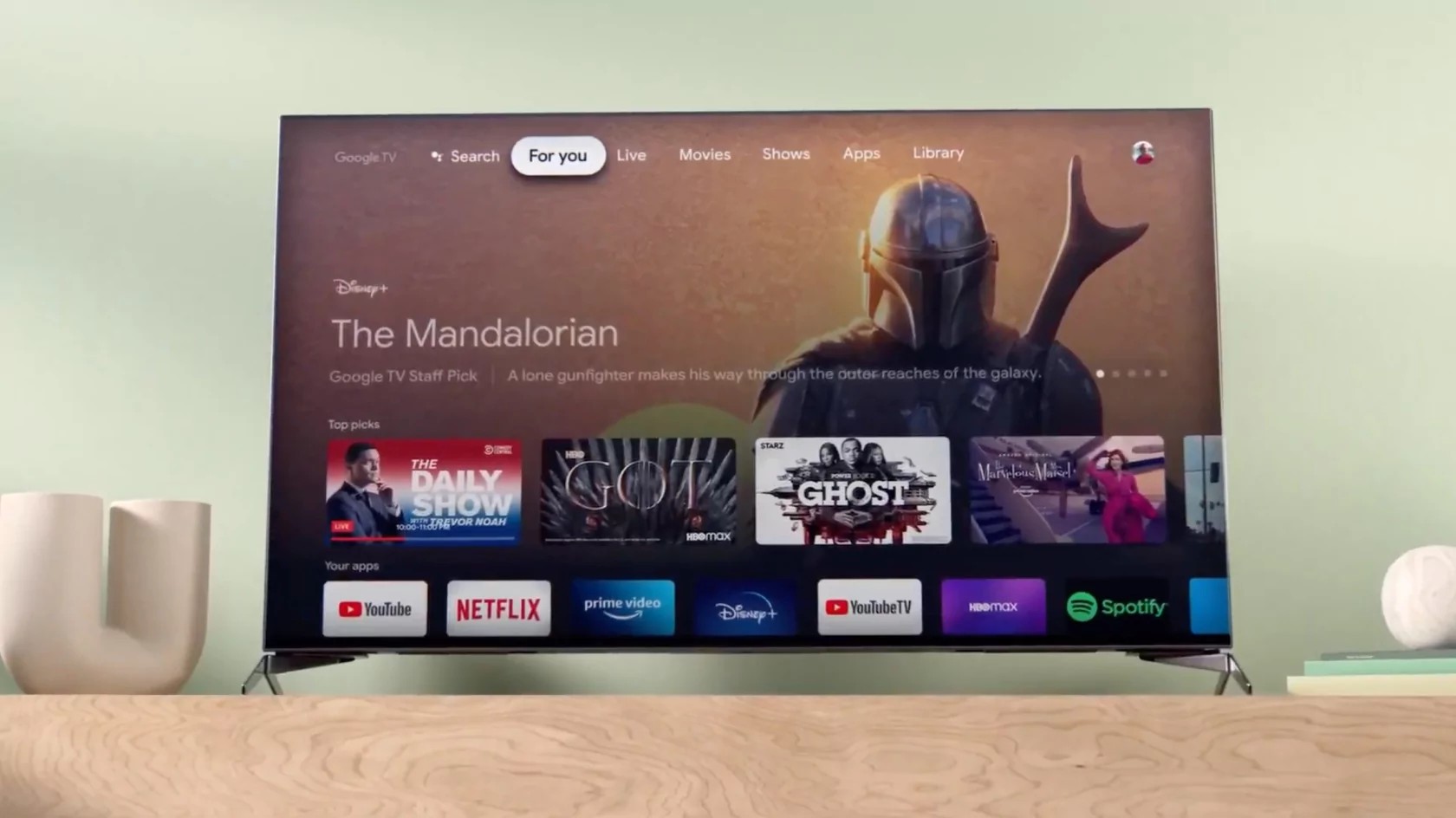
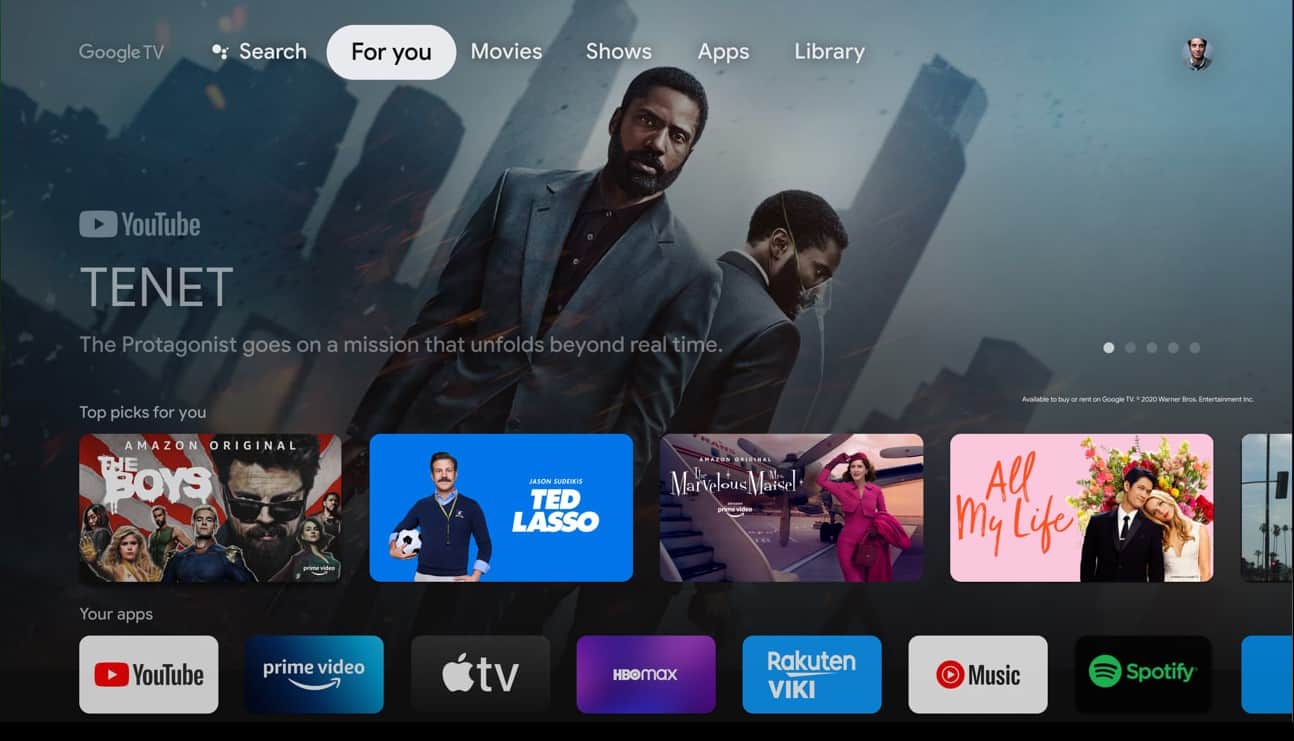
    Google TV is once again getting a design tweak. Following the addition of new landing pages last year aimed at simplifying navigation, the “For you” screen is now tackling the “Your apps” row, introducing several updates to make navigation easier and your overall viewing experience more enjoyable.

    The app icons on your Google TV are sporting a brand new look, with the old squares and rectangles gone and circular app icons replacing them. This change aims to give your home screen a more modern feel while also making it easier to locate your favorite applications.

    The update also adds a new shortcut that gives you direct access to free TV channels on Google TV. The platform added over 800 new fully-integrated free channels last year that included hit TV shows, game shows, music channels, various entertainment shows, and more — all without downloading additional apps or paying for a subscription.

    Now, you’ll have yet another way to access these channels, without having to click away from the “For you” section. For your convenience, a new shortcut to free channels will now be added to the “Your apps” row.

    Now that the app icons will be circular, they will take up less space. This opened the door for Google TV to expand the number of app icons visible in the “Your apps” row. You can quickly jump into more of your most-used apps without scrolling.

    You have always been able to rearrange the order of your apps, however, the process wasn’t exactly very user-friendly. Now, Google TV will feature “reorder” and “add app” buttons at the end of the “Your apps” row. This will allow you to take control of your app layout by moving your favorites to the front and seamlessly discovering and installing new apps to enhance your entertainment setup.

    These updates are rolling out over the next few months, so watch your Google TV screen for the transformation. With a sleeker design, easier access to content, and more user control, Google TV is continuously improving at putting your entertainment experience first.

  • Google Contacts could soon get a home screen widget that displays text messages

    Google Contacts could soon get a home screen widget that displays text messages

    Aside from the occasionally added new functionality, Google Contacts isn’t an app that is known for getting frequent updates. However, there is one update that is possibly on the way, which will add a nifty new home screen widget and a fresh user interface.

    By flipping a few developer flags in the app’s version 4.26, @AssembleDebug from TheSPAndroid was able to identify these changes. While these features are currently in the testing phase and there is no timeline currently available for deployment, we can get a sneak peek at what was found hidden in the code.

    The first noticeable change is the design change on the main Contacts screen. The familiar phone, email, and company icons will now be tucked away behind a three-dot menu. This change clears space for a brand new “+” icon in the search bar, allowing users to add contacts easier when on the go.

    Additionally, interacting with contact details like email and labels now opens a convenient bottom sheet for options instead of the traditional sidebar accessed by the hamburger menu. This new approach offers a cleaner, more intuitive way to navigate your contacts.

    But perhaps the most noticeable change is the addition of a widget that will allow users to see text conversations from selected contacts directly on their home screen. When the feature is rolled out to your device, you will need to grant the Contacts app the necessary permission to fully display your messages, since they will now be more easily accessible to prying eyes.

    As with many Google updates, especially ones that are still being tested and have yet to be announced, the rollout schedule is very TBD. Usually, updates such as these are reserved for Pixel feature drops. If all goes well and no significant bugs are found while testing, it is possible that we could see this roll out around April, but that is just some good old speculation on our part.

  • Google Chat adds helpful feature to help you pinpoint conversations relevant to you

    Google Chat adds helpful feature to help you pinpoint conversations relevant to you

    Google Chat is launching a new update that will make it even easier to navigate conversations within its in-line threaded spaces. Following last year’s transition to in-line threading, the latest update continues to improve on that functionality in order to boost productivity and efficiency for its users.

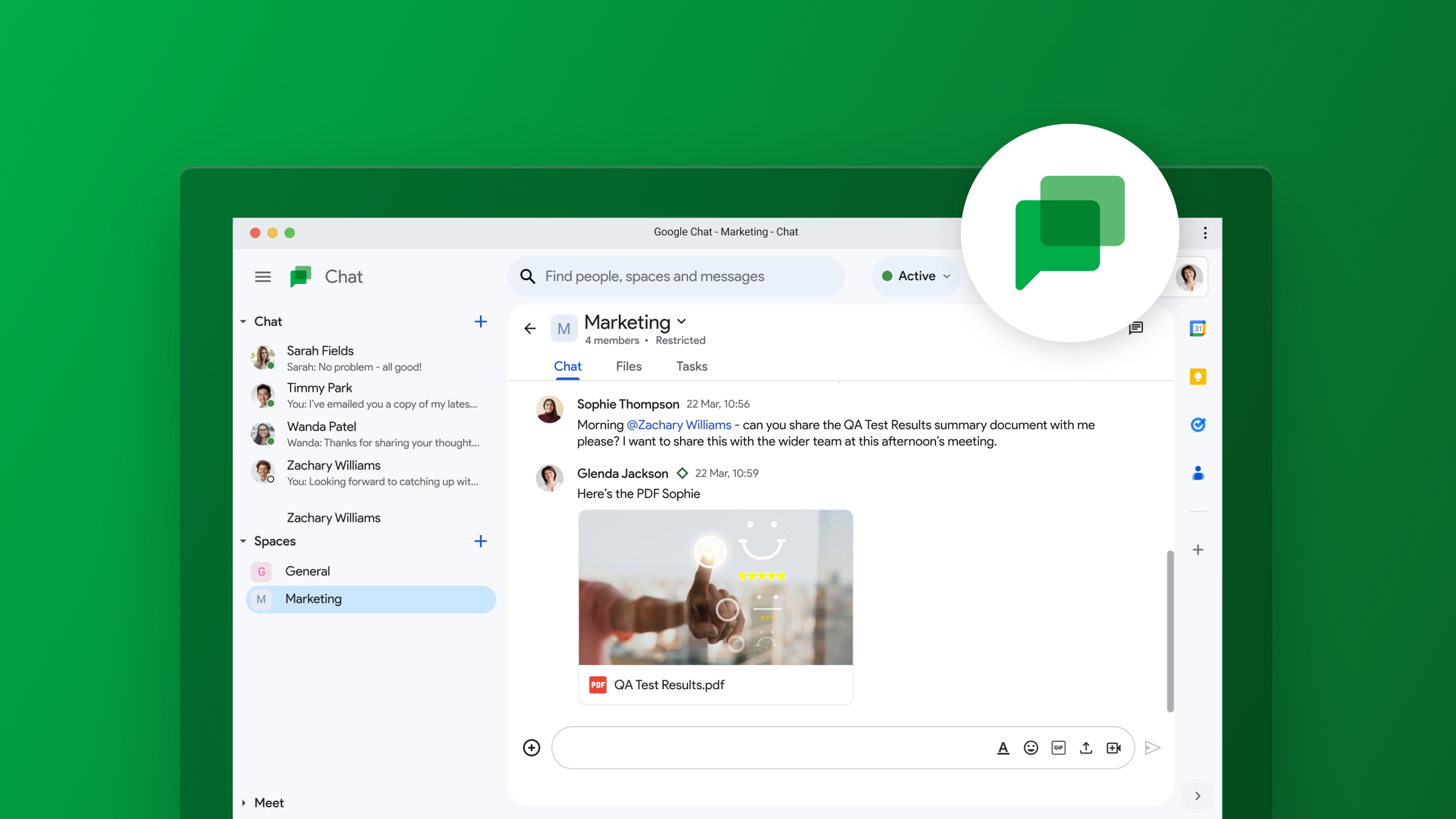
    With multiple threads running across different spaces, it can be time-consuming to figure out which messages need your immediate attention. The latest update from Google Chat makes it easier to keep track of conversations by showing participant avatars alongside unread threads in the conversation view.

    This feature allows you to quickly identify the participants in the conversation and determine if their comments are pertinent to you. You can now efficiently prioritize important threads without having to click on them for additional details.

    Google states that it recognizes that dealing with numerous threads across multiple spaces can be overwhelming and that this feature was introduced in order to give you more context upfront. The goal is that it will make it easier for you to prioritize and stay on top of the conversations that matter the most to you. This will ultimately help you stay organized and focused on what’s important.

    This feature is rolling out automatically and gradually for up to two weeks, starting today. For all Google Workspace users, including those with free personal Google accounts, it will be by default enabled on the web, Android, and iOS.

    Google has been steadily introducing improvements to Chat as it continues to compete with other established messaging platforms, such as Slack and Microsoft Teams, and aims to make Chat a more attractive option for businesses looking to improve collaboration and efficiency within their teams. The company hopes that this new feature will enhance productivity and streamline communication for users across all platforms.

  • Microsoft Copilot app can now be your next default assistant app on Android

    Microsoft Copilot app can now be your next default assistant app on Android

    Android users currently have a slew of options for choosing an assistant app on their devices. Where previously Google Assistant and Bixby were the ones that reigned, the rise of AI-powered chatbots saw these evolve as more than just text fields you can use on a browser. Currently, depending on the apps you have installed, you have fresh new options, and Microsoft’s Copilot is shaping up as one of them.

    As reported by Android expert Mishaal Rahman on X (Twitter), the newest beta version of the Microsoft Copilot app (v. 27.9.420225014) now gives you the ability to set it as your default assistant app. This makes the chatbot accessible from anywhere on your device with a simple swipe or button press.

    While this is a nice addition for Android users, don’t expect a seamless experience yet. Currently, activating Copilot mainly opens the app, meaning that it won’t immediately start listening like some other assistants, nor will it offer to analyze what is on your screen.

    However, this doesn’t mean that feature won’t be as helpful as Google Assistant or Bixby currently are, or perhaps even what Gemini could be. It’s still in beta, and Microsoft is likely to continue working on the app in order to make Copilot a truly integrated Android assistant. Microsoft has yet to officially announce this, but our guess is that by the time it moves on to the stable version of the app, more capabilities will be in tow.

  • Google announces new feature coming to Android TV in the US

    Google announces new feature coming to Android TV in the US

    Although Google is pushing a new experience to TVs powered by Android TV, the operating system is still getting updates that includes new features or improvements meant to refine it.

    If you live in the United States and use a device powered by Android TV, you’ll be happy to know that Google is now rolling out a new update that adds a brand-new quick-access row on the home screen.

    Over the next few weeks, Android TV users will be getting a new way to access their favorite entertainment content directly on the home screen. The new quick-access row is positioned below the Favorite Apps row and includes shortcuts to play what’s next, watch free live TV, as well as popular titles and what’s trending on Google.

    The quick-access row will make a big difference, as Android TV users will no longer have to jump from app to app to find the content they want to watch. Just keep in mind that it will take weeks for this to pop up on your Android TV device.

  • Google Docs, Slides and Sheets apps get new formatting sidebar on Android tablets

    Google Docs, Slides and Sheets apps get new formatting sidebar on Android tablets

    Google’s three apps that make writing and editing text such a breeze even on mobile devices, Docs, Slides and Sheets, have been updated earlier this week with a bunch of improvements to their comments system.

    Over the weekend, the search giant confirmed that another important update is making its way to Android users. All three apps, Docs, Slides and Sheets, are getting a new formatting sidebar that reduces the number of taps needed to navigate to formatting options.

    Basically, you’ll be able to arrange text, tables, images and more, much easier than before. The new formatting sidebar will be rolled out to Android tablets at the beginning of the next month, Google announced in a blog post.

    According to the Mountain View company, the update will be released to Scheduled Release domains on March 6, while users enrolled in the Rapid Release domains should already be able to take advantage of the new formatting sidebar on their Android tablets.

    It’s important to add that the new feature is available to all Google Workspace customers, Google Workspace Individual subscribers, and users with personal Google accounts. So, just about everyone who uses Google’s Docs, Slides, and Sheets apps.

    In related news, Google announced that its Slides apps is getting another new feature that will allow users to easily drag and drop an image to replace the background in the app.

    This feature is currently rolling out to Rapid Release domains and should be launched to Scheduled Release domains on February 26. It will be available to all Google Workspace customers, Google Workspace Individual subscribers, and users with personal Google accounts.

  • Google Messages cool animated background “Screen Effects” now available to the app’s beta testers

    Google Messages cool animated background “Screen Effects” now available to the app’s beta testers

    A new feature has been added to Google Messages that really drives home the point that you’re trying to make with a text message. Called Screen Effects, it delivers animation in the background of a message when certain phrases are sent or received. The animation takes up the entire background, and while the feature has only a small number of trigger phrases at the moment, you can only see this in action if you are a beta tester for the Google Messages app.

    Luckily, I am a beta tester for Google Messages so Screen Effects works for me. For example, I texted the phrase “I Love You” and hearts appeared in the background until a dove flew north leaving a white trail which became the regular background for the app. The entire animated effect ran for about 10 seconds. If you type “Sounds good,” multiple giant thumbs up appear all over the background.

    Google says that there are more than 15 phrases that trigger a Screen Effect on Google Messages and they work whether you are messaging another Android-toting RCS user, or an Android user connected to the SMS platform using a non-RCS messaging app. If Screen Effects is too much for you (and granted, they are not for everyone), we’d love to tell you how to disable it on the app. Except that you cannot disable the feature.

    If Google is still accepting users to be beta testers for Google Messages, go to the Play Store listing for the Google Messages app, choose “Become a Tester,” and follow the instructions. Back in the day when I used Android as my daily driver 99% of the time, I made sure to become a beta tester for core Google apps because you’re sure to get a head start on receiving new features like Screen Effects.

    The Play Store listing for Google Messages will also let you know if you’re already a beta tester for the app. On the listing, if you are already registered as a beta tester for Google Messages, you’ll see a paragraph with the heading, “You’re a beta tester.”